
Vehicle types
Adding and Customizing Vehicles in TEQ
TEQ allows you to add, customize, and manage your fleet so vehicles are accurately represented in the system. This ensures correct pricing, efficient planning, and a better overall customer experience.
Step 1: Access Vehicle Settings
Go to Settings → Vehicles.
From here, you can:
- View all existing vehicles
- Add new vehicles to your fleet

Step 2: Define Vehicle Types
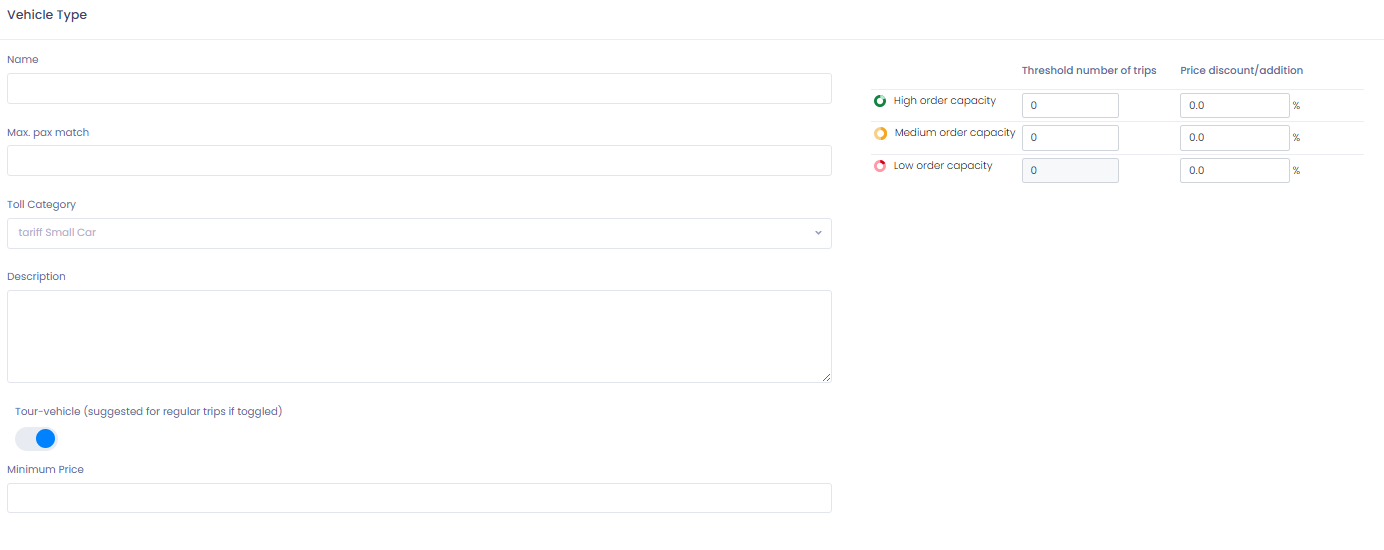
Open the Vehicle Types tab.
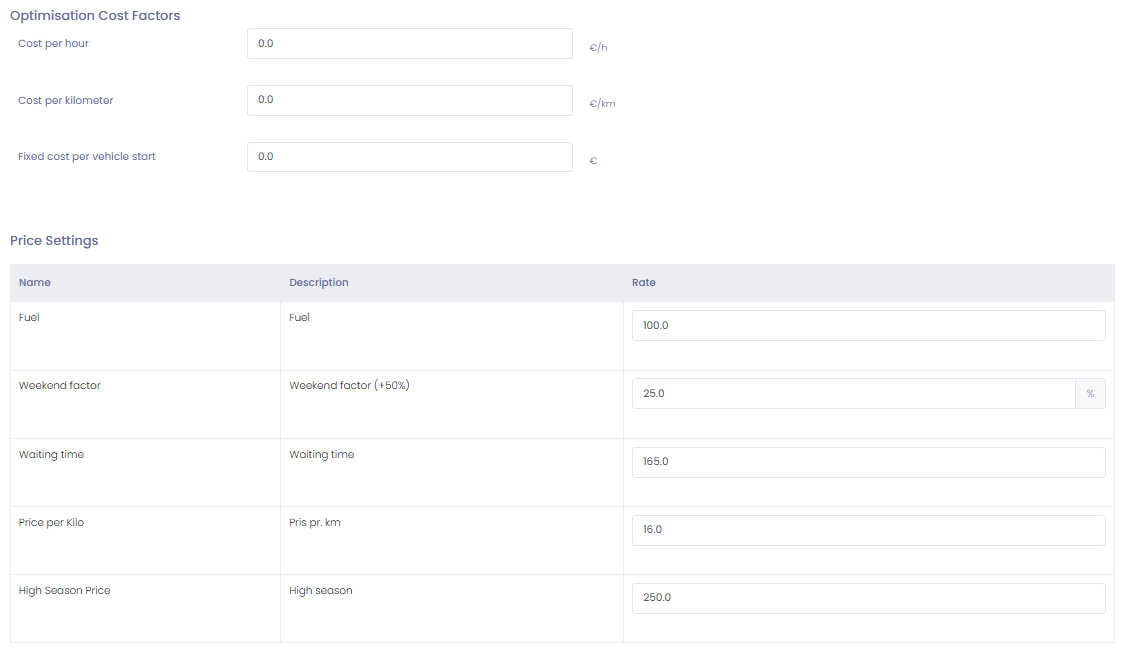
For each vehicle type, you can define:
- 👥 Passenger capacity
- 💵 Pricing rules specific to that vehicle type
Setting individual price options per vehicle type ensures more accurate pricing calculations and better cost control.
Step 3: Customize Vehicle Attributes
For each vehicle, you can add additional attributes to improve planning and selection accuracy:
- 🎨 Color
- 🎀 Decorations
- 🚦 Vehicle state (condition or status)
- 🏷️ Category
These details make it easier for planners to select the most suitable vehicle for each trip.
💡 Tip: Want to get even more value from your fleet? Learn how vehicle availability is visualized by reading the Capacity Indicator article.
Step 4: Add vehicles based on vehicle types
Once the vehicle types are set up, you can add individual vehicles using them.
Go to Planning → Vehicles.
Here you will see a list of all registered vehicles. To add a new one:
- Click ➕ New vehicle
- Fill in the required details, including:
- Registration number
- Vehicle name
- Garage location (used in quotes)
- Number of seats
- Assigned vehicle type
You can also open existing vehicles to:
- View the vehicle calendar
- See how the vehicle is scheduled over time
💡 Tip: For optimal utilization of your vehicle fleet, combine clearly defined vehicle types with the Capacity Indicator feature to get a real-time overview and avoid overbooking.
Troubleshooting
Vehicle not appearing in planning
- Confirm the vehicle is set to active
- Verify it is assigned to the correct department or garage
Pricing not calculated correctly
- Check that the vehicle type has pricing rules configured
- Ensure the trip uses the correct vehicle type
Attributes not saving
- Make sure you click Save after editing the vehicle
- Refresh the page and verify changes were applied
- If issues persist, contact TEQ Support with the vehicle name and a screenshot for faster resolution.