
EDI Export
EDI Export – Company & Cost Center Configuration
The EDI export in TEQ supports configurable company numbers and cost centers, allowing each Business Profile to adapt export content to match its own accounting or ERP setup. This ensures cleaner integrations, consistent cost allocation, and fewer manual adjustments after export.
Step 1: Open EDI Accounting Settings
- Go to Settings → Company → Billing Profile
- Select the Business Profile you want to configure
- Scroll to the Accounting section (EDI-related settings)
Step 2: Set the Company Number
Each Business Profile can define its own company number for EDI exports.
- Locate the Company Number field
- Enter the company number used in your accounting or ERP system
- Click Save
This company number will now be included in all EDI export files generated for this Business Profile.
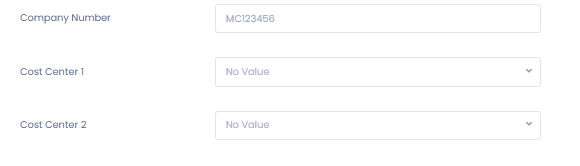
Step 3: Configure Cost Centers (R1 / R2)
The EDI export supports two configurable cost center fields:
- R1 → Cost Center 1
- R2 → Cost Center 2
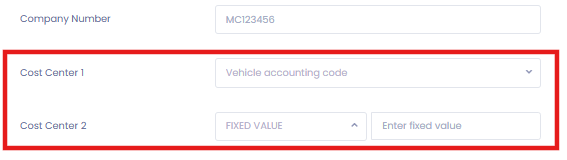
For each field, you can choose how the value should be populated using dropdown options.
Available configuration options
- 🚫 No value – leaves the cost center empty in the export
- 🧾 Fixed value – uses the same static value for every export
- 🚍 Vehicle accounting code – pulls the value from the vehicle setup
- 🏢 Department name – exports the department name as the cost center
How to configure
- In Billing Profile → Accounting, locate the R1 and R2 dropdowns
- Select the desired option for each field
- If Fixed value is selected, enter the value in the input field
- Click Save to confirm
How the Logic Works During Export
When you run an EDI export, TEQ automatically applies the configured logic:
- The Company Number is always taken from the selected Business Profile
- R1 / R2 are populated based on your configuration:
- 🚍 Vehicle accounting code → taken from the vehicle assigned to the trip
- 🏢 Department name → taken from the department on the order/trip
- 🧾 Fixed value → the same value appears on all exported lines
- 🚫 No value → the field is left empty in the export file
This ensures every EDI file aligns with your internal accounting structure without manual editing.
🛠 Troubleshooting
Company number missing in export
- Ensure the Company Number field is filled in for the correct Business Profile
- Confirm you saved the Billing Profile after making changes
Cost centers not populated
- Check the R1 / R2 dropdown selections in the Accounting section
- Verify vehicle accounting codes are set if using vehicle-based logic
Wrong department appearing as cost center
- Confirm the correct department is assigned to the order or trip
- Check that “Department name” is selected for R1 or R2
Different Business Profiles exporting incorrect values
- Make sure you configured the Accounting settings on the correct Business Profile
Still having trouble?
- Contact TEQ Support with the Business Profile name, export timestamp, and a sample EDI file.