
Invoicelog
Viewing the Invoice Log in TEQ
TEQ provides a built-in Invoice Log so you can easily track all invoice-related actions such as invoices sent, credited, paid, and the users who performed these actions. The log is available for both normal trips and fixed trips.
Normal Trips
Step 1: Open the Order Window
- Navigate to Sales → Orders.
- Select the order you want to review.
Step 2: View All Invoice Events for the Order
Inside the order window, locate the Activity Log.
- Hover your mouse over the 💲 money icon to view all invoice events linked to the order.
This includes: - Sent invoices
- Paid invoices
- Credited invoices
- The user who performed each action
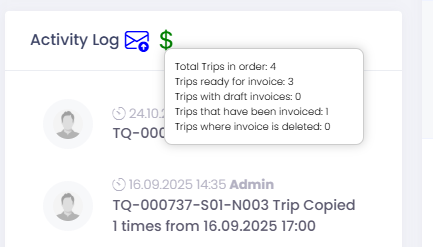
Step 3: View Invoice Events for a Specific Trip
In the trip table within the order:
- Find the Invoice column.
- Hover over the checkmark icon or invoice number to see invoice events related specifically to that trip.
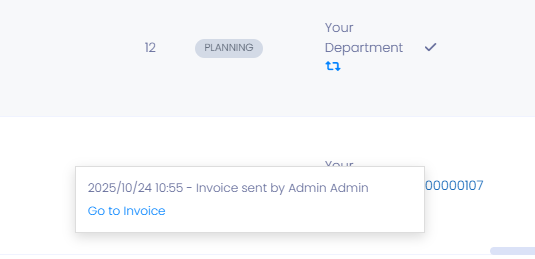
Step 4: Open the Full Invoice Details
For detailed invoice information:
- Click on the Go to invoice link in the invoice event hover window.
- A new window will open displaying all invoice details, including:
- Line items
- Pricing
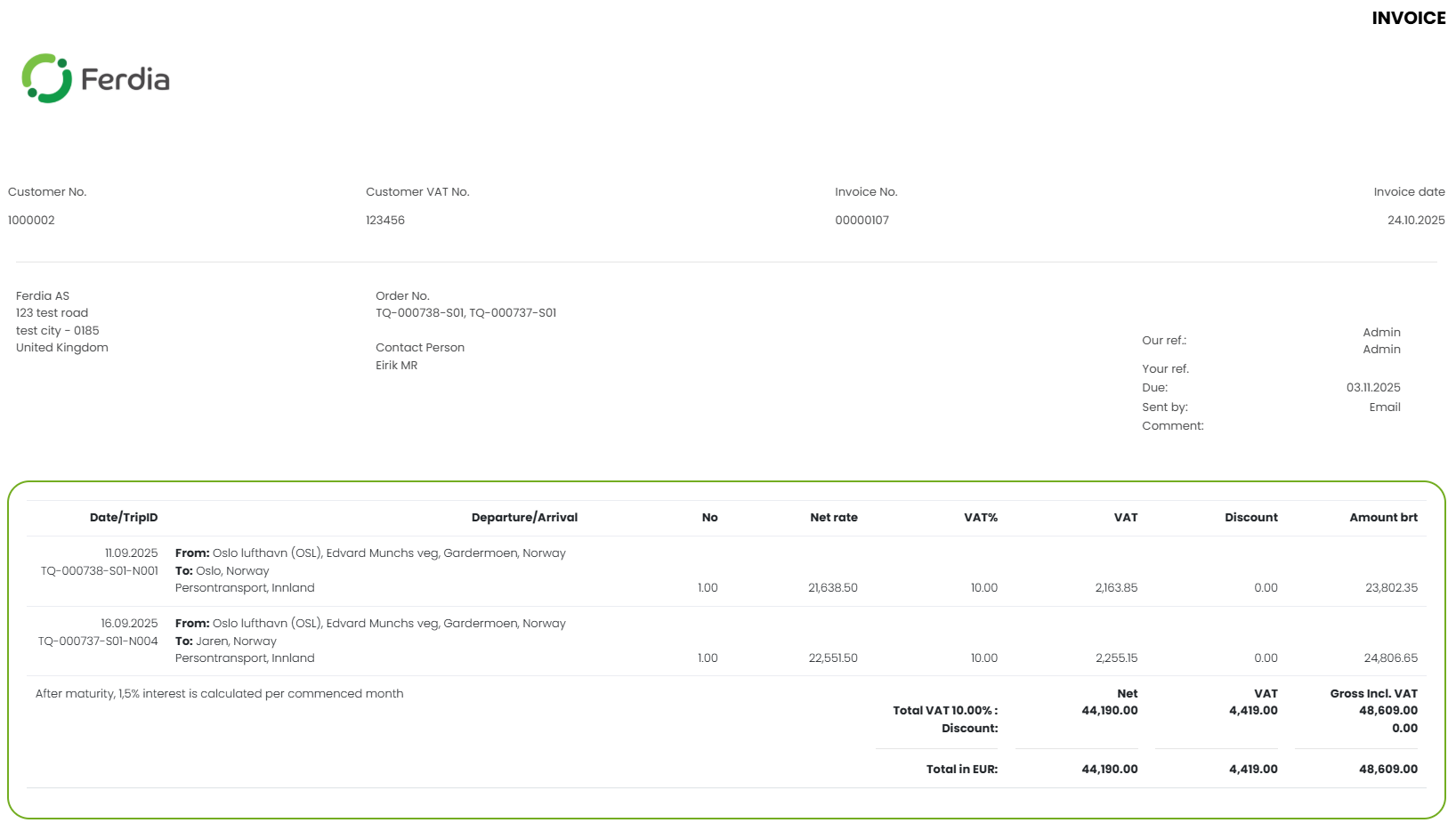
Fixed Trips
Step 1: Open the Fixed Trip Shift
- Go to Sales → Fixed Trips.
- Find the shift/order you want to inspect.
- Click Edit.

Step 2: View the Invoice Log
Inside the fixed trip window:
- Hover over the 💰 money icon in the Activity Log to see all invoice-related events for that fixed trip.
This includes:
- Sent invoices
- Credited invoices
- Paid invoices
- User responsible for the action

🛠 Troubleshooting
I don’t see the money icon in the activity log
- The order or shift may not have any invoice activity yet.
The ‘Go to invoice’ link is missing
- Ensure an invoice has actually been created for that trip.
- Check Worklist or Invoice History to confirm invoice status.
Invoice events aren’t showing for specific trips
- Verify that the trip has been fully completed and marked as ready for invoicing.
Not all users can view the invoice logs
- Permission restrictions may apply.
Check Settings → Admin → User Roles to ensure users have access to invoicing and order details.
Still having issues?
- Reach out to TEQ Support with screenshots and order/trip IDs for faster assistance.