
Garage and Departments
Creating Garages and Departments in TEQ
Garages and departments help you structure your organization inside TEQ. By setting them up correctly, you ensure accurate planning, invoicing, user permissions, and resource management across your company.
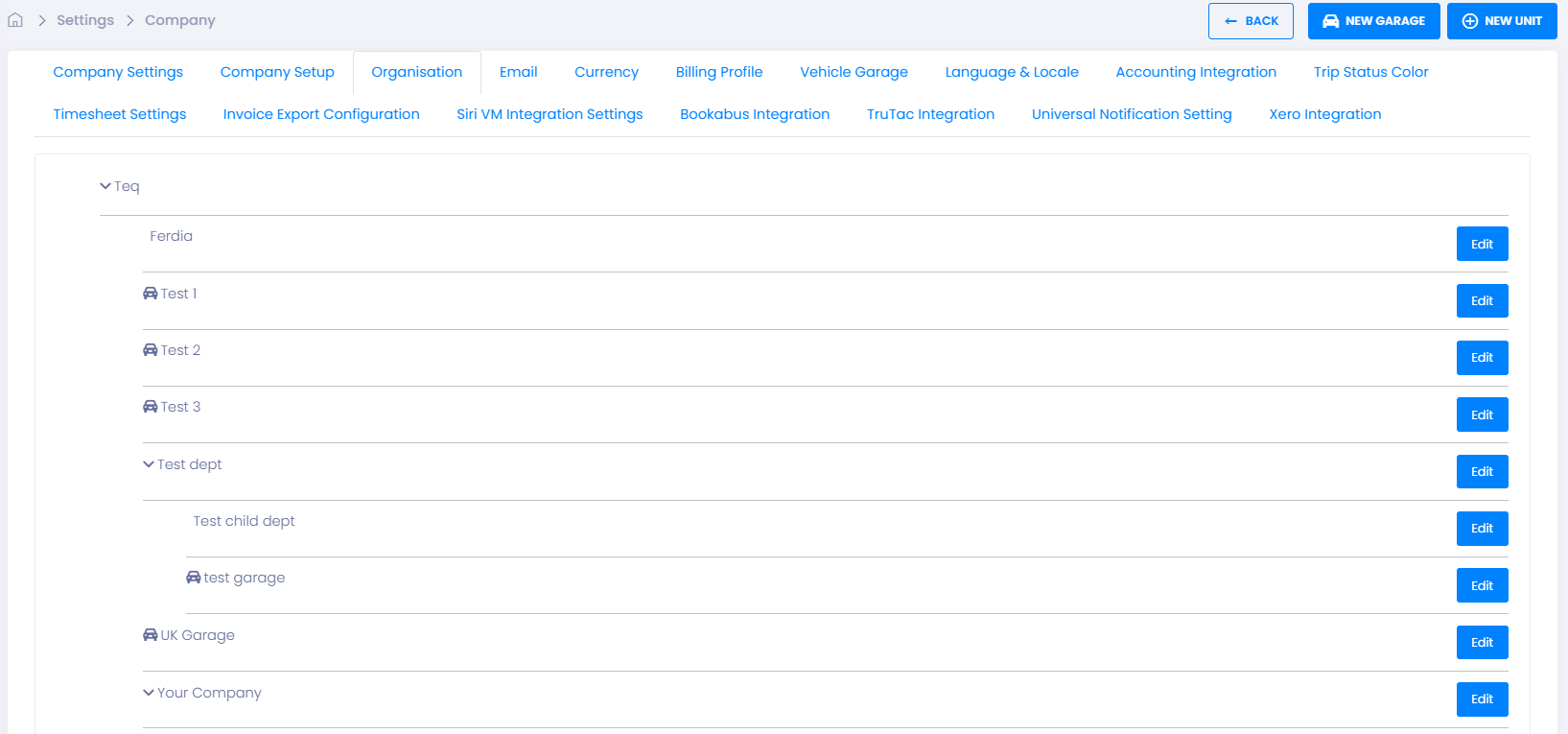
Step 1: Create a New Garage
- Go to Settings → Company → Organisation.
- You’ll see a list of your existing departments and garages.
- Click ➕ New Garage.
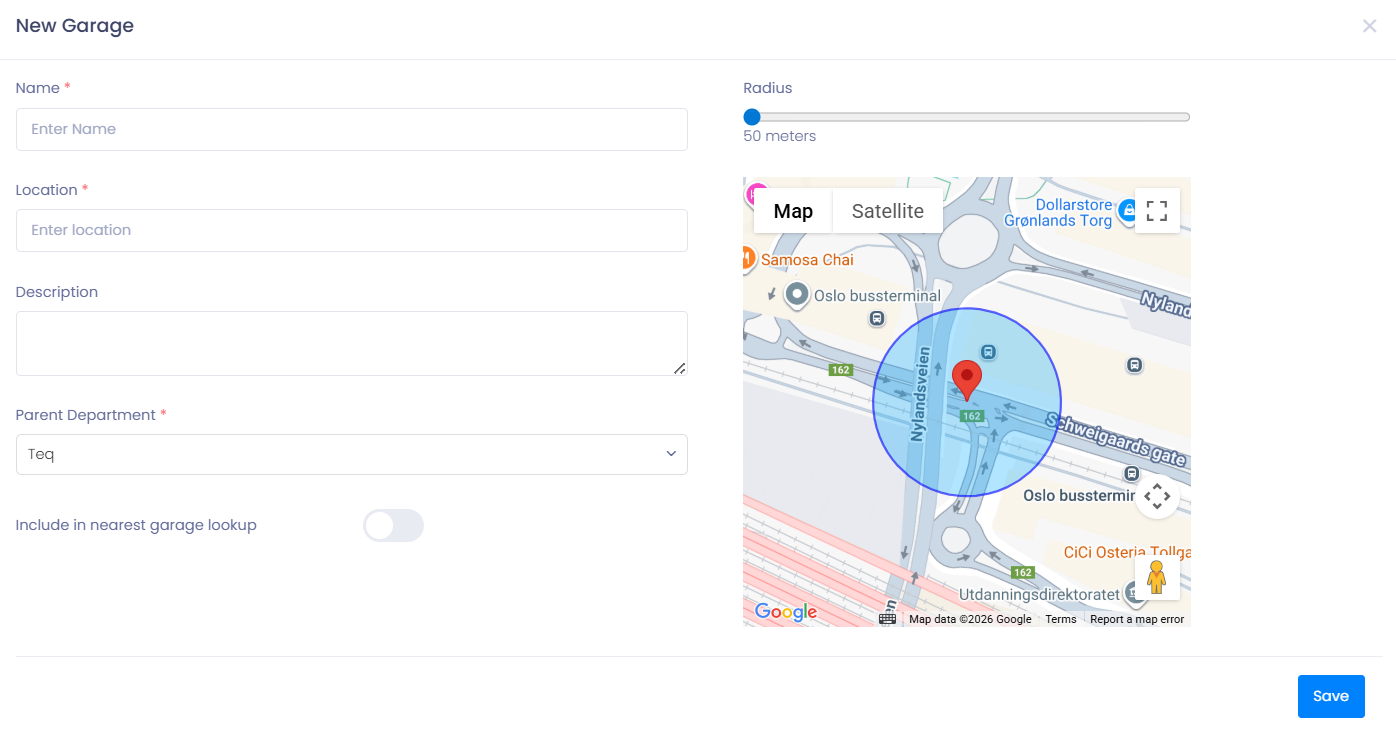
- Fill in the required fields:
- 📍 Address (used for correct route planning and garage radius detection)
- 🏷️ Garage name
- 🌍 Garage arrival radius (automatically logged when drivers return)
Step 2: Create a Department
Departments help you manage employees, routes, invoicing, and internal reporting.
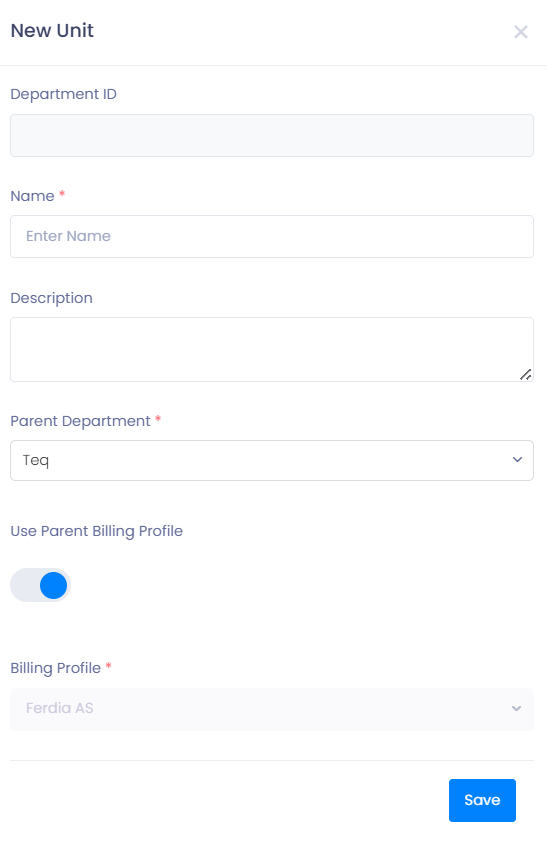
- In the same Organisation screen, click ➕ New Unit.
- Enter the department details:
- 🏷️ Department name
- 📖 Description (optional)
- 📁 Main department (parent structure)
- 🏢 Business Profile it should belong to
- Click Save.
Step 3: Link Garages to Departments
After creating your garages and departments:
- Open a garage from the Organisation list.
- Assign it to the correct department.
This ensures:
- Correct grouping of vehicles
- Accurate reporting
- Correct department selection in quotations and orders
💡 Tip: Match departments to your real organizational structure—Sales, Charter, School Routes, etc.—to make permissions and invoicing easier to manage.
🛠 Troubleshooting
Garage not appearing when creating orders
- Confirm that the garage is linked to a department.
- Ensure your user has permission to view that department.
Department not showing in dropdown menus
- Verify the department is active.
- Make sure it’s connected to the correct Business Profile.
Drivers or vehicles not appearing under the correct department
- Check the employee or vehicle card to ensure the department is assigned correctly.
Query form assigning wrong department
- Confirm the Department ID in the query form URL matches the one in the Organisation settings.
Still having trouble?
- Contact TEQ Support with your company name and the garage/department ID for faster resolution.