
Re-add invoice to worklist
Restoring a Deleted Invoice from the Worklist
If an invoice was removed from the Worklist by mistake, TEQ allows you to quickly restore it without recreating the entire invoice manually. You can recover it directly from the related trip in the Trips List.
Step 1: Open the Trips List
- Navigate to Planning → Trips List.
- Search or filter for the trip linked to the deleted invoice.
- 🔎 You can search by Trip ID, Order ID, date, or customer.
Step 2: Select the Trip
- Locate the correct trip in the list.
- Tick the checkbox or click to select the trip row.
Step 3: Send the Trip Back to the Worklist
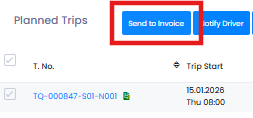
- Click the Send to Invoice button located above the trip list.
- TEQ will automatically recreate the invoice draft.
📥 The restored invoice will now appear in Invoice → Worklist.
🛠 Troubleshooting
The trip does not appear in the Trips List
- Check the filters (date, department).
- Ensure the order is still active and not archived.
- Verify user permissions under Settings → Admin → User Roles.
Send to Invoice button is disabled
- Confirm the trip is not already invoiced.
Restored invoice not showing in Worklist
- Refresh the page.
- Check Worklist filters (date, customer).
Linked data appears incorrect or missing
- Verify trip information (price, item codes, VAT) in the order window.
- Editing trip details may affect the recreated invoice.
Still having issues?
- Reach out to TEQ Support with screenshots, trip ID, and approximate date of the deleted invoice.