
Price and Salary
Setting Up Pricing in TEQ
TEQ allows you to build a flexible and transparent pricing structure by combining base pricing with dynamic variables. Pricing is configured in two main areas:
- Price Calculator → Defines your base pricing logic
- Variables → Automatically adjust prices based on time, demand, or location
Together, these tools ensure your pricing aligns with both operational costs and business strategy.
Step 1: Configure the Price Calculator
- Go to Settings → Price and Salary.
- Open the Price Calculator tab.
- Enter your desired values in the available fields.
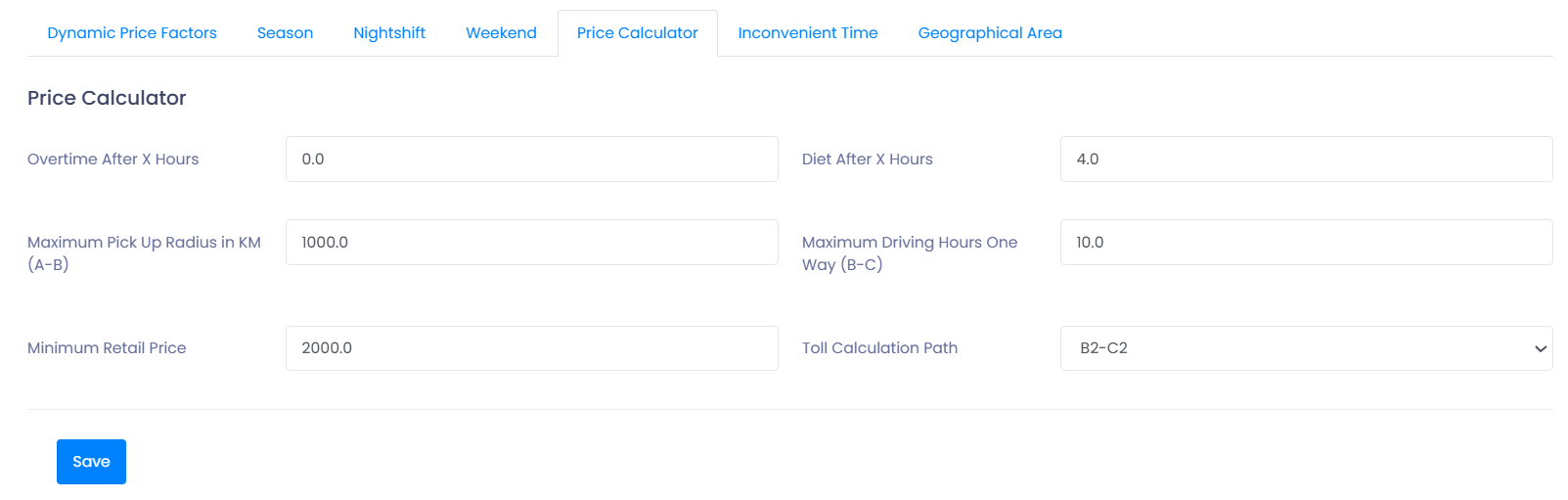
Available Options
- Minimum Price
- Set a base fare that applies to every trip (e.g. 2000 NOK), regardless of duration or distance.
- Tolls
Choose when toll costs are added: - 🚍 From the moment the bus leaves the garage
- 🧑🤝🧑 From the first customer pickup
- Overtime
- Define when overtime pricing begins (based on time or duration).
💡 Tip: The Price Calculator is fully customizable and forms the foundation of all trip pricing.
Step 2: Add Variables
Variables allow TEQ to automatically adjust prices based on predefined conditions.
- Go to Settings → Price and Salary.
- Open each Variable and configure how it should affect pricing.

Common Variable Types
- 🌞 Seasonal pricing
Adjust prices for holidays or peak travel periods. - 🌙 Night shifts
Apply higher rates for late-night or overnight trips. - 📅 Weekends
Add surcharges for Saturdays and Sundays. - ⏰ Inconvenient time
Set special pricing for urgent, short-notice, or high-demand hours. - 📍 Location-based pricing
Apply pricing rules for trips within a specific radius or geographical area.
Step 3: Build a Custom Pricing Model
By combining the Price Calculator and Variables, you can:
- Apply fixed base fares with automatic adjustments
- Reflect demand patterns and operating hours
- Ensure correct pricing for night, weekend, or urgent trips
- Compensate drivers fairly for off-peak or special assignments
👉 For advanced setups, see the related article: Dynamic Price Factors
🛠 Troubleshooting
Pricing not applied as expected
- Verify that the Price Calculator values are saved.
- Check that the relevant variables are active and correctly configured.
Tolls not included in trip price
- Confirm whether tolls are set to apply from garage departure or first pickup.
- Check that the trip route includes toll roads.
Night or weekend pricing missing
- Ensure the trip time falls within the defined night or weekend period.
- Verify the variable is enabled for the correct trip type.
Location-based pricing not triggering
- Confirm the trip starts, ends, or passes through the defined radius.
- Check that the correct geographical area is selected.
Still experiencing issues?
- Contact TEQ Support with the trip ID and pricing setup details for faster assistance.