
Templates
How to Update Customer Emails in TEQ
TEQ allows you to fully customize the emails, pages, and PDFs sent to your customers. Ensuring they reflect your company’s branding, tone, and visual identity.
Step 1: Open the Billing Profile Settings
- Go to Settings → Company.
- Click Billing Profile.
- Select the correct billing profile from the list.
- Click Customize templates.

Step 2: Edit Templates
Inside the customization area, you can modify:
- Global Content
- Emails
- Pages
- PDFs
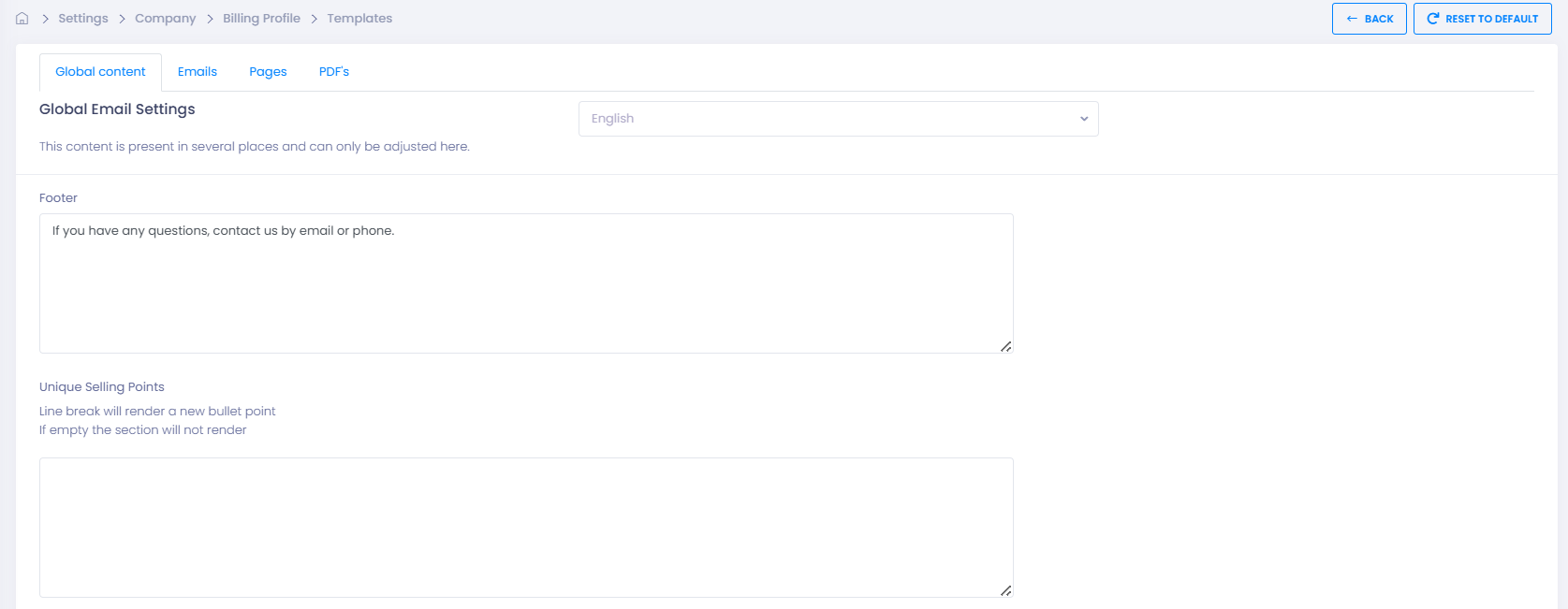
You can:
- 🎨 Adjust colors to match your brand
- ✍️ Edit text to reflect your company’s voice
- 🔘 Change button text for clarity and consistency
💡 Tip: Always use the Preview button to check your changes before saving.
Step 3: Advanced Branding (Optional)
If you want full control over design:
- Upload a custom CSS file to style the external query form
- Apply advanced layout and branding beyond the built-in TEQ options

Step 4: Save and Confirm
- Click Save to apply your changes.
- Use Preview to ensure everything displays correctly.
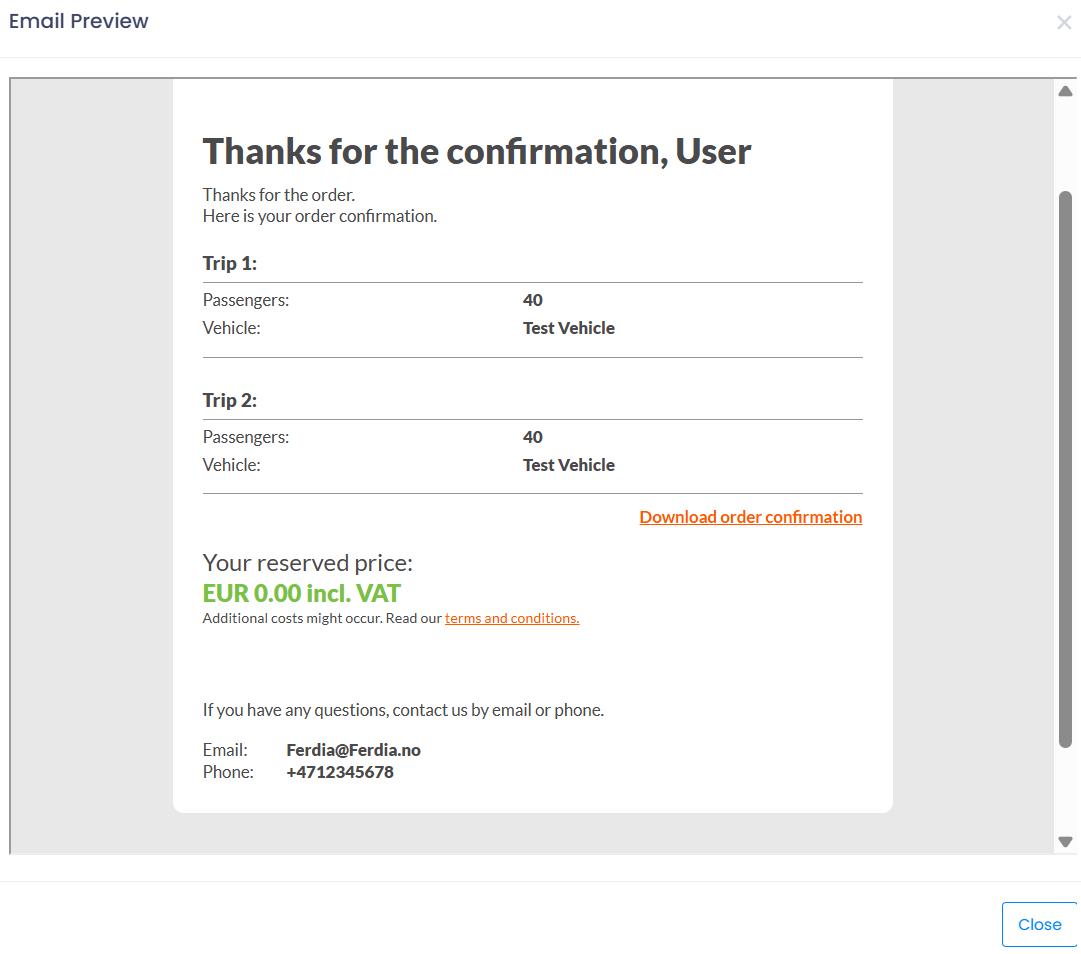
Your updated branding will now appear in:
- Customer emails
- Templates and pages
- PDFs generated by TEQ
🛠 Troubleshooting
Changes not saving
- Ensure you clicked Save after editing.
- Try refreshing the page.
- Check if your user role has permission to edit Billing Profiles.
Preview not showing updates
- Clear your browser cache.
- Make sure you are editing the correct template type (Emails vs. Global Content).
Incorrect branding appearing
- Confirm you’re modifying the correct Business Profile template.
- Check if multiple Billing Profiles exist and ensure you’re editing the correct one.
Custom CSS not applying
- Verify that the CSS file contains valid syntax.
- Ensure that the query form you are viewing is linked to the Billing Profile where the CSS is uploaded.
Still having trouble?
- Contact TEQ Support with screenshots and the Billing Profile name for faster resolution.