
Invite to BusBusiness
Inviting Customers to the BusBusiness Portal
You can invite your customers to use the BusBusiness portal, giving them direct access to view bookings, manage trips, and invite additional users within their organization.
Step 1: Access Customer Settings
- Go to Sales → Customers in TEQ
- Select the organization customer you want to invite
⚠️ Important: BusBusiness is not available for customers marked as Private.
Step 2: Invite a Contact Person
- Open the customer’s Customer Card
- Go to the Contact Persons tab
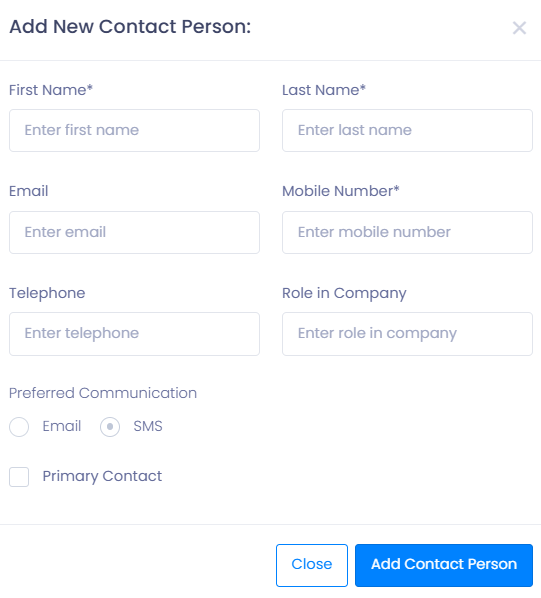
- Select an existing contact person, or add a new one
- Choose the person who will act as the BusBusiness Super User
- Click Send Invitation
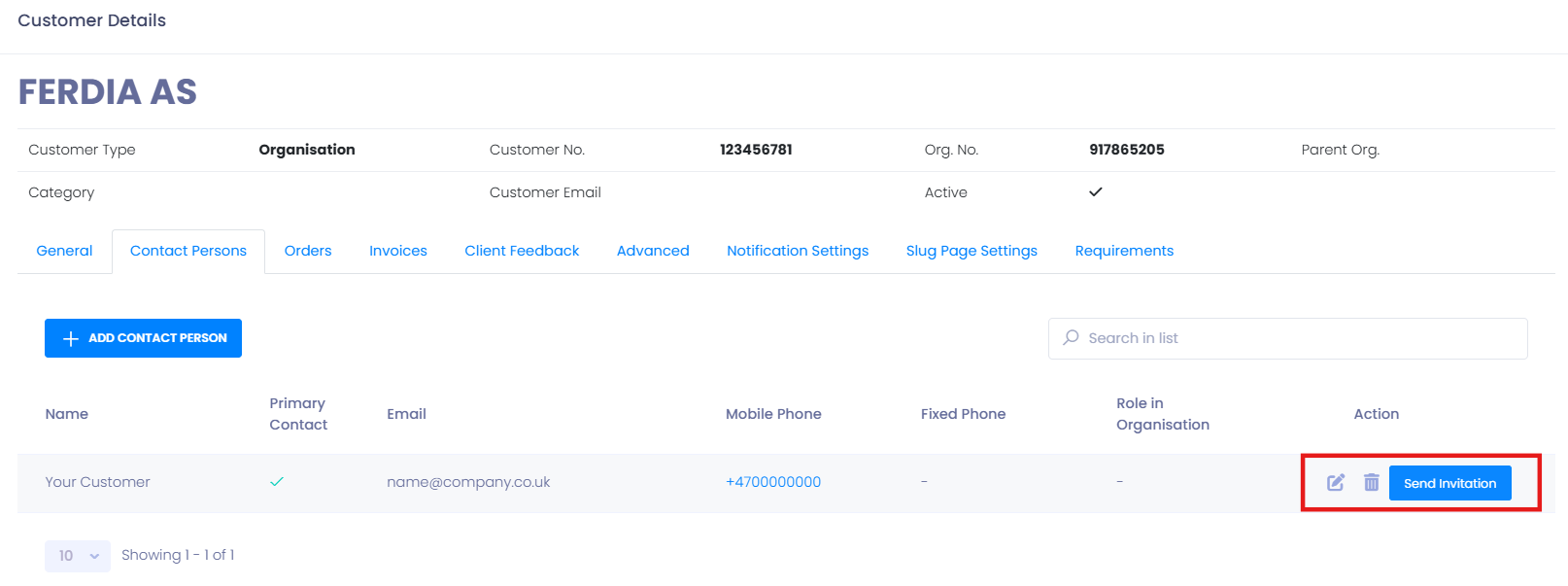
The invited person will receive an email invitation and gain access to the BusBusiness portal.
💡 Tip: The Super User can invite additional users directly from within the BusBusiness portal.
Step 3: Add or Update Contact Persons
If no contact person exists on the customer card:
- Add a new contact person first
- Then send the BusBusiness invitation
You can also:
- Resend an invitation if it was missed
- Invite a different contact person if responsibilities change
Step 4: Share the BusBusiness Portal Link
To ensure smooth onboarding, share the portal link with your customer:
This is especially helpful if the recipient is unfamiliar with BusBusiness or needs quick access.
🛠 Troubleshooting
Invitation email not received
- Ask the contact person to check spam or junk folders
- Verify the email address on the customer card is correct
- Use Resend Invitation if needed
Send Invitation button not visible
- Confirm the customer is marked as an Organization, not Private
- Ensure at least one contact person is added
Customer cannot log in
- Confirm the invitation has been accepted
- Ask the Super User to invite the user again from the portal
Still having trouble
- Contact TEQ Support with the customer name and contact email for assistance