
Airport Trips, Holiday Calendar & Trip Types
Managing Airport Trips, Holiday Calendar & Trip Types in TEQ
TEQ helps you handle special trip logic and pricing adjustments by letting you configure Airport Trips, Holiday Calendars, and Trip Types. These settings improve planning accuracy, communication, and pricing consistency.
Step 1: Set Up Airport Trips
Adding commonly used airports allows TEQ to automate airport-specific communication and make airport trips easier to manage.
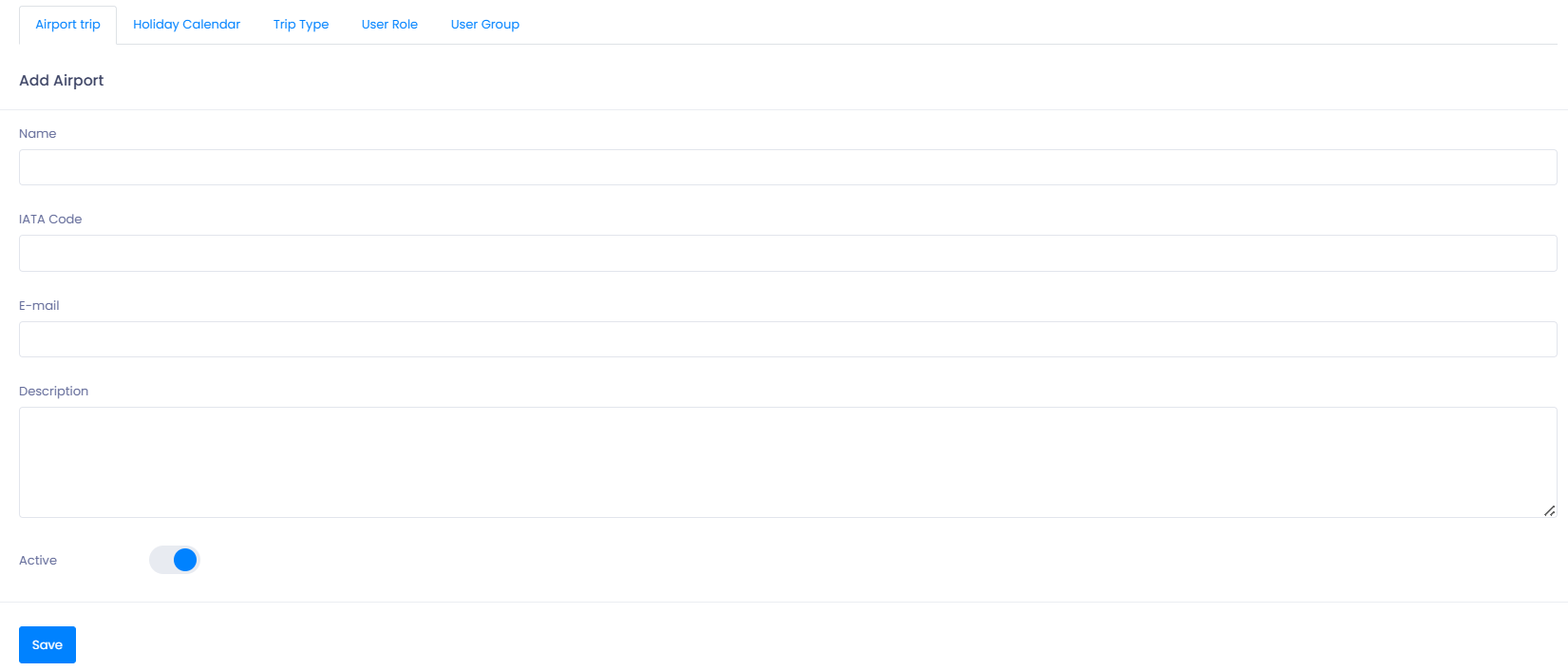
- Go to Settings → Admin → Airport Trip.
- Review existing airports or click ➕ Airport to add a new one.
- Enter the required details:
- ✈️ Correct IATA code
- 📧 Airport contact email
- Click Save.
Using Airport Trips
When a trip is marked as an Airport Trip:
- A red plane icon appears on the trip, indicating an airport email can be sent.
- Once the email is sent, the icon turns green, confirming successful delivery.
This helps ensure timely communication with airport contacts.
Step 2: Configure the Holiday Calendar
The Holiday Calendar ensures pricing accuracy by accounting for holidays and non-working days.
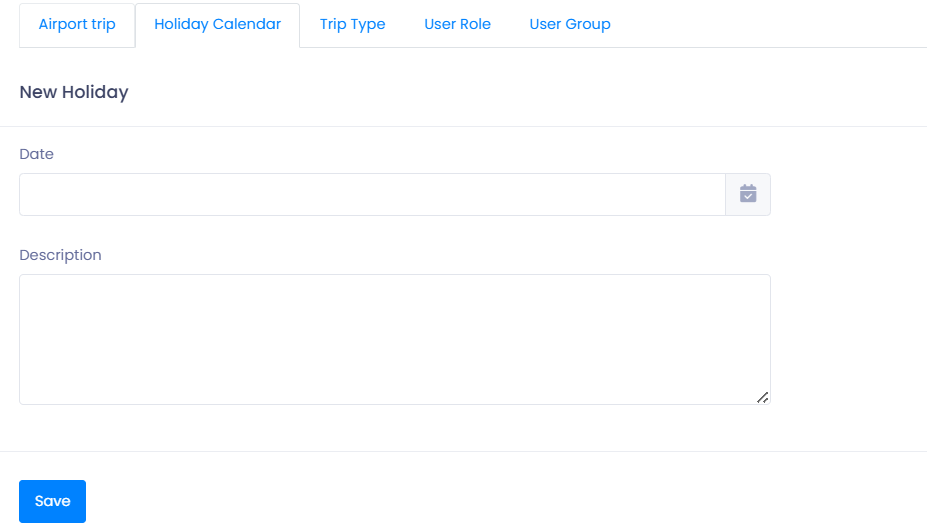
- Go to Settings → Admin → Holiday Calendar.
- Click ➕ New Holiday to add a holiday manually.
- Enter:
- 🏷️ Holiday name
- 📅 Holiday date
- Click Save.
Uploading a Full Calendar
- Click Actions → Upload calendar to import a full year at once.
- Download the sample file first to ensure correct formatting before uploading.
💡 Tip: Keeping the holiday calendar updated ensures correct application of holiday pricing rules.
Step 3: Managing Trip Types in TEQ
Trip Types help you organize, categorize, and quickly identify different kinds of trips during planning. They are used across both Normal Trips and Fixed Trips, making planning clearer and more efficient.
Open Trip Type Settings
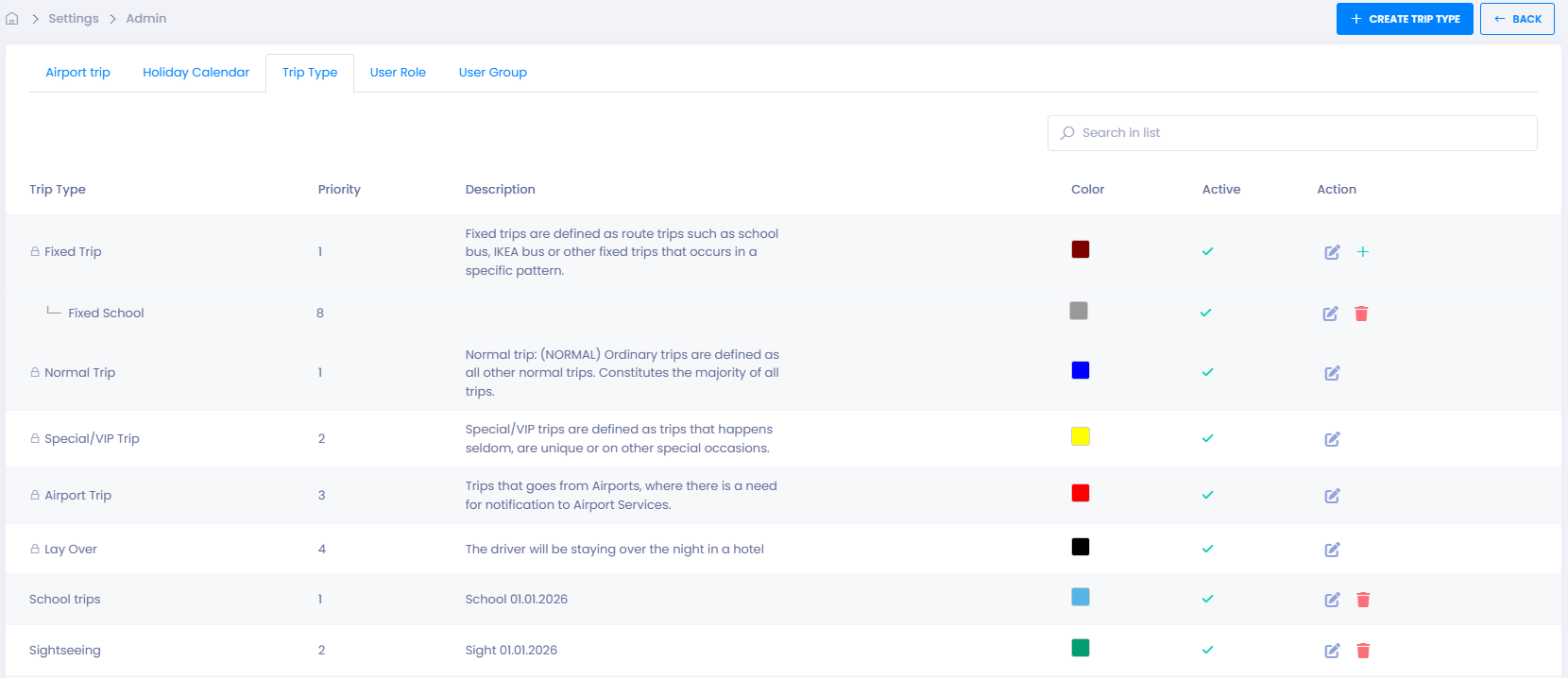
- Go to Settings → Admin → Trip Type
- You will see a list of available trip types
Understand Default Trip Types
TEQ includes 5 default trip types that are:
- 🔒 Locked (cannot be deleted)
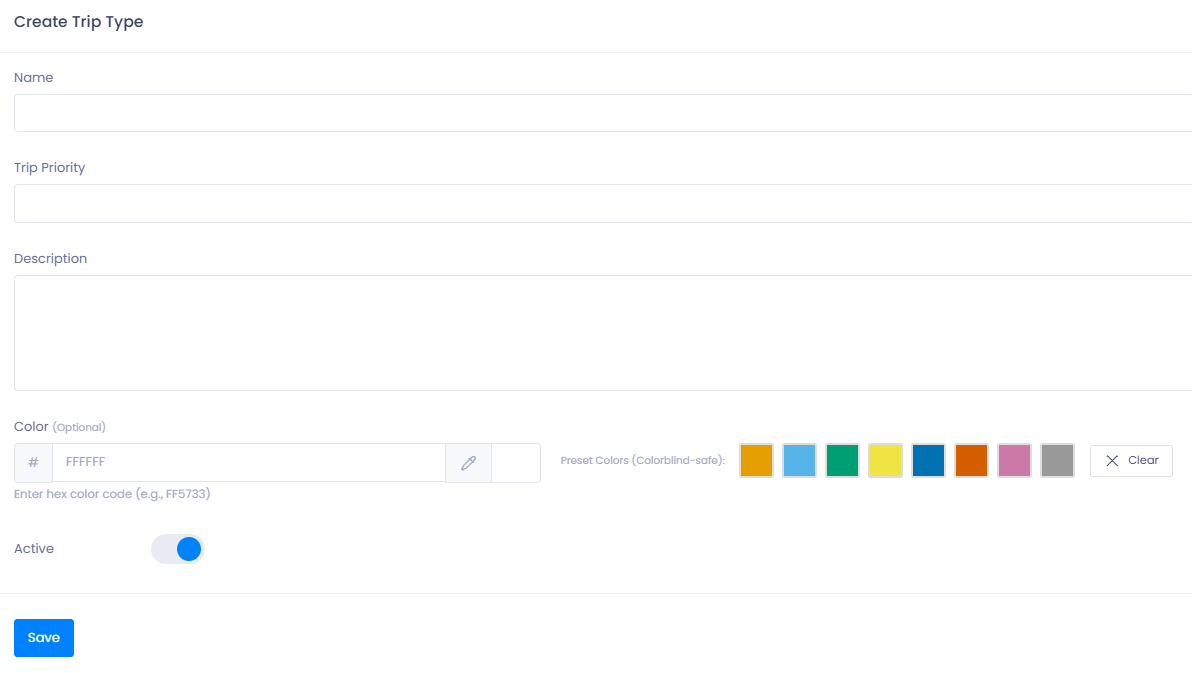
- ✏️ Fully editable (name, description, color, priority)
You can:
- Rename them to match your terminology
- Update descriptions
- Change colors
- Adjust priority
- Add additional custom trip types if needed
💡 Tip: Use clear and consistent names so planners can easily select the correct type.
Assign Colors to Trip Types
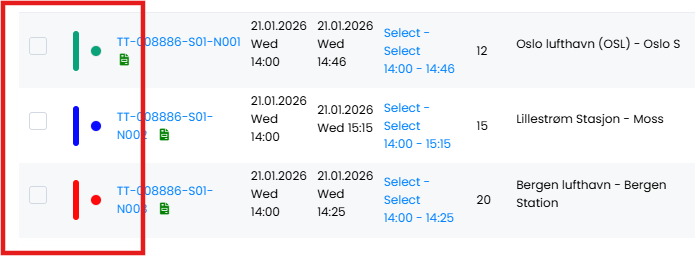
Each trip type can be assigned a color.
- 🎨 The color is shown in the Trips List
- This allows planners to:
- Quickly identify trip categories
- Visually distinguish different types of work during busy planning periods
To enable the Trip Types color view in the trips list;
- Go to Settings → Company → Default
- Turn on the “Enable trip type” toggle.

Fixed Trip Type and Subtypes
The Fixed Trip type has a special purpose:
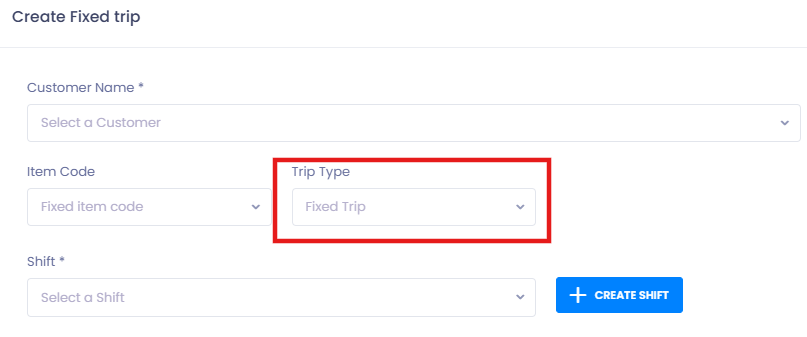
- It is automatically used when creating Fixed Trips
- You can create subtypes under Fixed Trip
If you want to create a new sub-trip type;
- Locate the “Fixed trip” trip type
- Click the small ➕ icon next to the edit button.

Examples of Fixed Trip subtypes:
- 🏫 School Trips
- 🏙️ Sightseeing tour
- 🚌 Contracted Shuttle Services
These subtypes are selected when:
- Creating or editing a Shift Template or Fixed trip
How Trip Type Priority Impacts Planning
Each trip type has a priority value that affects how trips are handled in planning views.
- Higher-priority trip types:
- Are shown first in lists
- Lower-priority trip types:
- Appear later in planning overviews
💡 Tip: Assign higher priority to time-critical or contract-based trips (e.g. school or airport runs).
🛠 Troubleshooting
Airport plane icon not visible
- Confirm the trip is marked as an Airport Trip.
- Verify the airport has a valid IATA code and email address.
Airport email not sending
- Check that the airport contact email is entered correctly.
Holiday pricing not applied
- Ensure the holiday date exists in the Holiday Calendar.
- Verify that pricing rules or variables are configured to use holidays.
Trip type not visible when creating a trip
- Verify the trip type is active
- Confirm you are creating the correct trip type (Normal vs Fixed)
Cannot delete a trip type
- Default trip types are locked and cannot be deleted
- You can rename or repurpose them instead
Color not showing in Trips List
- Refresh the Trips List view
- Confirm the color was saved on the trip type
Subtypes not available
- Subtypes are only available under the Fixed Trip type
- Ensure you are creating or editing a Shift Template
Still having trouble
- Contact TEQ Support with screenshots and the trip type name for assistance