
Email log
Viewing the Email Log in TEQ
The Email Log gives you a complete record of all communication sent to the customer for a specific order. This includes quotations, confirmations, updates, and any automated messages sent from TEQ.
Use this log to ensure full visibility and traceability of your customer communication.
Step 1: Access the Email Log
- Open the Order Window for the order you want to review.
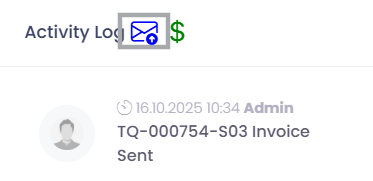
- Look above the Activity Log.
- Click the 📩 Envelope icon to open the Email Log.
Step 2: Review Sent Emails
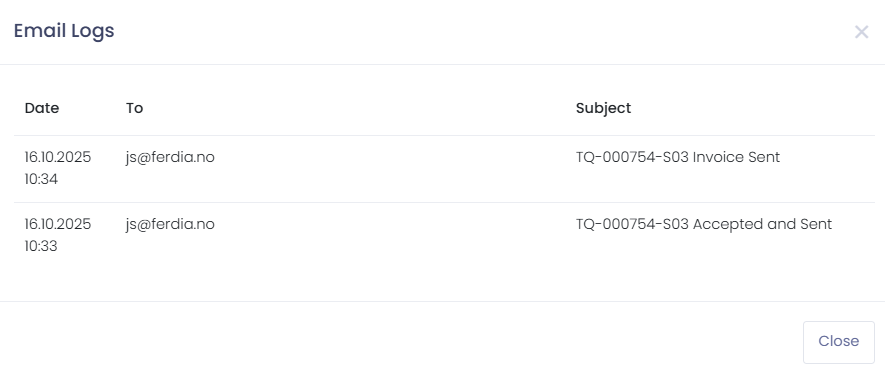
Inside the Email Log, you’ll see a chronological list of all messages sent from TEQ.
Each entry includes:
- Message type (quotation, confirmation, invoice, reminder, etc.)
- Recipient
- Subject line
- Timestamp
💡 Tip: Only system-generated emails from TEQ appear in the Email Log. External or manually sent emails are not included.
🛠 Troubleshooting
Email Log not visible
- Make sure you opened the Order Window, not the Trip Window.
- Refresh the page.
Emails missing from the log
- Ensure the email was sent from TEQ (external/manual emails are not recorded).
- Verify that the customer has a valid email address on their Customer Card.
Customer reports not receiving emails
- Confirm the email shows as sent in the log.
- Check for typos in the customer’s email address.
- Ask the customer to check spam/junk folders.
- Verify your company’s email domain settings if deliverability issues persist.
Still having trouble?
- Contact TEQ Support with the Order ID and a screenshot of the Email Log.