
Proforma invoice
Sending a Proforma Invoice
A Proforma Invoice allows you to send customers a preview of their expected costs before the trip takes place. It mirrors the upcoming invoice draft and provides transparency, helping customers understand pricing in advance.
Step 1: Open the Order Window
- Go to Sales → Orders.
- Open the order containing the trips you want to include on the Proforma Invoice.
Step 2: Select the Trips to Include
- In the order view, tick the checkboxes next to the trips you want to include.
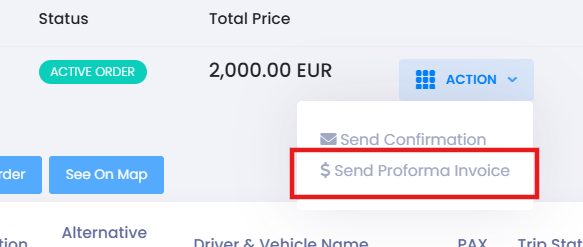
- Click the Action button.
- Select Send Proforma Invoice.
📤 This will generate a Proforma Invoice based on the selected trips.
Important Notes
- 🔄 If the order contains previously invoiced trips:
Only uninvoiced trips will be included in the Proforma Invoice. - 🧾 The Proforma is an exact copy of the invoice draft that will later appear in the Worklist.
🛠 Troubleshooting
Proforma Invoice option not appearing
- Ensure at least one trip in the order is selected.
- Verify that the order has at least one uninvoiced trip.
Customer did not receive the Proforma
- Confirm their email address under Sales → Customers.
Selected trips are missing from the Proforma
- Trips that are already invoiced will not appear.
- Check the order history to see which trips have been previously invoiced.
Still having issues?
- Reach out to TEQ Support with screenshots and order IDs for further assistance.