
Manage customers
Managing Customers in TEQ
TEQ provides a streamlined way to manage your customer database, including adding new customers, importing them in bulk, organizing customer details, and merging duplicates to keep your records clean.
Step 1: Review and Upload Customers
- Go to Sales → Customers.
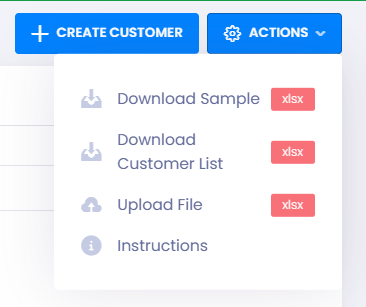
- To upload customers in bulk:
- Click 📥 Download Sample to get the Excel template.
- Fill in all required fields as instructed in the file.
- Return to TEQ and click Upload File under the Actions menu.
- Select your completed file to import customers into the system.
- You can also export your existing customers if needed using the Export option.
Step 2: Create a New Customer
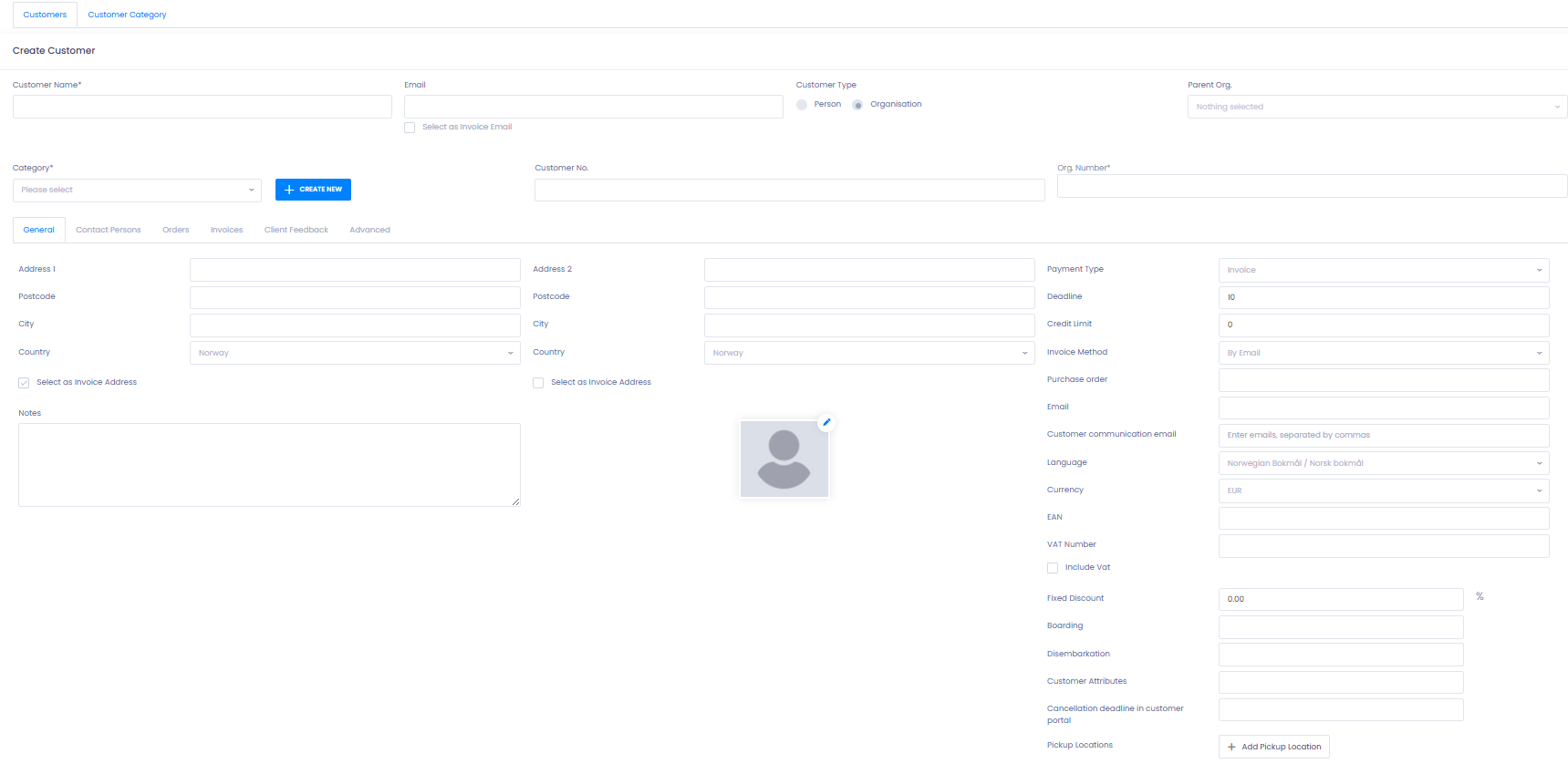
- In the Customers screen, click ➕ Create Customer.
- Fill in all required customer details, including contact information and address.
- Choose whether the customer is an:
- 🏢 Organization, or
- 👤 Private Person
- Save the customer card once completed.
Step 3: Merge Duplicate Customers
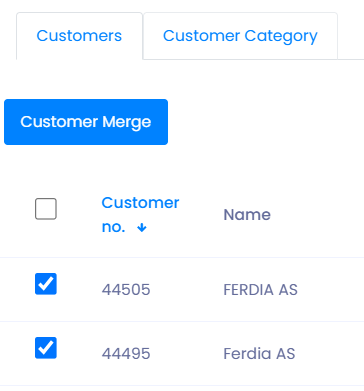
If multiple customer records exist for the same client, you can merge them to maintain clean data.
- Select the customers you want to merge.
- Click 🔗 Customer Merge in the top-left corner.
- Fill in the required customer information in the merge window.
- Review all details carefully. TEQ will combine the records based on your selections.
- Confirm to complete the merge.
🛠 Troubleshooting
Bulk upload file won’t import
- Ensure the Excel file follows the TEQ template format exactly.
- Check for missing required fields.
- Make sure no unsupported characters or merged cells are included.
Customer not appearing after upload
- Refresh the page.
- Verify that your user role has access to view all customers.
- Check if filters are applied.
Unable to create a customer
- Confirm all mandatory fields are filled in (name, customer type, email, etc.).
- Ensure your user role has permission to create customers.
Merge button not available
- You must select at least two customer cards.
- Your user role may not have merge permissions — contact your TEQ admin.
Merged customer shows incorrect information
- Review the merge preview carefully before completing the merge.
- Edit the resulting customer card to correct optional fields.
Still having issues?
- Contact your TEQ administrator or TEQ Support with screenshots and, if relevant, the customer IDs involved.