
Sales information
Sales Information & Lost Quotations Analysis
Understanding why offers are lost and reviewing your sales performance over time is essential for improving conversion rates and strengthening revenue forecasting. TEQ provides a dedicated Sales Information module where you can analyze lost quotations, billed amounts per salesperson, and billed amounts per department.
Step 1: Open the Sales Information Module
- Navigate to Quality → Sales Information.
- Select the relevant tab depending on the analysis you need.
Lost Quotations Statistics
This section helps you understand why you are losing offers and identify areas where improvements can be made.
Step 2: View Lost Quotation Reasons
- Click the Lost Quotations Statistics tab.
- A graph will display all recorded reasons for lost offers.
- Use filters to refine your analysis:
- 👤 Customer
- 🤝 Salesperson
- 🏢 Department
- 📅 Date range
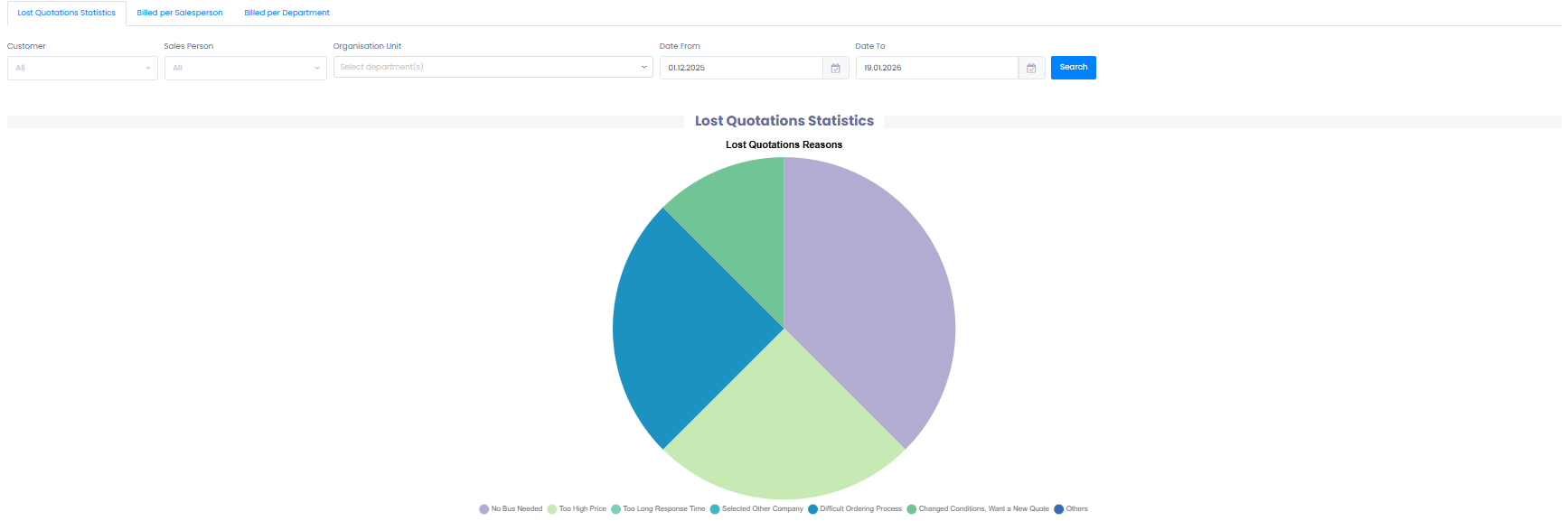
This makes it easy to spot trends such as pricing issues, availability conflicts, or other customer-reported factors.
Billed Per Salesperson
Track sales performance across your team and understand revenue distribution.
Step 3: Analyze Salesperson Billing
- Open the Billed Per Sales Person tab.
- View total billed amounts per salesperson.
- Filter using:
- Customer
- Salesperson
- Date range
- Display results as either:
- 📆 Monthly
- 📅 Yearly
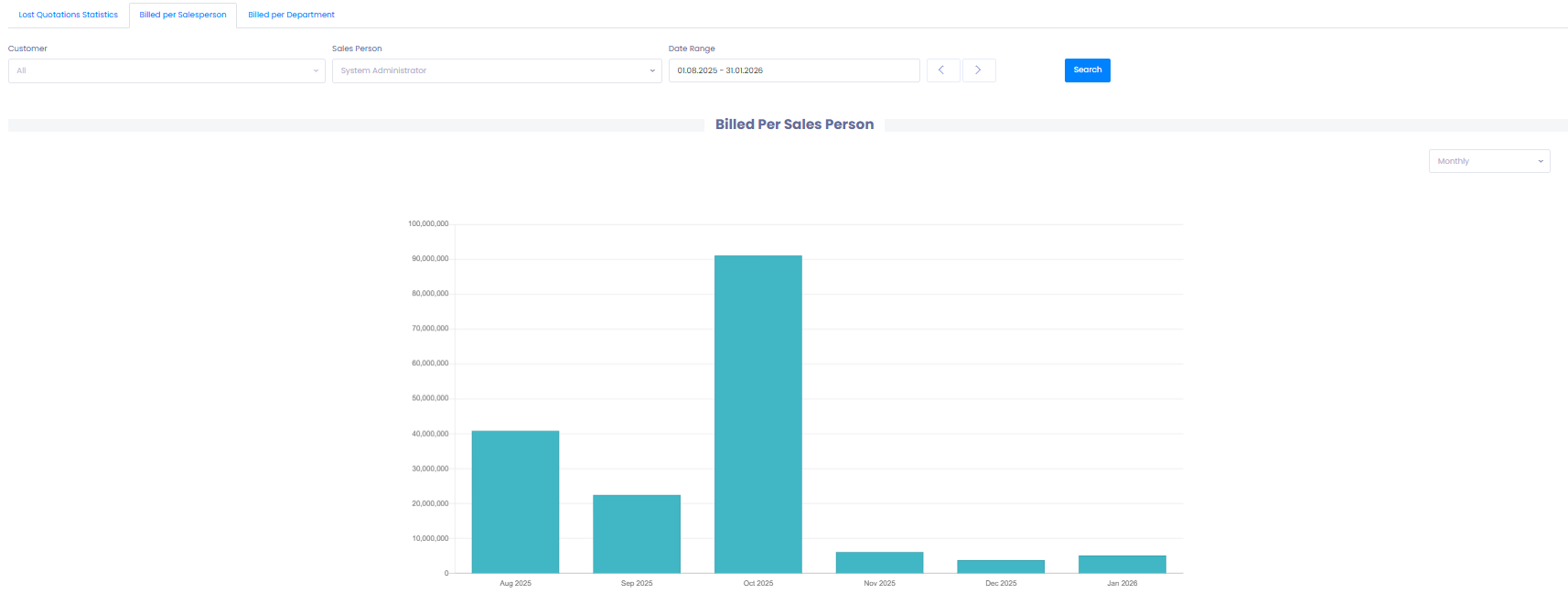
This helps you identify top performers and track sales trends over time.
Billed Per Department
Get a high-level financial overview of each department’s contribution to overall billing.
Step 4: Review Department Billing
- Go to the Billed Per Department tab.
- View billing totals for each department.
- Use the same filter options as above:
- Customer
- Department
- Date range
- Switch the graph view to monthly or yearly reporting.
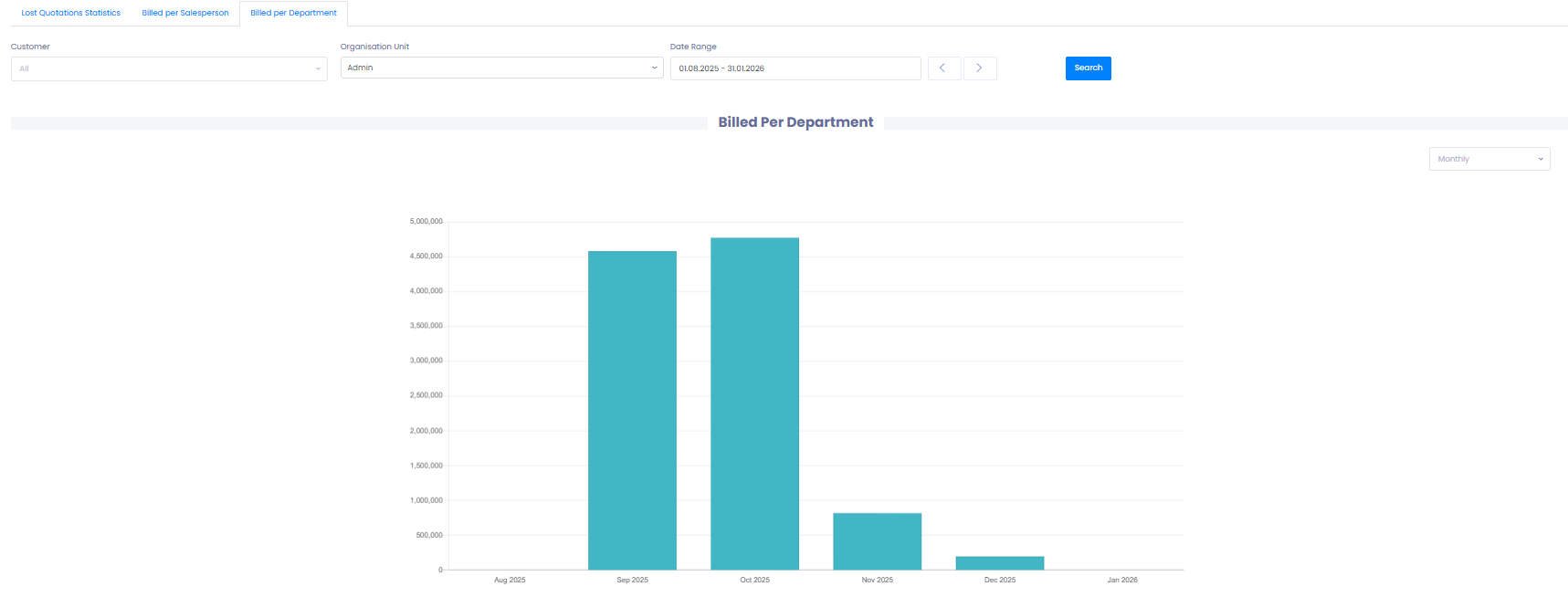
This is especially useful if your company operates multiple branches or business units.
🛠 Troubleshooting
Graphs are not displaying any data
- Check that the date range includes the period you want to analyze.
- Ensure that quotation statuses and billing events have been recorded properly.
Filters are returning no results
- Clear all active filters and reapply them.
- Expand the date range to include more data.
Lost quotation reasons seem incomplete
- Ensure sales staff select the correct “Lost Reason” when updating quotation status.
- Review if quotations were marked as Lost or Cancelled incorrectly.
Billing amounts look incorrect
- Confirm invoices were fully completed and sent.
- Check that the correct salespeople or departments are assigned to the quotations.
Still having issues?
- Reach out to TEQ Support with screenshots and details about the missing or incorrect data.