
Fixed Trips
Fixed Trips & Shift Templates in TEQ
The Fixed Trips functionality allows you to automate recurring trips such as school routes, commuter shuttles, and daily corporate transfers. At the core of this functionality are Shift Templates, which define how a shift is structured, and Fixed Trip Orders, which use those templates to generate scheduled trips over a chosen time period.
Shift Templates
Shift Templates define:
- The driving-legs of the shift (sub-trips)
- Payable time for the driver
- Vehicle withdrawal and delivery times
- (Optional) Customer pricing for the entire shift
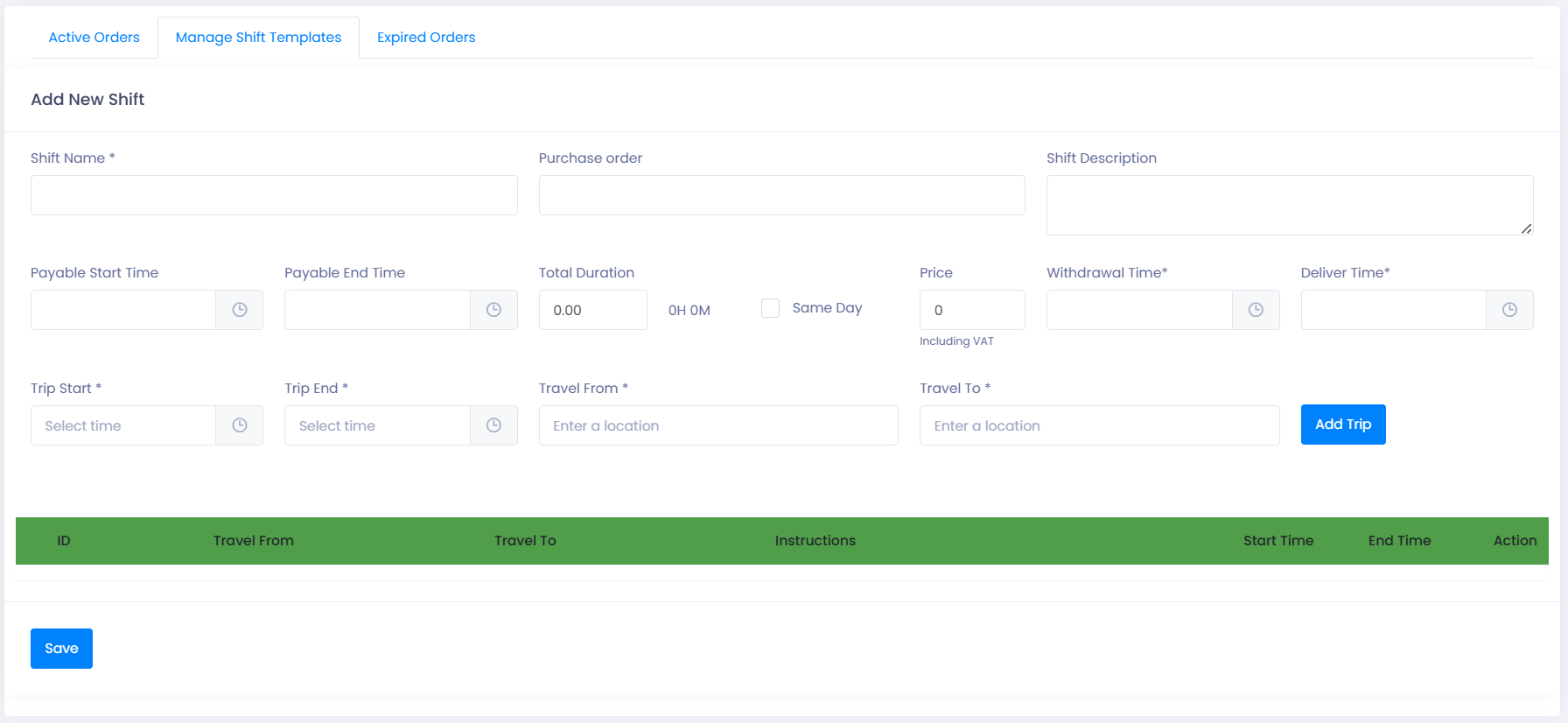
Create a New Shift Template
- Go to Sales → Fixed Trips → Manage Shift Template
- Click ➕ Create Shift
Fill out the following sections:
General Information
- Name (required)
- Purchase Order
- Description
- Trip Type
Payable Details
- Payable Start and End Time
- Total Duration (auto-calculated, but editable)
Customer Pricing
- Set the price for performing this shift (optional)
Vehicle Timing
- Withdrawal Time
- Delivery Time
Sub-Trips (Driving Legs)
Define the route structure of the shift. Examples:
- Multiple A ↔ B loops throughout the day
- A route with several intermediate stops before final arrival
Fixed Trip Orders
A Fixed Trip Order applies a Shift Template to a customer and generates all relevant trips automatically for the chosen schedule.
Create a Fixed Trip Order
- Go to Sales → Fixed Trips → Active Orders
- Click ➕ Create Fixed Trip
Order Details
- Customer
- Passenger Limit → determines required vehicle capacity
- Passenger counting (on/off)
- Phone Number (Dashboard) → shown to operations
- Department
- Item Code (invoicing)
- Trip Type
Link Template & Assign Resources
- Select a Shift Template
- (Optional) create a new template from this screen
- Assign:
- Vehicle Type or fixed Vehicle (auto-planned for all trips)
- Driver (auto-planned for all trips)
Define Schedule & Regularity
Date Range
- Start Date → End Date
Repeat Type
Choose one:
Daily
- Repeats every X days
- Example: 2 = every other day
Weekly
- Repeats every X weeks
- Select specific weekdays (mandatory)
Withdrawal/Delivery Times
- Auto-filled from template
- Editable per order
Click Generate to create all trips.
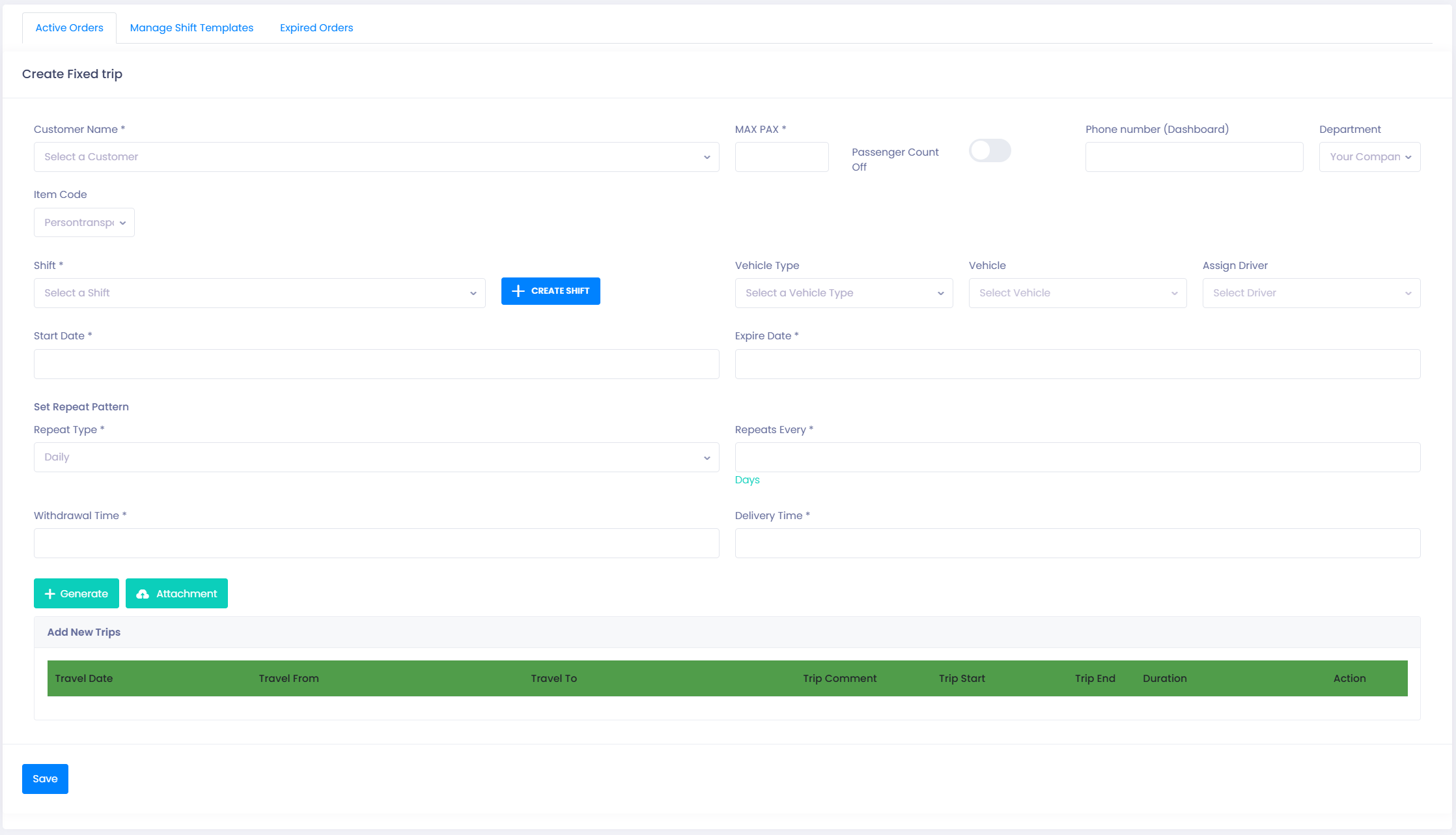
💡 Tip: You can upload attachments (school calendars, route PDFs, etc.) to the order.
Editing Fixed Trip Orders
- Go to Sales → Fixed Trips → Active Orders
- Click the ✏️ Pencil icon to open the order
- View the full list of generated trips
Manage Individual or Multiple Trips
Delete Trips
- Single trip → click 🗑️ Trashcan
- Multiple trips → select checkboxes → Delete Trips
💡 Useful for holidays, cancellations, or one-off exceptions.
Change Department
- Click the 🔄 Arrow icon next to a trip
- Select the new department
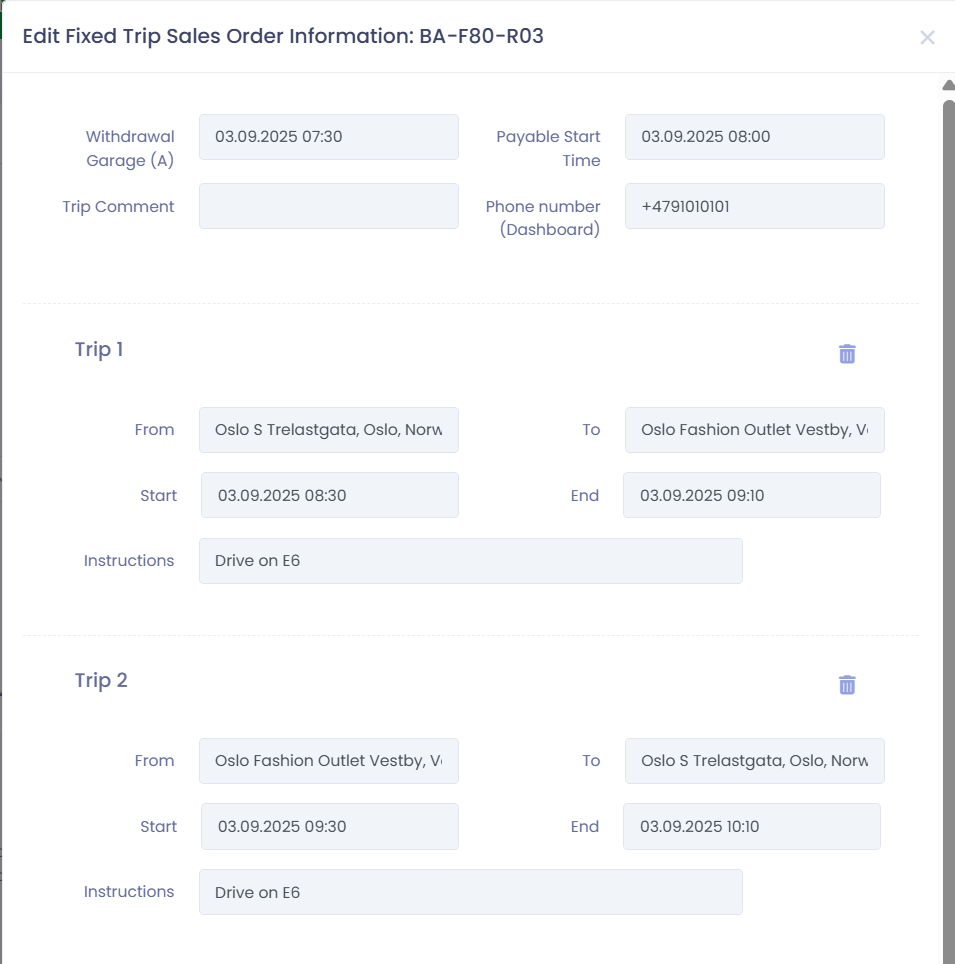
Edit Sub-Trips
- Click the ✏️ Pencil icon next to a trip/shift
- Edit:
- Sub-trip list (add/remove)
- Locations (From/To)
- Start & End times
- Instructions
- Click Update Shift to save
How It Works (Hierarchy Overview)
Shift Template
→ Defines structure, times, sub-trips, and rules.
Fixed Trip Order
→ Attaches the template to a customer and sets the recurrence pattern.
Generated Trips
→ Actual daily/weekly trips created automatically.
💡 Understanding this hierarchy helps keep recurring operations clean, consistent, and automated.
Example: School Bus Contract
1. Shift Template
- Name: Morning School Run
- Sub-Trips: A → B → C → School
- Payable: 07:00–09:00
- Withdrawal/Delivery: 06:45 / 09:15
2. Fixed Trip Order
- Customer: Local Municipality
- Vehicle: 50-seater coach
- Driver: Assigned school-route driver
- Schedule: Sept 1 → Dec 20
- Pattern: Weekly, Mon–Fri
3. Generated Trips
- Daily school runs created automatically
- Holidays removed using Delete Trips
- Individual days adjusted as needed
💡 Result: A fully automated, reliable school transport schedule requiring minimal daily admin.
🛠 Troubleshooting
Shift Template not available when creating an order
- Check that the template is saved.
- Make sure the user role has access to Fixed Trips.
- Refresh the page.
Trips not generating after pressing Generate
- Confirm Start/End dates are valid.
- Ensure repeat pattern is correctly selected.
- Check required fields such as Customer and Template.
Driver or Vehicle not auto-assigned
- Verify that a fixed driver/vehicle was selected in the order.
- Check resource availability conflicts in the planner.
Unable to delete a trip
- Confirm the trip has not already started.
- Check user permissions.
Still need help?
- Contact TEQ Support with the Fixed Trip Order ID for faster assistance.