
How to use Ferdia Co-Driver
Ferdia Co-Driver – Workflow
The Ferdia Driver App makes it easy for drivers to manage daily assignments, log trip times, and communicate updates directly with TEQ.
This guide walks you through every part of the workflow. From receiving a trip to logging hours and reporting deviations.
Main Navigation Tabs
At the bottom of the app, you’ll find four key tabs:
| Tab | Purpose |
|---|---|
📁 Tasks | View all tasks that are assigned to you. |
📅 Plan | See Upcoming trips, tasks and your Calendar |
⚙️ Logo Wheel | Access ongoing trips (from start to finish). |
⏱️ Time Sheet | Review and submit worked hours and activities. |
Step 1: Receive and Review a Trip
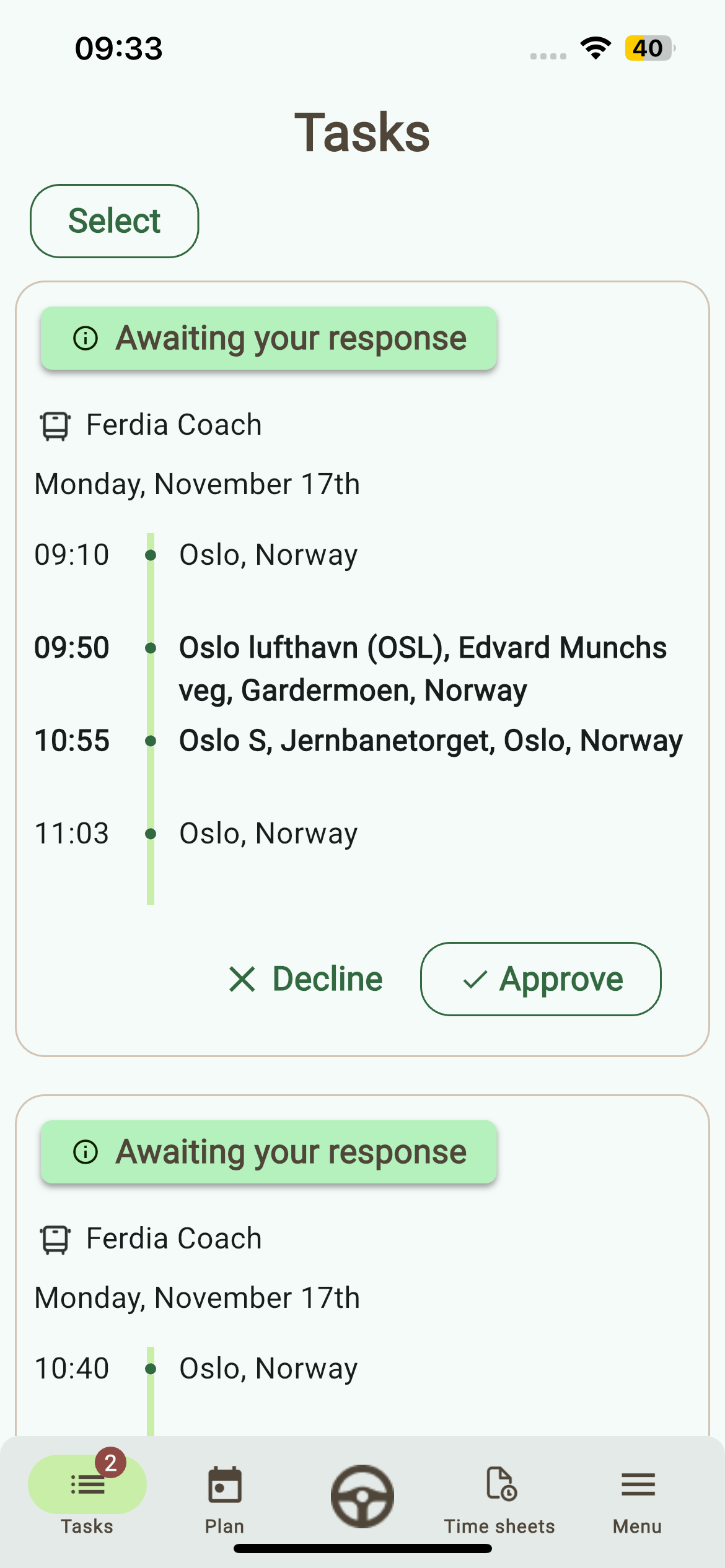
When a trip is assigned in TEQ:
- The driver receives an in-app notification and an SMS message.
(Note: The SMS link to the app may not be functional on some devices.) - The trip appears in Plan → Upcoming and My Calendar.
- A notification icon also appears in the Tasks tab.
Step 2: Approve or Decline the Trip
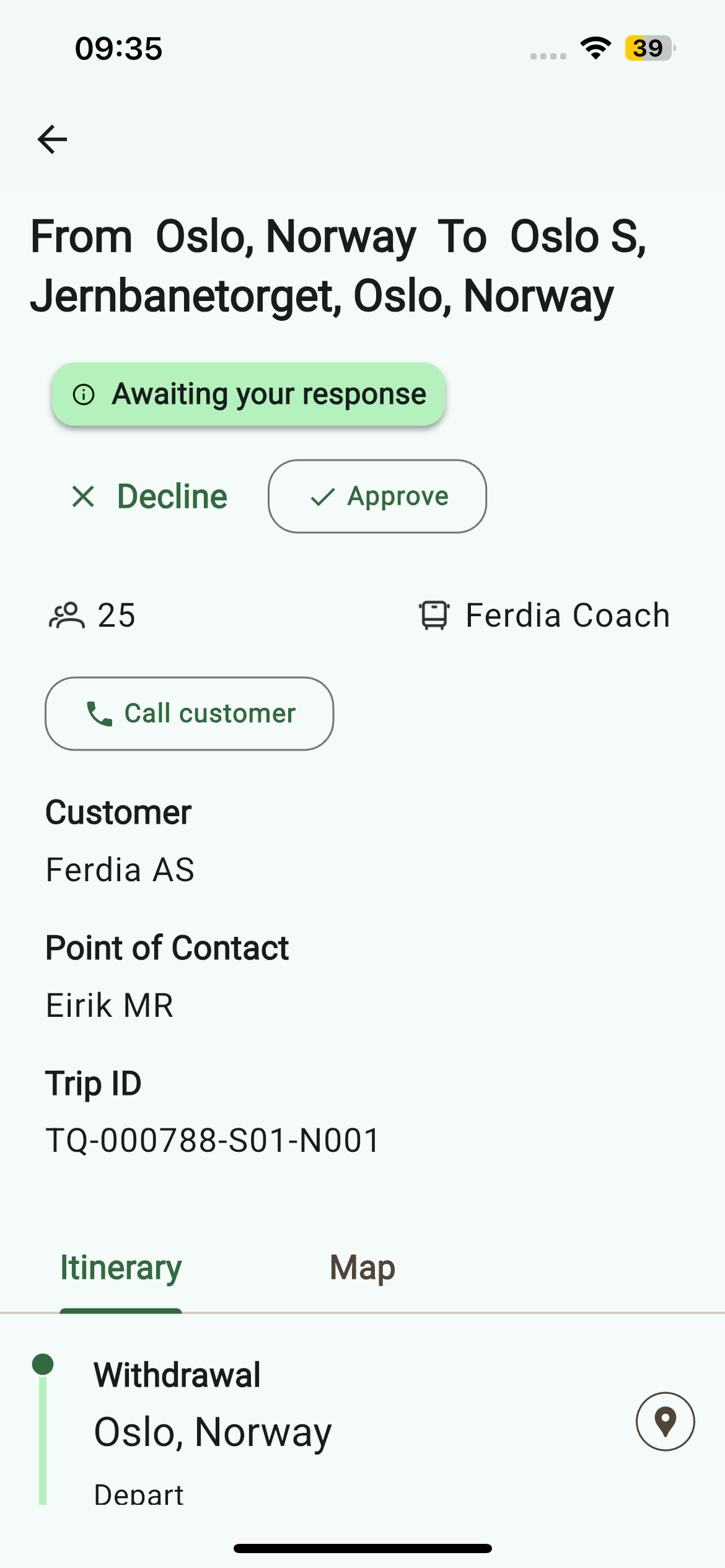
- Open the Tasks tab.
- Tap the trip to view full details:
- 🕒 Withdrawal and return times
- 🧭 Route and map
- 👥 Number of passengers
- 🚍 Bus license plate
- 🪪 Customer name and Trip ID
- Choose Approve or Decline:
- If declined, the trip is removed from the app.
- If approved, the trip moves to Plan and is ready to start.
💡 Admins can disable the option for drivers to decline trips. When this setting is turned on, all trips assigned to a driver will be automatically approved.
Step 3: Start Your Trip
If the trip is scheduled for today, it will appear in the Wheel (Ongoing) tab.
You can also start it directly from Plan → Upcoming.
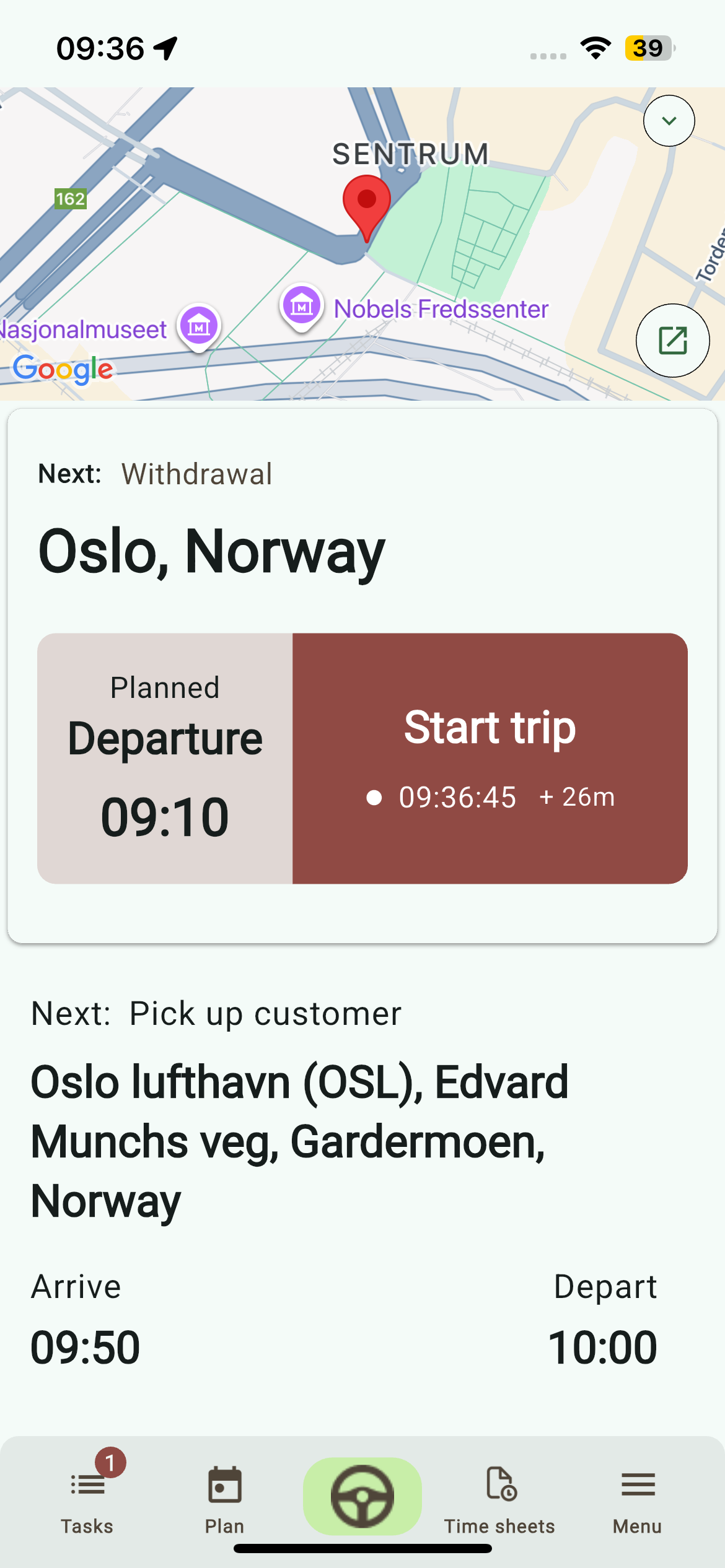
- Tap the trip and confirm your vehicle’s license plate.
- Press Start Trip.
- You’ll see your first step:
- 🏭 Withdraw from garage (location + planned departure time).
- As you progress, each button logs actual times and changes color to reflect status:
- 🟢 On time
- 🟡 Delayed <15 min
- 🔴 Delayed >15 min
Step 4: Follow the Itinerary
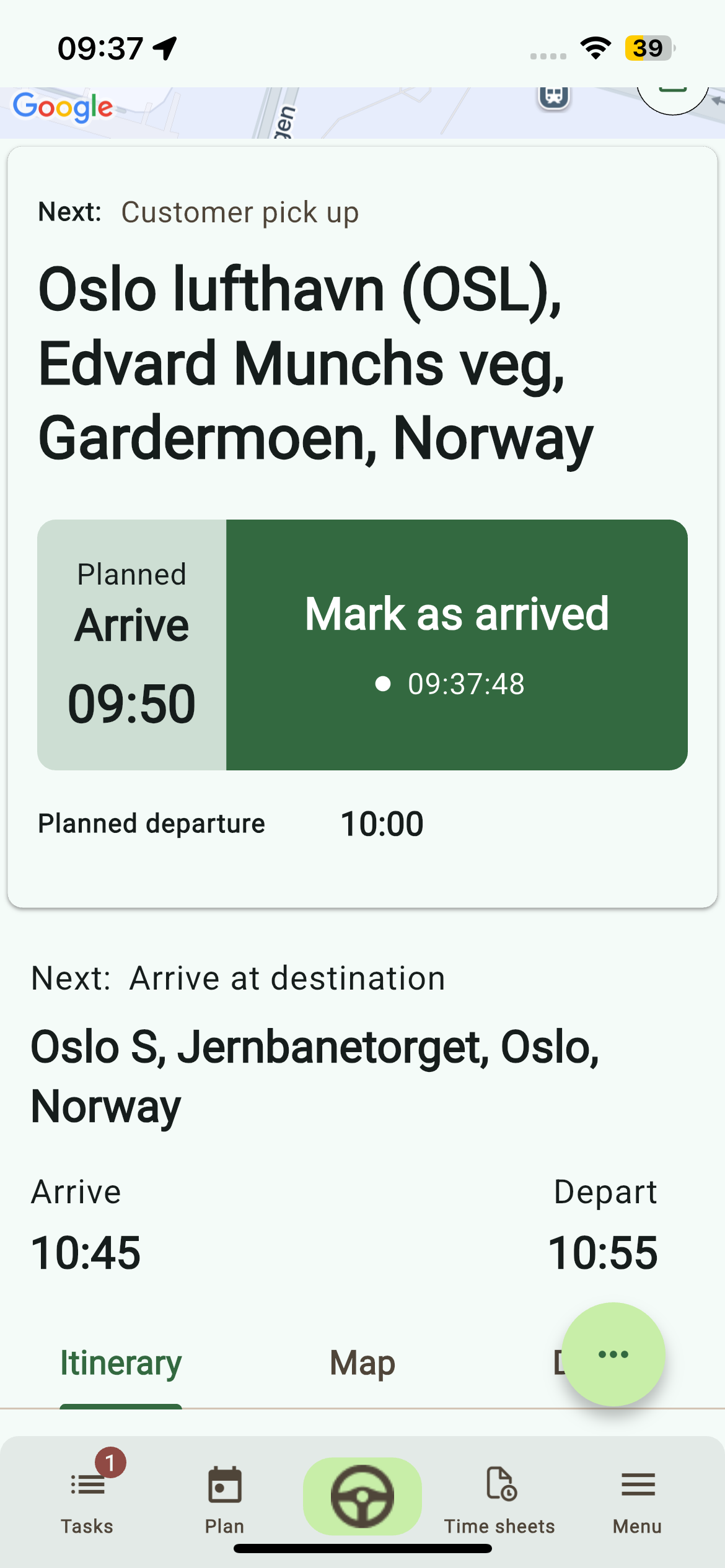
Follow the on-screen journey checkpoints:
- Mark as Arrived at customer pickup.
- Mark as Left once passengers are on board.
- Mark as Arrived again at the destination.
- After drop-off, Mark as Left to return to the garage.
- Upon arrival, Mark as Ended to complete the trip.
💡 Each checkpoint automatically logs time for the Timesheet and updates live in TEQ.
Step 5: Log Deviations
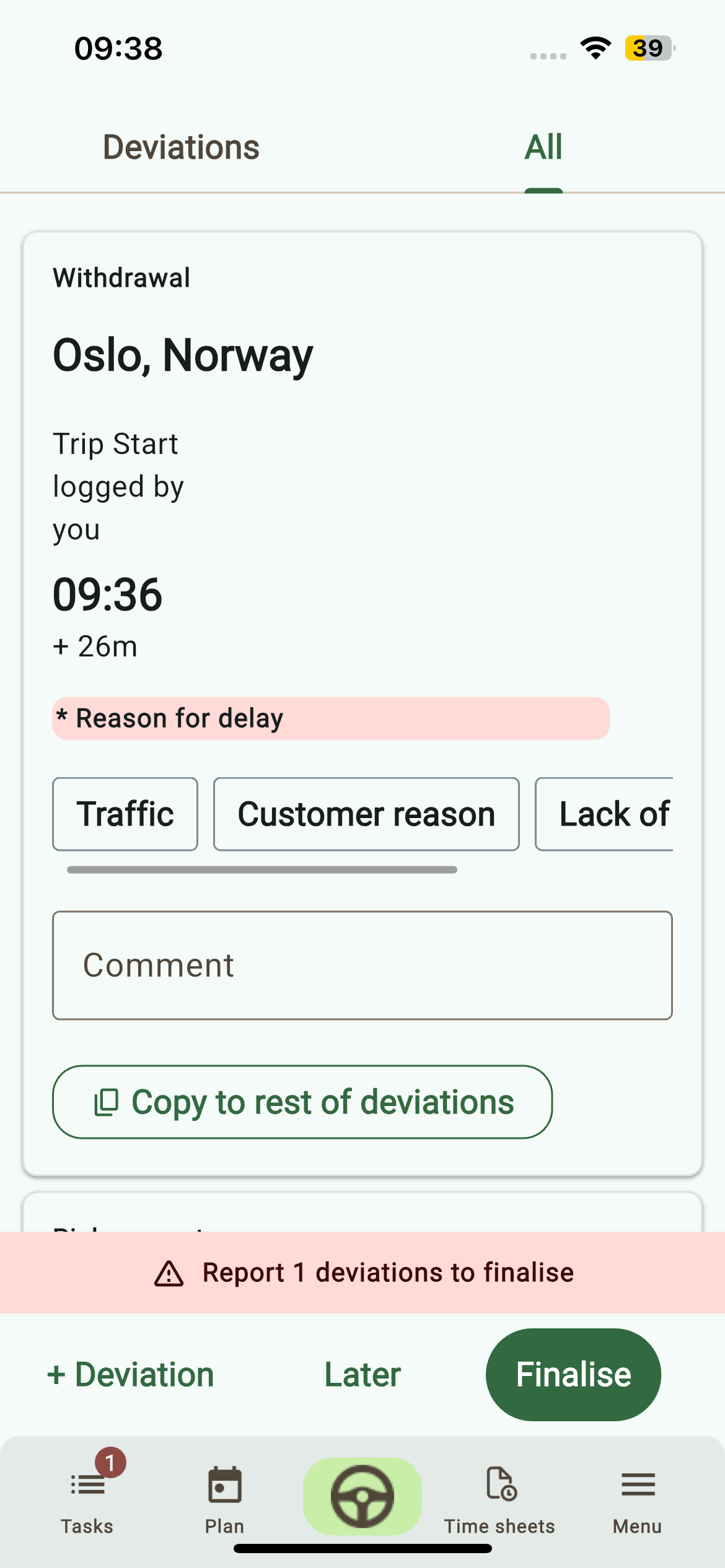
After completing a trip, the app prompts you to log any deviations such as:
- 🚗 Traffic delays
- 👤 Customer issues
- 📋 Planning errors
- ⚙️ Other
Add comments for each deviation, or apply the same reason to all points.
You can also manually log deviations later from the menu.
Step 6: Manage Time Sheets
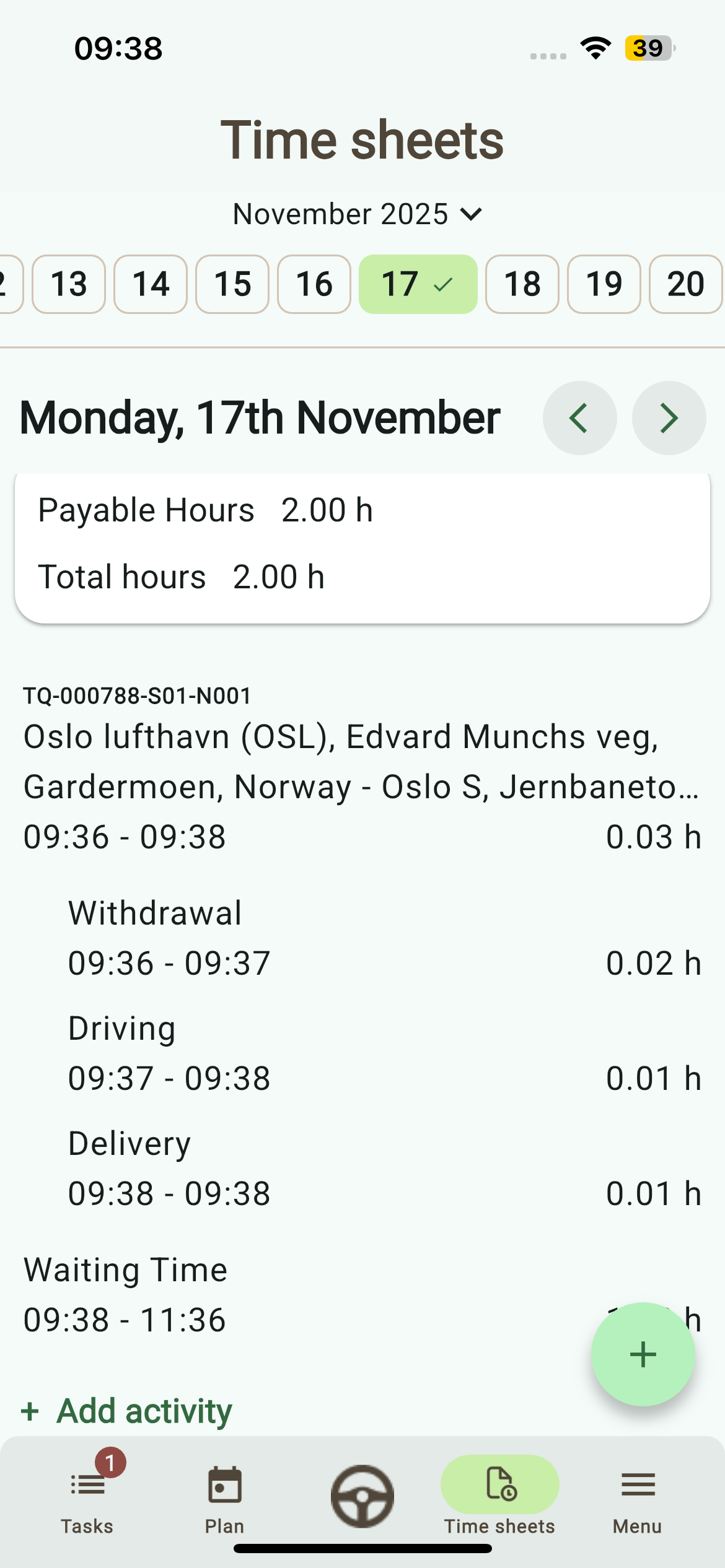
Go to Time Sheet to review:
- All logged hours per trip
- Any additional activities (e.g., cleaning, service work)
- Day/month navigation for full history
You can also add new activities by tapping + Add Activity.
Entries sync directly with TEQ for manager approval.
Step 7: Calendar, Leave & Company Info
- Plan → My Calendar: View all upcoming assignments and availability.
- Apply for vacation or sick leave directly in the app. Requests go to TEQ for approval.
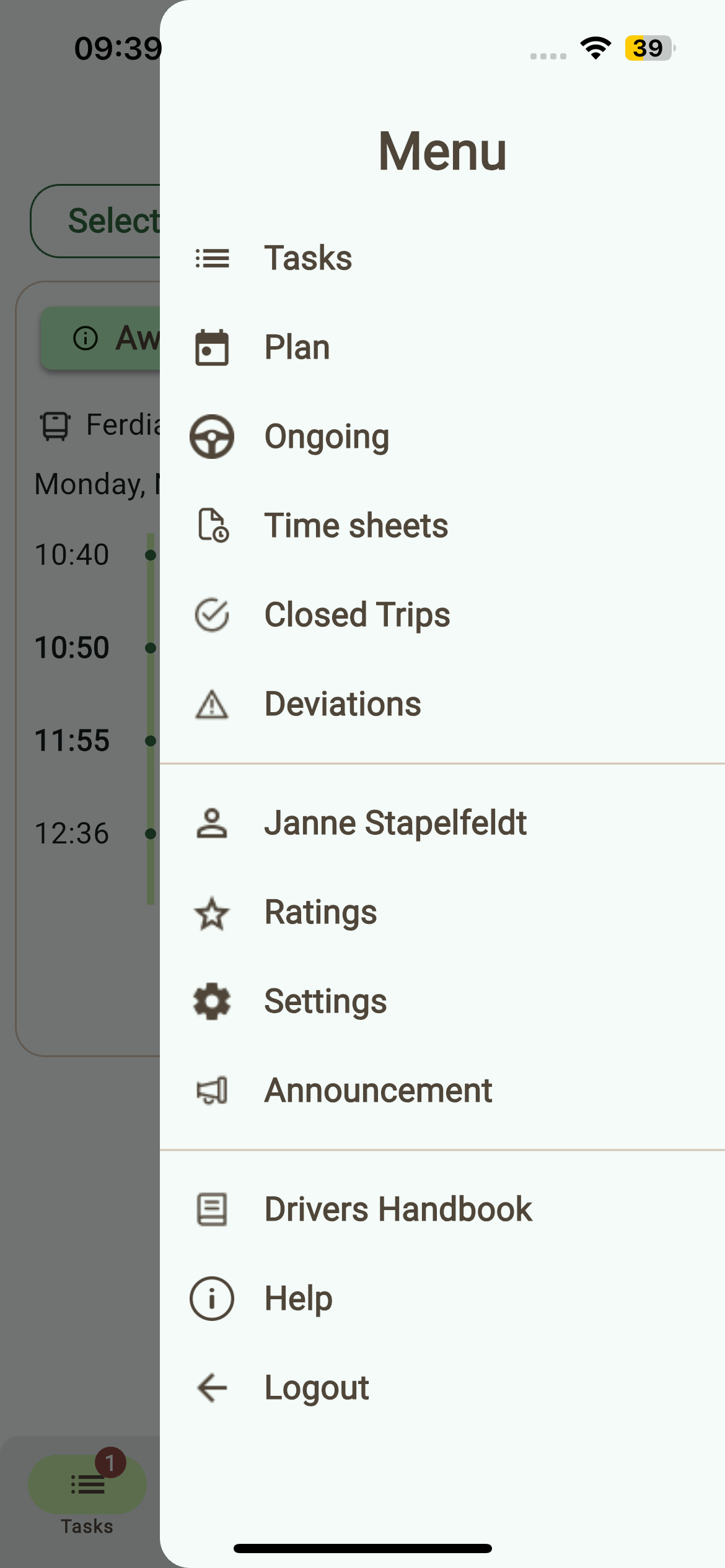
- Menu Tab:
- View Closed Trips and Deviations (with status).
- Check Profile details and Driver rating (based on customer surveys).
- Compare with Company average rating.
- Access Settings (light/dark mode, language, app version).
- View Company Handbook and Announcements. New updates trigger a notification.
- Access Help Articles directly from within the app.
How to Download the App
You can download the app from your device’s app store:
- Google Play Store (Android):
You should be able to find the app by searching directly in the Play Store.
https://play.google.com/store/apps/details?id=app.ferdia.ferdiacodriver - Apple App Store (iOS):
The app is not searchable in the App Store, so you’ll need to use the direct link below:
https://apps.apple.com/us/app/ferdia-co-driver/id6742120094
🛠 Troubleshooting
If something doesn’t work as expected:
Trip not appearing
- Refresh the app or check the Plan tab.
- Confirm that the trip has been assigned in TEQ.
No notification received
- Ensure push notifications and SMS permissions are enabled.
- Re-login to refresh your session.
Cannot start trip
- Confirm trip date/time is correct.
- Make sure your bus is assigned and license plate confirmed.
Incorrect times logged
- Check your mobile time settings.
- Manually adjust deviations if needed.
Missing timesheet data
- Refresh the Time Sheet tab.
- Wait a few minutes, data syncs automatically with TEQ.
Still having trouble?
- Contact your dispatcher or TEQ support with your Trip ID and driver name.
- Include screenshots for faster resolution.