
Duty Planner
Using the Duty Planner in TEQ
The Duty Planner allows you to schedule and assign non-driving tasks, such as meetings, cleaning, admin work, training, or rest breaks, directly alongside trip planning. This ensures a complete and accurate overview of each employee’s workday.
Step 1: Enable Duty Planner
- Go to Settings → Company Settings.
- Scroll to the Default section.
- Toggle Duty Planner to On.

Step 2: Grant User Role Access
- Go to Settings → Admin → User Role.
- Select the user role(s) that should have access.
- Enable all relevant Duty Planner features and actions.
💡 Tip: Users without these permissions will not see Duty Planner tools.
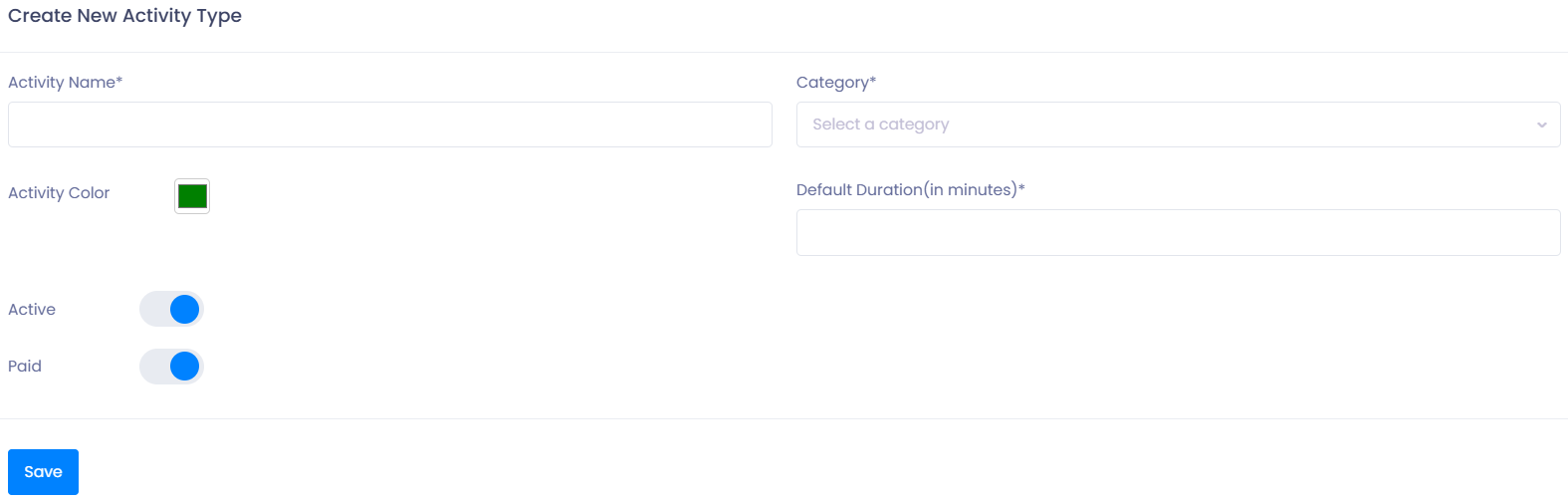
Step 3: Create Activities
Activities define the types of duties you can assign to employees.
- Go to Planning → Activity Type.
- View existing activities or click ➕ New Activity.
- Fill in the required fields:
- Category → Work time or Rest time
- Payment type → Paid or Unpaid
- Minimum duration → Required number of minutes
Step 4: Assign Tasks in Duty Planner
- Go to Planning → Employee Duty Plan.
Choose your view:
- 📅 Day View → Focus on one day at a time
- 📆 Week View → See a full weekly overview
You can:
- Assign activities individually
- Apply tasks in bulk to several employees
- Adjust or remove tasks to balance workloads based on trip assignments
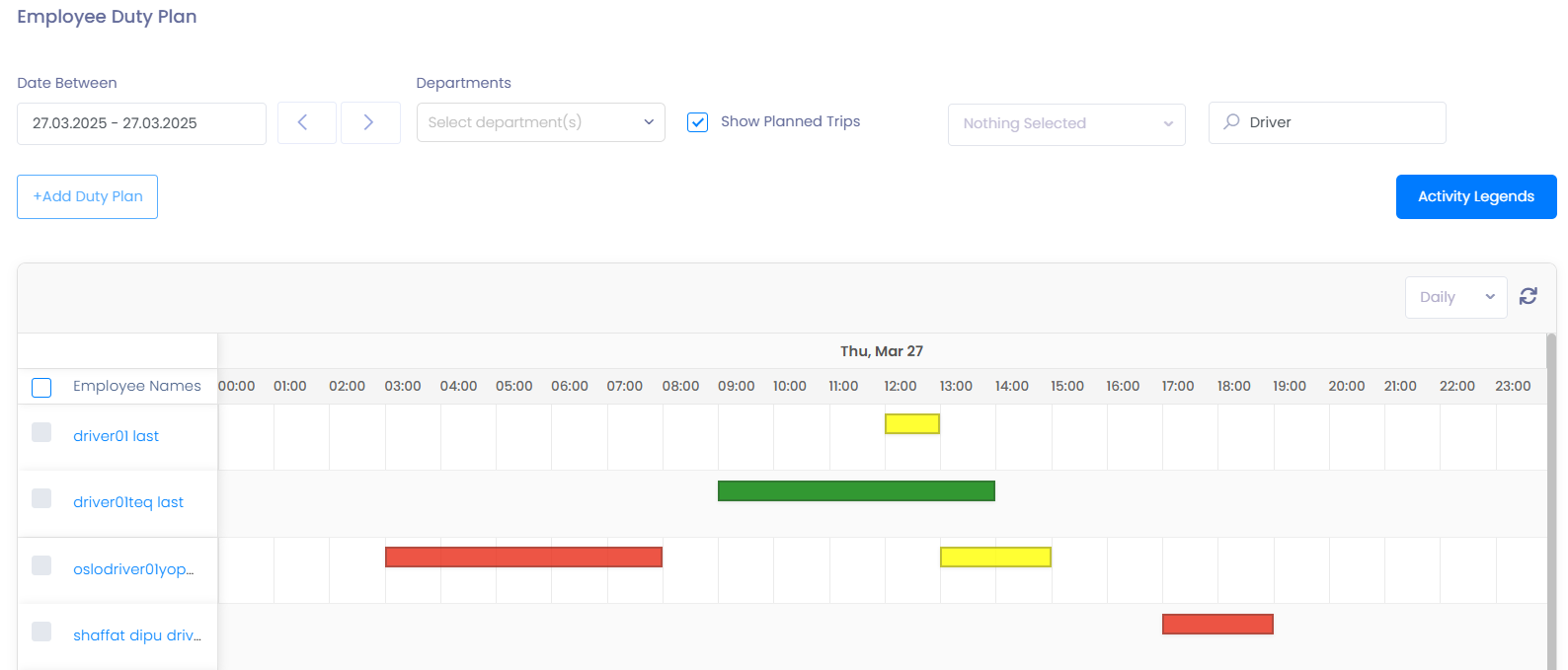
💡 Tip: Duties appear alongside scheduled trips, making it easy to avoid conflicts.
Step 5: Tasks in Ferdia Driver App
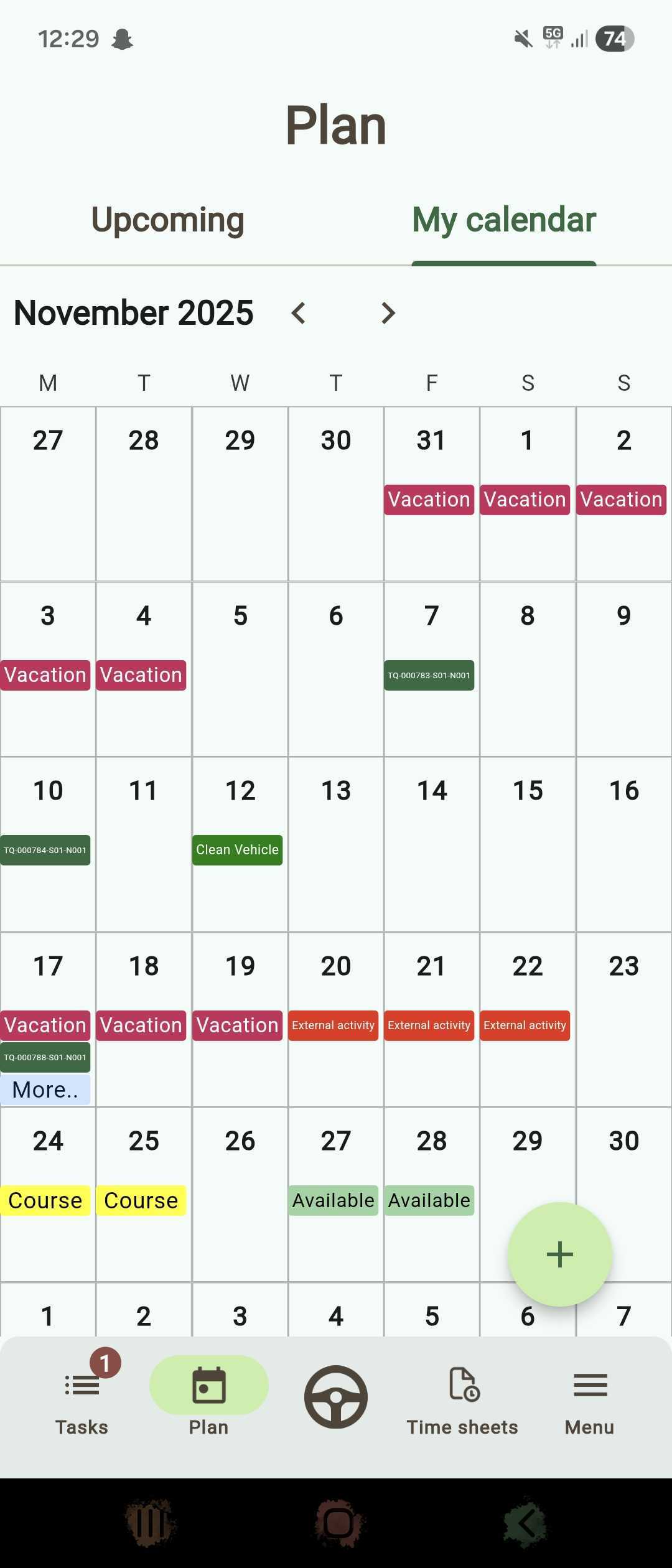
Employees can view their assigned duties directly in the Ferdia Driver app.
Tasks are color-coded for clarity:
- 🟦 Work tasks
- 🟩 Rest tasks
- 🟨 Other assignments
🛠 Troubleshooting
Duty Planner not visible
- Confirm the feature is turned on in Company Settings.
- Check user role permissions under Settings → Admin → User Role.
Unable to create or assign an activity
- Make sure the user role has both Actions and Features enabled for Duty Planner.
- Verify the activity type has a valid minimum duration.
Activities not showing in Driver App
- Ask the driver to refresh their app.
- Check if the activity falls within the driver’s active schedule.
- Confirm the driver is linked correctly under HR → Employees.
Tasks overlapping with trips
- Adjust times in the Employee Duty Plan view.
- Review daily or weekly view to avoid conflicts.
Still having trouble?
- Contact TEQ Support with screenshots, employee name, and task details so we can assist you quickly.