
Driver Availability & Alarm
Driver Availability & Alarm System
Efficient planning depends on knowing exactly when your drivers are available. TEQ’s Driver Availability and Driver Alarm features allow planners to manage schedules, respond to urgent needs, and keep drivers fully updated through the Ferdia Driver App.
Step 1: Access Driver Availability
- Go to Planning → Driver Availability.
- Open the Availability Management tab.
Here you can:
- View an overview of all drivers’ availability
- See each driver’s detailed daily or weekly calendar
- Make quick adjustments or add new availability entries
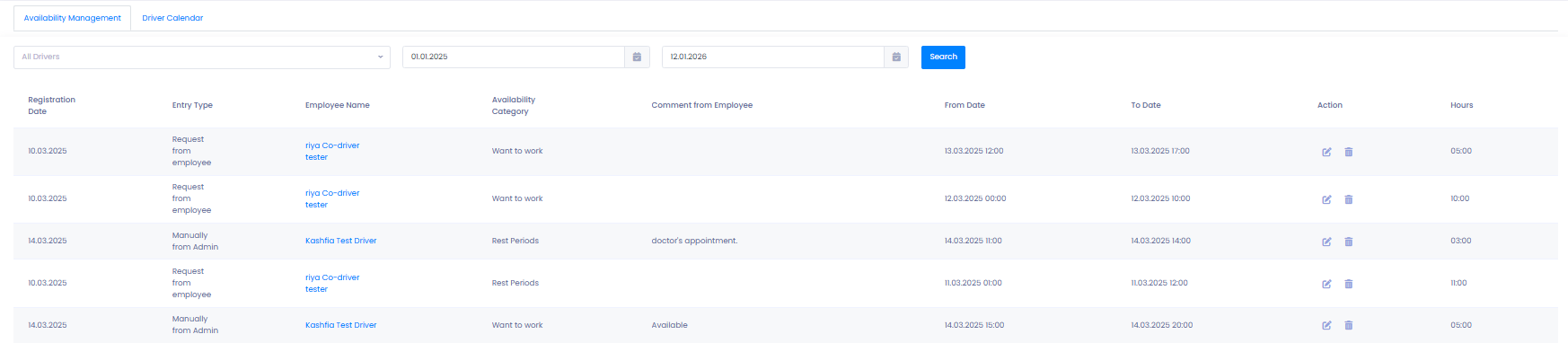
💡 Tip: All changes sync instantly to the driver’s Ferdia Driver App calendar.
Step 2: Add Driver Availability
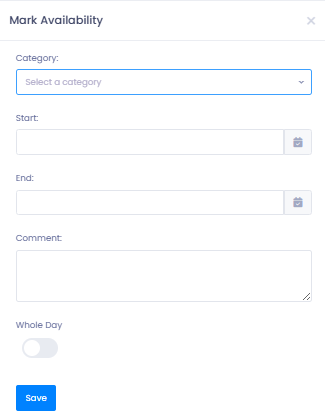
- Click ➕ Add Availability.
- Fill in the required fields:
- Category (e.g. Want to Work, Unavailable, Vacation)
- Start date
- End date
- Click Save.
The updated availability is immediately visible in:
- TEQ
- The driver’s Ferdia Driver App
Step 3: Set Up a Driver Alarm
The Driver Alarm helps you reach available drivers quickly when urgent or last-minute trips arise.
- Go to Planning → Alarm.
- Click ➕ New Alarm.
- Complete the required fields:
- Customer and Reference
- Alarm duration (how many minutes it should run)
- Number of drivers to notify
- Click Save to activate.
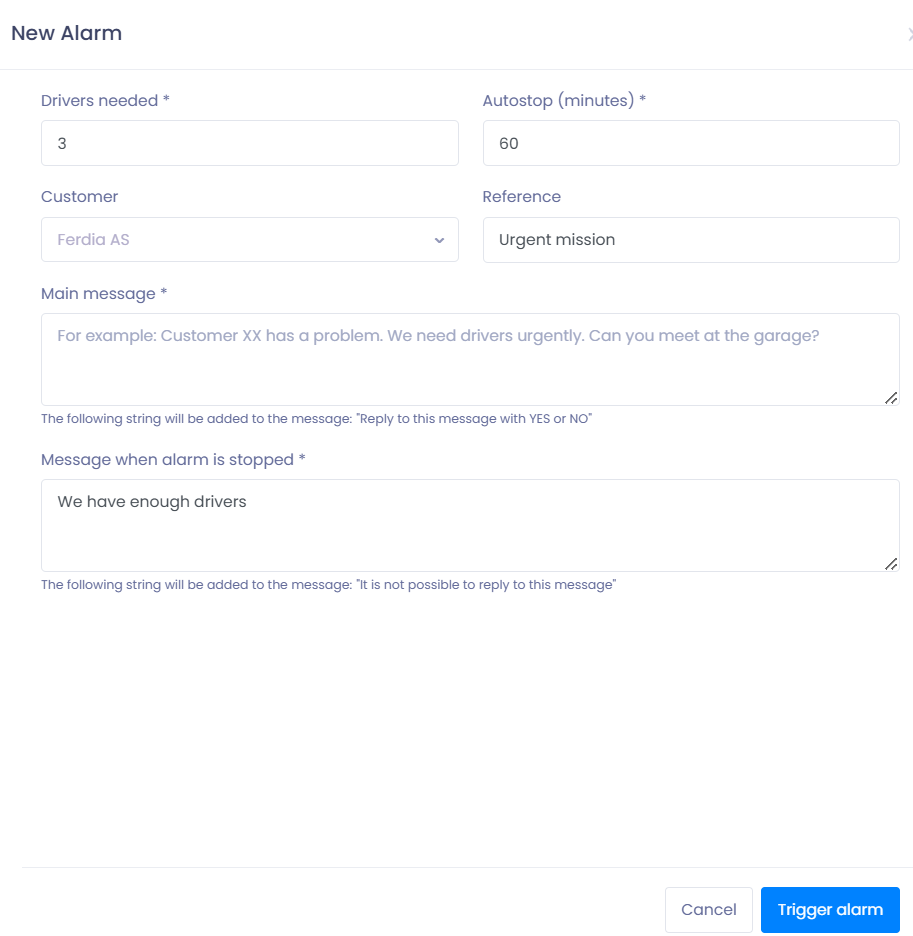
💡 Alerts are sent via SMS to all selected drivers who are available or designated as standby.
Step 4: Assign Drivers to Alarm Standby
To ensure the right drivers receive urgent alerts:
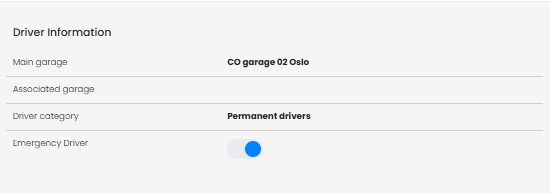
- Go to Settings → HR → Employees.
- Open the driver’s Employee Card.
- Enable Emergency Driver for alarms.
- Save your changes.
Standby drivers automatically receive alarm notifications when emergencies occur.
Step 5: Stop an Active Alarm
- Go to Planning → Alarm.
- Find the active alarm in the list.
- Click 🛑 Stop.
- A confirmation window will appear — enter a message to notify drivers.
- Click Send.
Drivers will receive an SMS confirming that the alarm has been canceled.
Troubleshooting
Availability changes not showing in the Driver App
- Ask the driver to refresh their calendar.
- Ensure the driver is correctly linked under HR → Employees.
- Confirm categories and dates are valid.
Alarm not notifying drivers
- Ensure drivers are marked as Standby or available.
- Verify phone numbers in the Employee Card.
- Check that alarm duration and driver count are set correctly.
Cannot create a new alarm
- Check your user role permissions under Settings → Admin → User Roles.
- Ensure required fields are filled.
Driver did not receive SMS
- Confirm correct mobile number is saved.
- Check if the driver has mobile coverage or SMS reception.
Still having trouble?
- Contact TEQ Support with alarm ID or driver name.