
Timesheet
Managing Timesheets in TEQ
The Ferdia Driver App automatically tracks all working hours logged by your drivers, ensuring accurate and transparent payroll processing. As a manager, you can review, edit, approve, and send these hours to Payroll directly inside TEQ.
This guide explains how to manage timesheets efficiently.
Step 1: Open the Timesheet Overview
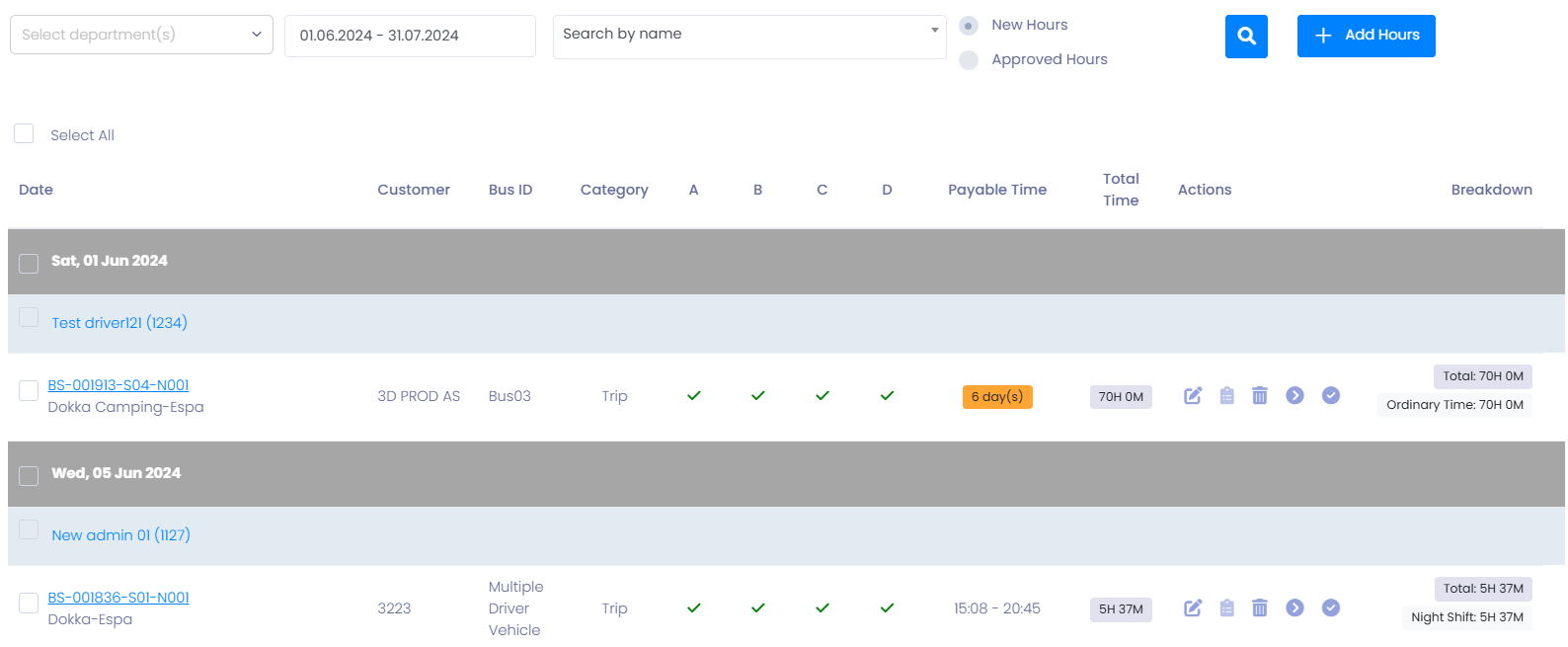
- Navigate to HR → Timesheet.
- Use the filter options to quickly locate the hours you need to review:
- 🏢 Department
- 👤 Employee
- 📅 Date range
- 🔵 Status (New hours, Approved hours)
Step 2: Review Logged Hours
Each row shows logged time entries submitted via the Ferdia Driver App or manually added.
You can:
- 👀 View all hours for the selected employee or department
- ✏️ Edit entries (before approval or payroll submission)
- 📘 Open the change log by clicking the notepad icon to see:
- Who edited the entry
- When the change occurred
- What was changed
Step 3: Approve Hours
Once the hours look correct:
- Select one or multiple entries
- Click Approve
Approved hours remain editable until they are sent to Payroll.

Step 4: Send Hours to Payroll
When you are ready to process salaries:
- Filter for Approved hours
- Select the entries
- Click Send to Payroll
After this step:
- All hours are locked
- No further edits can be made
- The entries move to the Payroll module

Step 5: Register Missing Hours
If an employee forgot to log hours or performed additional work:
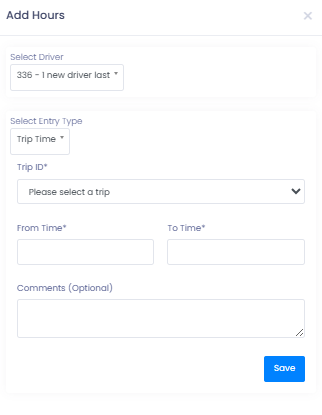
- Click Add Hours
- Fill in:
- Employee
- Entry Type
- Trip-ID
- Duration
- Notes/comments
- Save the entry
🛠 Troubleshooting
Hours cannot be edited
- Entries already sent to Payroll are locked.
- Check the status filter to confirm.
Missing hours do not appear in the list
- Ensure the correct department or date range is selected.
- Refresh the page to load recent submissions.
Change log not visible
- Only entries that have been edited show a notepad icon.
Employee hours are not syncing from the Ferdia Driver App
- Ensure the driver completed all checkpoints in the app.
- Verify the driver is active under HR → Employees.
- Check internet connectivity on the driver’s device.
Incorrect hour types (e.g., rest vs. work)
- Edit the entry before approval.
- Ensure correct hour categories are configured under Activity Types.
Still having issues?
- Reach out to TEQ Support with screenshots and the employee name for faster assistance.