
Trips List
Trips List
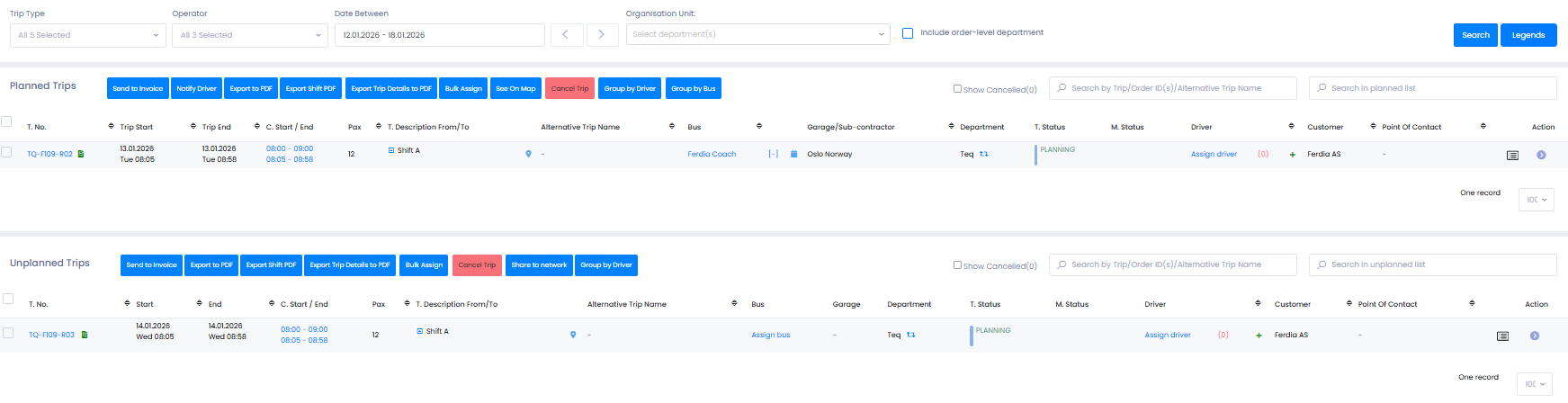
The Trips List provides a classic table-style overview of all your planned and unplanned trips. Each trip appears on its own row, giving planners immediate access to key trip data and powerful quick-action tools, ideal for fast, detailed operational planning.
What You Can View in the Trips List
Each line in the Trips List displays essential information, including:
- 🆔 Trip-ID
- ⏱️ Start & end times (including garage withdrawal and delivery)
- 📝 Alternative name & trip description
- 🅿️ Garage location
- 🏢 Department
- 🧑✈️ Driver
- 🧑🤝🧑 Customer
- ☎️ Point of Contact (POC)
- 🚦 Trip status & Mission status (real-time updates from Ferdia Driver App)
Managing Unplanned Trips
The Unplanned section helps you quickly assign the basic resources needed before a trip is operational.
Available actions:
- 🧑✈️ Assign Driver
- 🚌 Assign Vehicle
- ☎️ Assign POC
- 🔗 Share trip to Network
- 🧾 Send trip to invoicing
- 📄 Export to PDF
- 📦 Bulk assign resources
- ❌ Cancel trip

Managing Planned Trips
Once trips are fully assigned, more management options become available.
Available actions:
- 🔄 Swap vehicle
- 🔄 Swap driver
- ✉️ Notify driver (And of updated mission details)
- 🧾 Send trip to invoice
- 📄 Export to PDF
- 📦 Bulk assign
- 🗺️ View trip on map (opens in separate URL)
- 👥 Group trips by Driver
- 🚍 Group trips by Vehicle

Grouping helps make the overview cleaner and easier to manage, especially for busy operational days.
Event Log (Right-Side Panel)
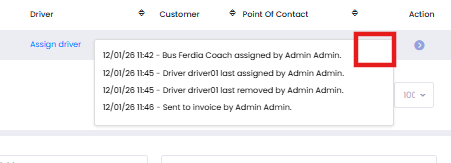
Each trip includes a detailed Event Log on the right-hand side, providing full transparency of all changes and actions performed.
The event log records:
Resource Assignment
- Vehicle Assigned
- Vehicle Removed
- Driver Assigned
- Driver Removed
- POC Assigned
Driver Communication
- Driver Notified
- Driver Accepted
Trip Lifecycle
- Trip Started
- Trip Completed
- Trip Cancelled
Financial & Workflow Actions
- Sent to Invoice
Each entry includes:
- The event type
- The user who performed the action
- The timestamp
- Additional details (vehicle, driver, changes made)
🛠 Troubleshooting
Trip not appearing in Trips List
- Check the date range filter.
- Ensure the department filter is correct.
- Confirm the trip isn’t archived or deleted.
Cannot assign driver or vehicle
- Verify the trip has valid start/end times.
- Check that the driver or vehicle is available.
Event Log entries missing
- Refresh the page.
- Confirm actions were performed on the trip (only actual changes are logged).
Export to PDF not working
- Allow pop-ups in your browser.
- Make sure at least one trip is selected.
Driver did not receive notification
- Confirm driver has a valid phone number in HR → Employees.
- Check mobile coverage or SMS deliverability.
Still having trouble?
- Contact TEQ Support.