
Manual invoice
Creating a Manual Invoice
Every trip in TEQ is automatically connected to an invoice by default. However, certain situations require creating an invoice manually, for example, invoicing additional services, adjustments not tied to a trip, or issuing a standalone invoice.
Step 1: Open the Invoice Overview
- Navigate to Invoice → Overview in the top menu.
- Select Regular Invoice to begin a new manual invoice.

Step 2: Create Your Manual Invoice
After selecting Regular Invoice, you can build the invoice from scratch:
- 🧾 Add line items (products, services, fees, or custom items)
- 👤 Select the customer to receive the invoice
- 💲 Set prices or apply adjustments
- ✏️ Add customer-facing comments
You may choose to:
- Finish and send the invoice, or
- 💾 Save it as a draft, which will place the invoice in the Worklist for later review and processing.
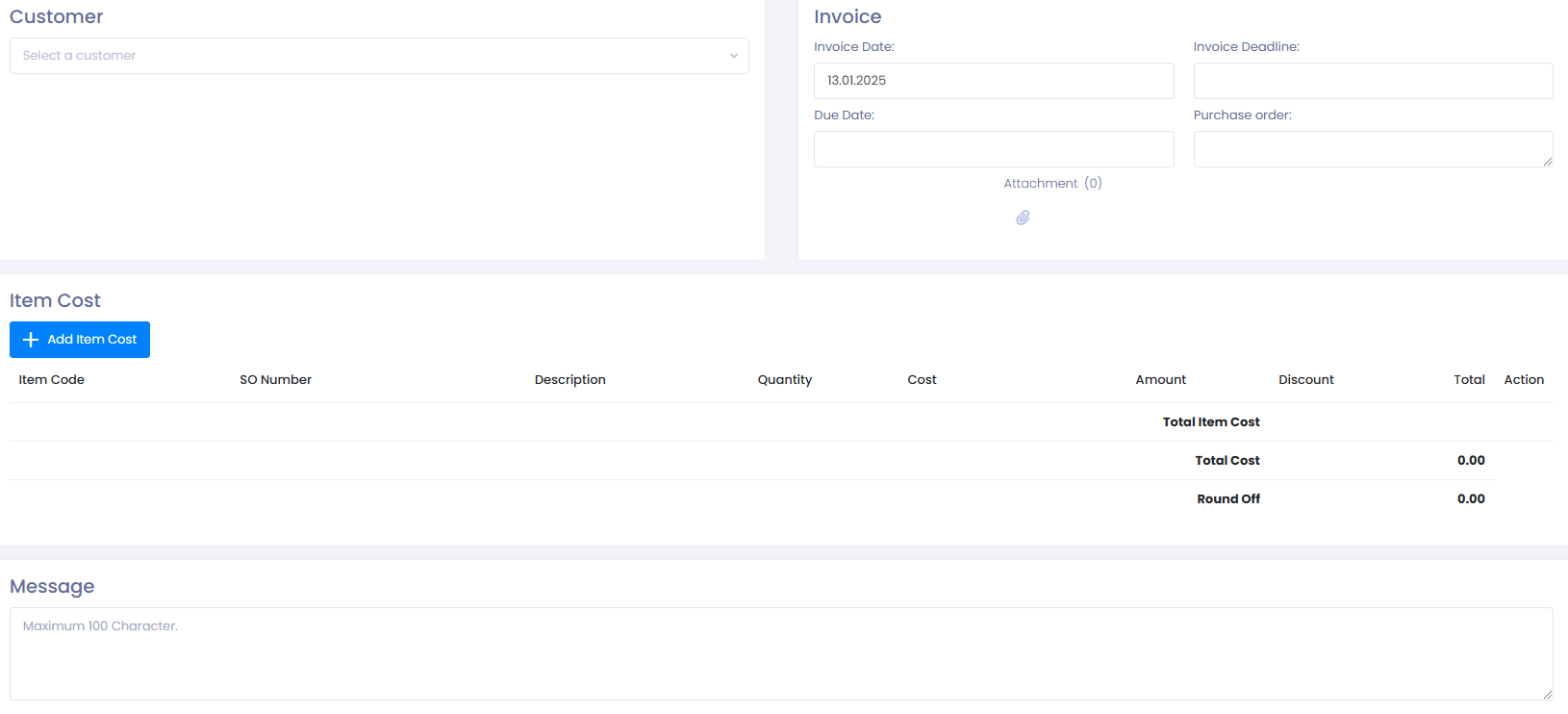
Step 3: Review or Finalize the Invoice
Once the invoice is complete:
- Review each line for accuracy
- Confirm totals and VAT
- Save, send, or return later via the Worklist
Troubleshooting
Regular Invoice option not visible
- Your user role may not have the correct permissions.
Go to Settings → Admin → User Roles and ensure invoicing access is enabled.
Unable to save the invoice
- Check for missing required fields such as customer or item code.
- Ensure VAT and price fields are valid.
Draft not appearing in Worklist
- Verify filters in the Worklist — drafts may be hidden by date or customer filters.
- Refresh the page to reload new entries.
Customer not listed when creating invoice
- Ensure the customer exists in Sales → Customers.
- Confirm the customer is not archived.
Still having issues?
- Contact your TEQ Administrator to review role or system settings.
- Reach out to TEQ Support with details, screenshots, and invoice ID (if applicable).