
Payroll
Managing Payroll in TEQ
The Payroll module gives you a complete overview of all logged and approved work hours, helping ensure accurate salary payments for every employee. You can filter, review, and export payroll data directly for use in your external payment system.
Step 1: Open the Payroll Overview
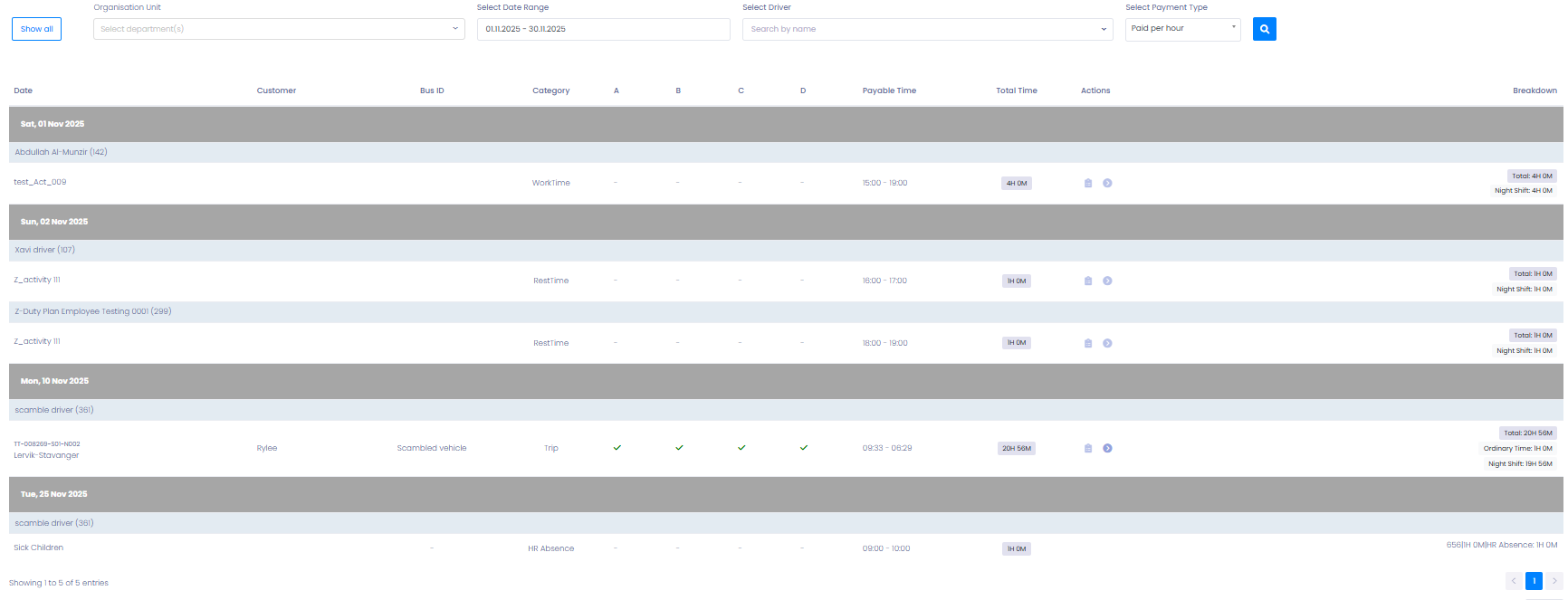
- Navigate to HR → Payroll from the main menu.
- You will see a full list of employee hours ready for review.
Step 2: Apply Payroll Filters
Use the filters at the top of the page to refine your view:
- 🏢 Department
- 👤 Employee
- 💰 Pay method — such as:
- Fixed salary
- Hourly pay
These pay methods can be configured on the individual employee card under HR → Employees.
Step 3: Review Logged Hours
After applying filters:
- All logged hours for each employee will be displayed in a structured table
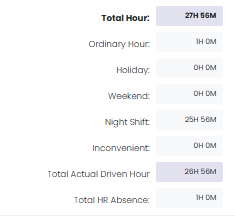
- Hours include:
- Driving time
- Standby time
- Breaks
- Training
- Absences
- Manual entries
- Each entry includes date, time type, and duration
Step 4: Export Payroll for Payment Processing
When the data looks correct:
- Select the employees or hours you want to export
- Click Export Payroll
- Choose your preferred export format (PDF, Excel)
This export can then be uploaded into your salary/payment system.
📦 Exports include all approved hours ready for payout

🛠 Troubleshooting
Payroll data is missing or incomplete
- Ensure drivers have submitted timesheets in the Ferdia Driver App.
- Confirm that managers have approved all deviations or corrections.
- Check employee filters and date range settings.
Wrong pay method displaying
- Open the employee card under HR → Employees and verify the pay type.
- Pay method changes may only apply to new hours logged after the update.
Export file won’t upload to accounting software
- Confirm your format matches the requirements of your payroll system.
Still having issues?
- Reach out to TEQ Support with screenshots and export details.