
Update active order/Trip
Updating Active Orders in TEQ
When an order is marked as Active, it means the customer has accepted the quotation and all trips within the order are ready for planning. You can update any part of an active order, including locations, times, prices, contact information, and trip details, directly in TEQ.
Step 1: Update Trip Locations and Details
- Open the Order Window.
- Find the order by:
- Searching for the Order ID or Trip ID, or
- Clicking the Trip ID directly in the Trip List or Visual Planner.
- Click the ✏️ Edit icon on the right-hand side of the trip.
- Update the fields you need, such as:
- 📍 Departure or arrival location
- 👥 Passenger (PAX) details
- ☎️ Point of contact
- 📎 Attachments or internal notes
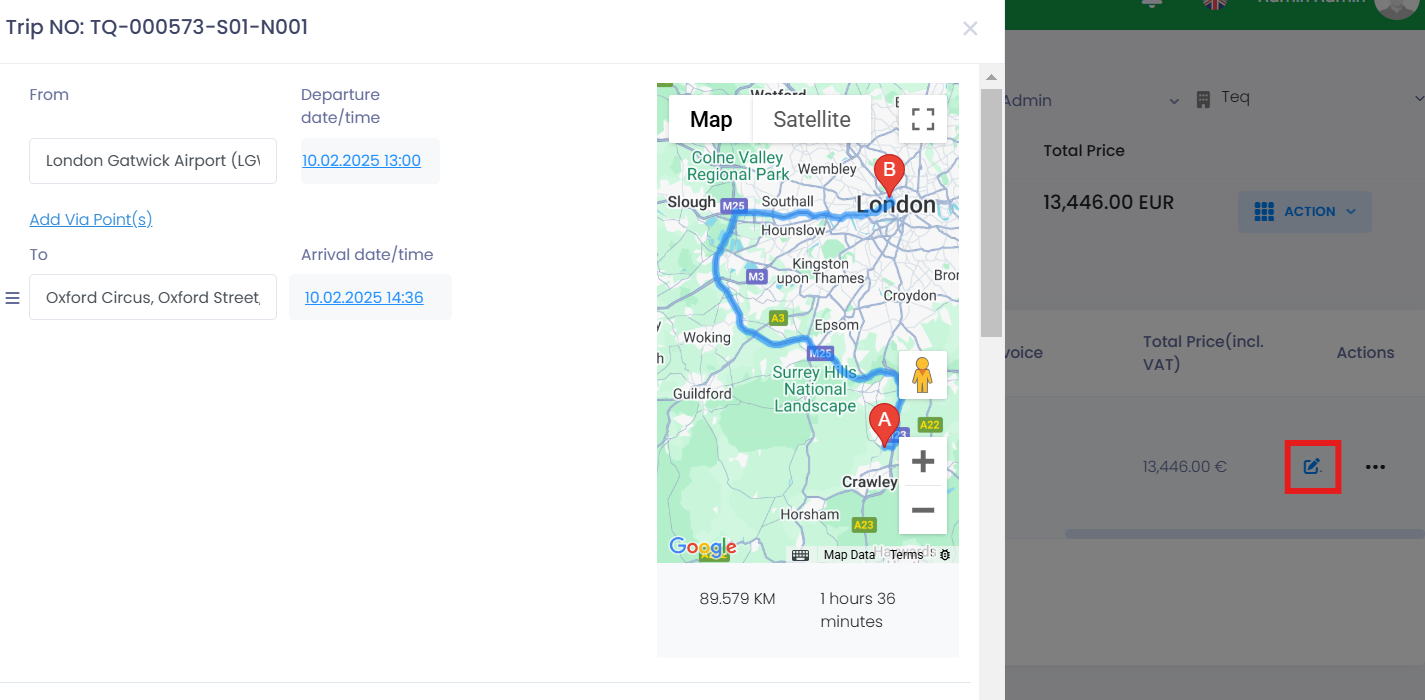
💡 Tip: After updating locations, always confirm that trip times and related trips remain consistent.
Step 2: Update Trip Price
Single Trip Price Update
- Stay in the Order window.
- Locate the trip whose price you want to update.
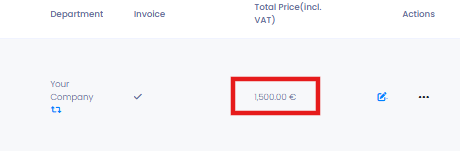
- Click directly on the price field. It becomes editable.
- Enter the new price and click Save.
The order's total price will automatically update.
⚠️ An exclamation icon will appear next to the Trip ID to indicate the price was changed.
Bulk Price Update
- Select multiple trips using the checkboxes.
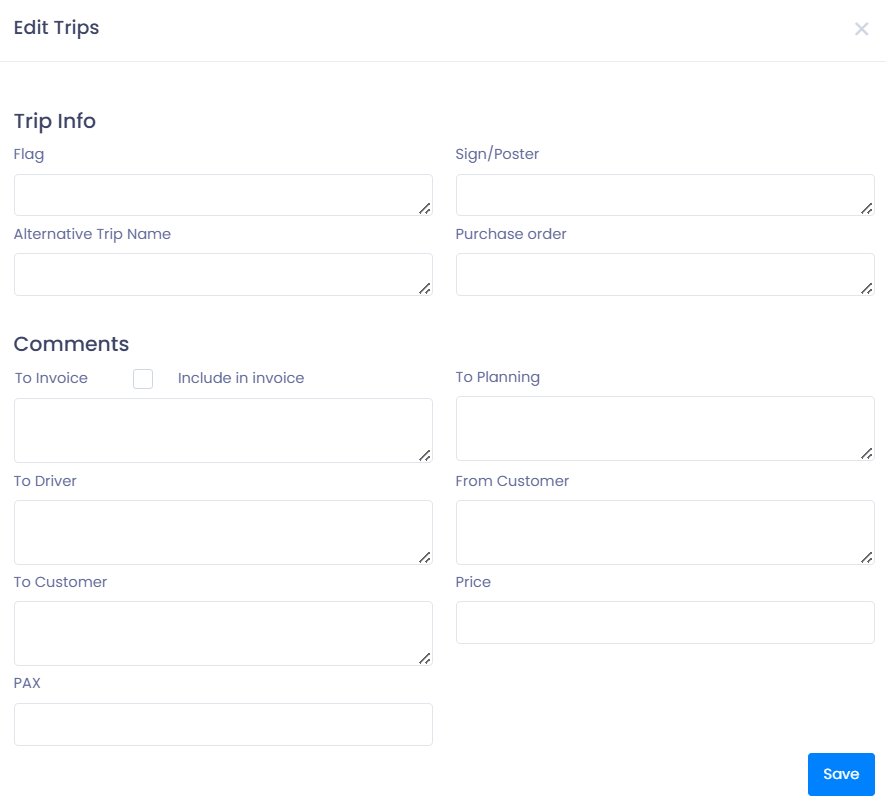
- Click Edit Trip.
- In the popup window, you can:
- Update multiple prices
- Add comments
- Modify other shared trip details
Step 3: Update Trip Times
You can update times from Trips List or Visual Planner.
Update Time in Trips List
- Locate the trip.
- Click the blue-highlighted time field.
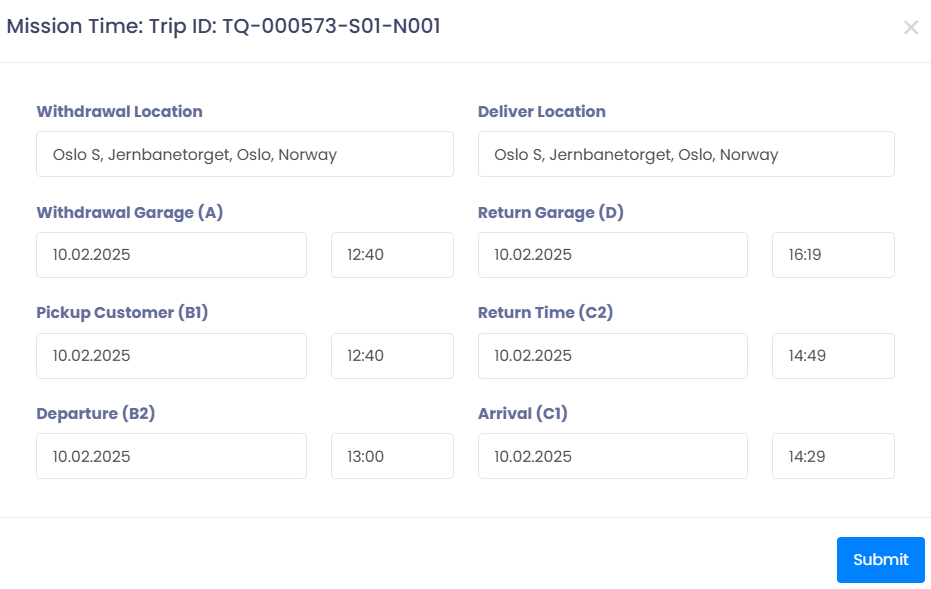
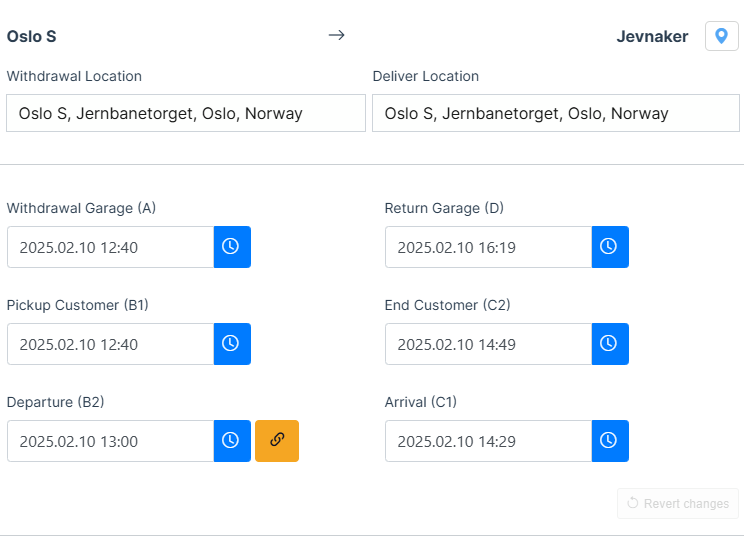
- A time editor will open with all trip segments (A–D times).
⏱️ Updating the Departure time (B2) automatically adjusts all other times.
✏️ Updating any other time requires manual adjustment of remaining fields.
Update Time in Visual Planner
- Open Planning → Visual Planner.
- Locate and click the trip in the timeline.
- The Edit window appears.
⚙️ To disable automatic time updates, click the orange auto-update toggle next to the (B2) field.
🛠 Troubleshooting
Trip updates not saving
- Check that all required fields are filled.
- Refresh the window and try again.
- Confirm you have permission to edit orders under User Roles.
Time changes not applying correctly
- Ensure the (B2) time field is valid.
- If auto-update is disabled, adjust all times manually.
- Verify that the trip does not overlap with existing planned trips.
Price field not editable
- Make sure the invoice hasn't already been generated for that trip.
Trip not appearing in the Planner
- Check the date range in the planner.
- Ensure the trip is assigned to the correct department or business profile.
- Refresh the planner view.
Still having trouble?
- Reach out to TEQ Support with the Order ID, Trip ID, and screenshot for faster resolution.