
Deviations
Managing Deviations in TEQ
Driver-reported deviations provide valuable insight into what caused delays or operational issues during a trip. By tracking these deviations, you can improve planning, adjust future schedules, and invoice customers for delays or damages when necessary.
All deviations submitted through the Ferdia Driver App are visible in TEQ and can be reviewed or expanded for more detail.
Step 1: Open the Deviations Overview
- Navigate to Quality → Deviations.
- You will see a full list of all deviations recorded by drivers.

Use filters (driver, trip ID, date, type) to quickly find the deviation you need.
Step 2: View Deviation Details
To get more information:
- Click on the deviation you want to review.
- A detailed view will open, showing:
- Driver comments
- Deviation category (Traffic, Customer delay, Planning, Other)
- Timestamp and trip ID
- Any additional notes added in the Ferdia Driver App
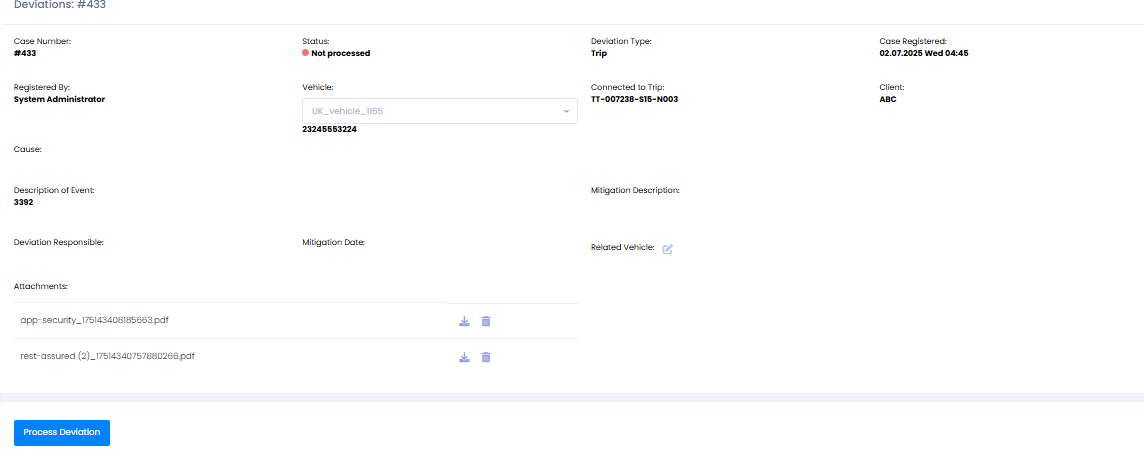
This information helps you identify patterns and take corrective actions.
Step 3: Add a New Deviation Manually
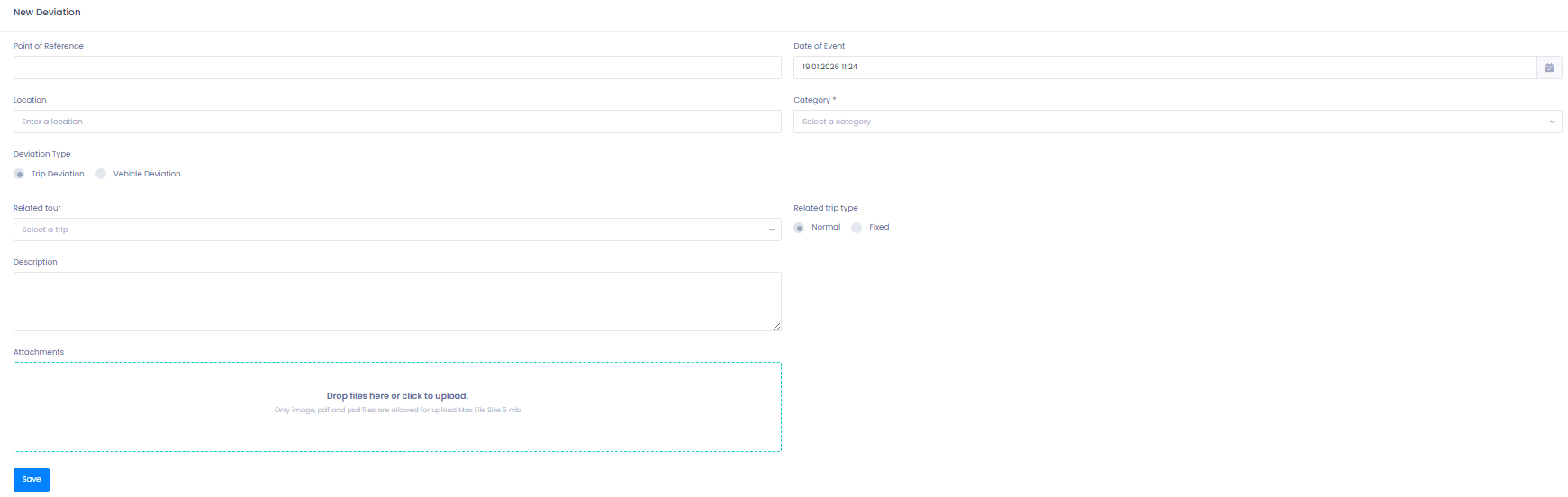
Administrators can also add deviations directly from TEQ.
- Click + New deviation.
- Complete the deviation form, including:
- Category
- Description
- Trip ID (required)
- Additional comments
- Save the entry.
📌 Important: Always select the correct Trip ID so the deviation links properly to the trip.
🛠 Troubleshooting
Deviation not visible in the list
- Check if filters are applied (driver, date range, deviation type).
- Clear filters and refresh the page.
- Ensure the deviation was fully submitted from the Ferdia Driver App.
Missing trip information in the deviation
- The driver may not have completed all trip checkpoints.
- The trip ID may not have been assigned correctly (for manually created deviations).
Unable to create a new deviation
- Ensure all required fields are filled in, especially the Trip ID.
- Verify your user role includes access to Quality features
(Settings → Admin → User Roles).
Driver cannot submit deviation in the app
- Ensure the trip was completed and reached the deviation screen.
- Check that the app has a stable internet connection.
- Confirm the driver is assigned to the trip in TEQ.
Still having issues?
- Reach out to TEQ Support with screenshots and affected trip IDs.