
Products and VAT
Managing Item & VAT Codes in TEQ
To ensure accurate pricing, invoicing, and accounting integration, TEQ uses Item Codes and VAT Codes. These codes must match your external accounting system so prices, taxes, and exports are handled correctly.
Item and VAT codes are also used by the Dynamic Price Calculator to apply the correct charges to trips.
Step 1: Open Products & VAT Settings
- Go to Settings → Products and VAT.
- Choose which tab you want to manage:
- 📦 Item Codes
- 💰 VAT Codes
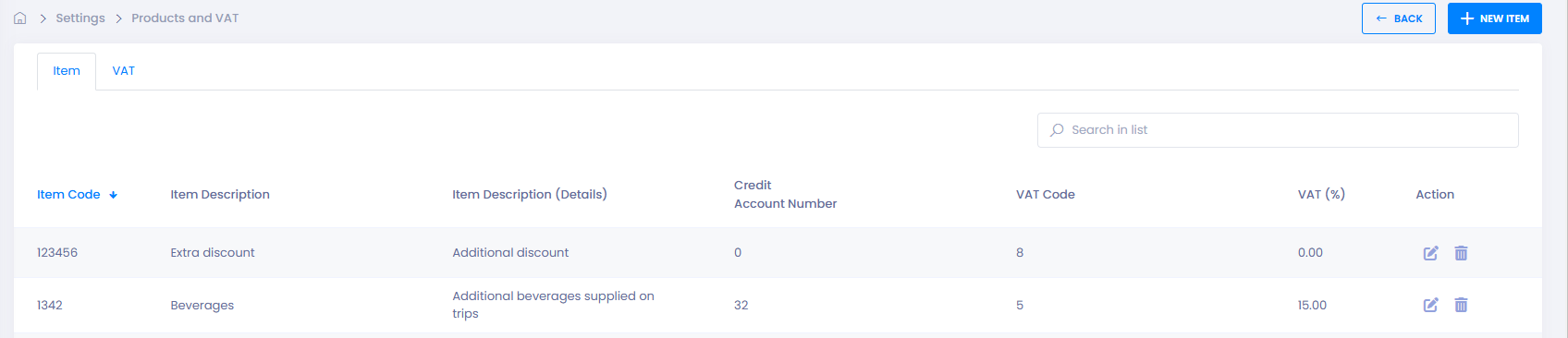
Step 2: Add or Edit Codes
- Click ➕ New Code on the relevant tab.
- Enter the required details:
- Code → Must exactly match the code used in your accounting system
- Description → Optional, but recommended for clarity
- If Item
- Add the Credit Account Number used in your accounting system.
- Select the relevant VAT Code.
- Click Save.
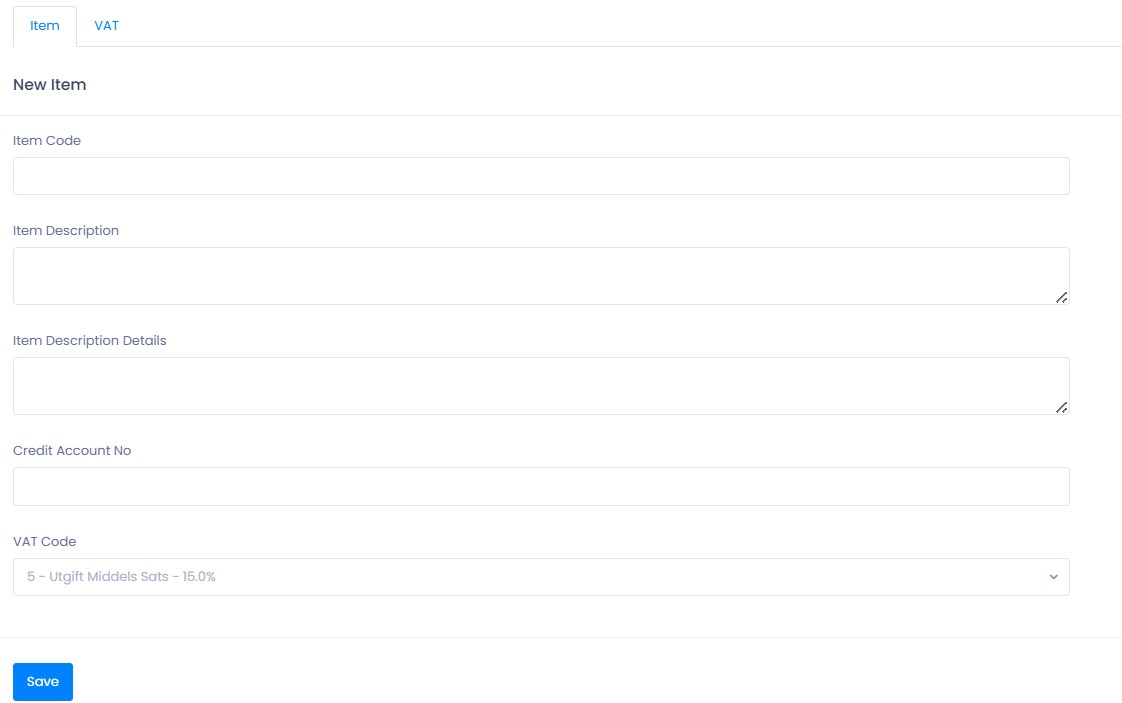
Once saved, the code becomes available for pricing, invoicing, and exports.
Step 3: Add Service Charge Item Codes (Optional)
You can create additional Item Codes for service-related charges to ensure full cost coverage.
Common examples include:
- 🍴 Food and catering
- 🧹 Cleaning
- 🛠️ Other custom services
These item codes can then be used by the Dynamic Price Calculator, invoices, or manual price adjustments.
💡 Tip: Using separate item codes for services improves invoice clarity and accounting accuracy.
🛠 Troubleshooting
Item or VAT code not appearing
- Confirm the code is saved and active.
- Refresh the page and try again.
Invoice or export rejected by accounting system
- Verify the code exactly matches your accounting setup (including spelling and formatting).
- Check that the VAT rate is correctly defined.
Incorrect VAT applied to an invoice
- Confirm the correct VAT code is selected on the trip or order.
- Verify the VAT percentage in the VAT Codes tab.
Dynamic pricing not applying correct item codes
- Check that the correct item code is linked to the pricing rule or service charge.
Still experiencing issues?
- Contact TEQ Support with the invoice number or export file for assistance.