
Dynamic Price Factors
Setting Up Dynamic Price Factors in TEQ
Dynamic Price Factors give you maximum flexibility when building your pricing structure in TEQ. You can create pricing rules based on distance, time, fees, conditions, or geography, allowing your prices to fully reflect your operational and business needs.
Step 1: Access Dynamic Price Factors
- Go to Settings → Price and Salary.
- Select Dynamic Price Factors.
- Click ➕ Create Dynamic Price Factor.

Step 2: Configure the Price Factor
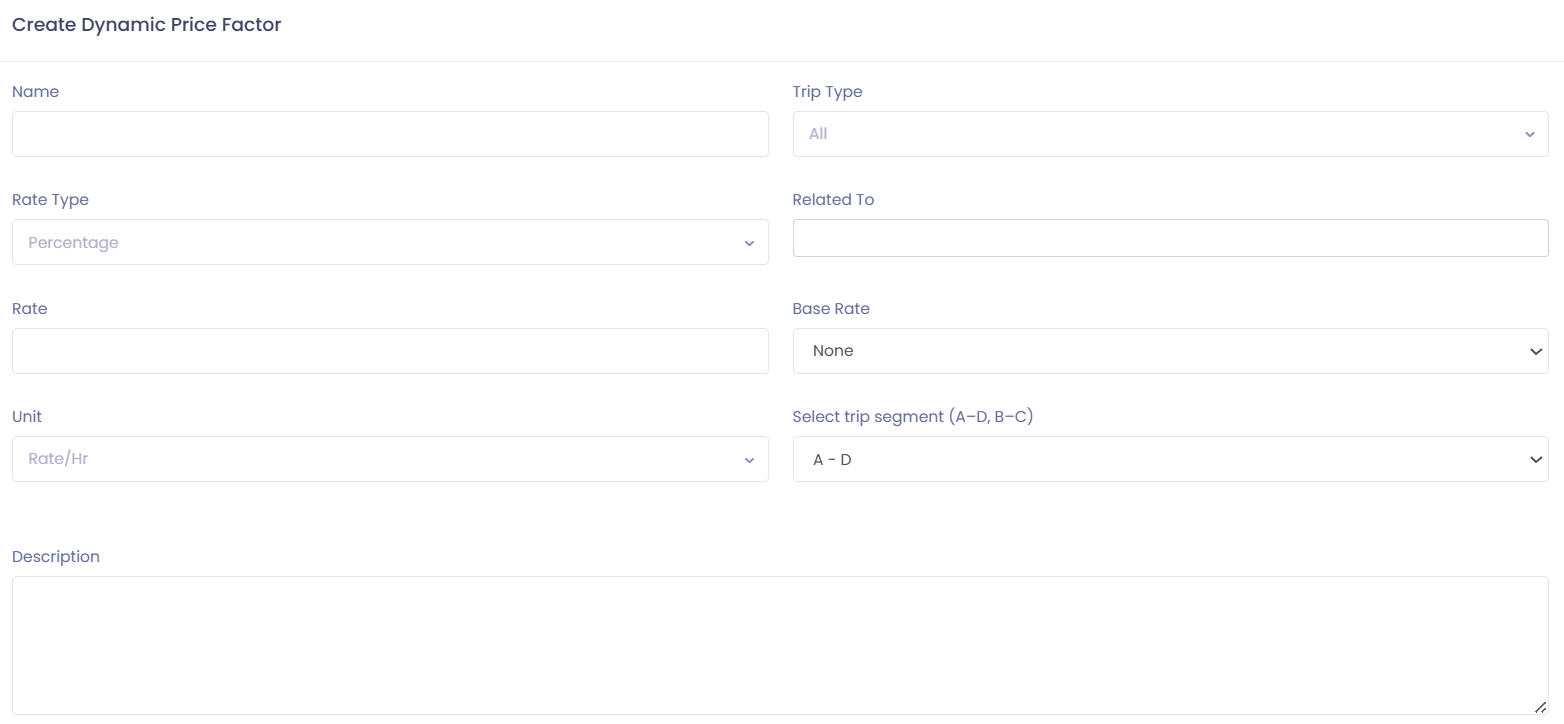
When creating a new price factor, define the following:
Basic Setup
- Name → Give the factor a clear and descriptive name
- Trip type → Select how the factor applies:
- Single trip
- Round trip
- With bus availability
Pricing Method
Choose how the price is calculated:
- Flat rate
- Enter a fixed amount
- Percentage
- Enter the percentage
- Select the base value (e.g. total cost, fuel, etc.)
Condition (Related To)
Choose what the price factor applies to, such as:
- 🌙 Night shift
- 📅 Weekend
- ⏰ Inconvenient time
- Other predefined conditions
💡 Tip: You can combine “Related to” conditions by selecting more than one.
Rate Type
Select whether the factor is applied:
- Per hour, or
- Per driven kilometer
Step 3: Apply Factors by Trip Segment
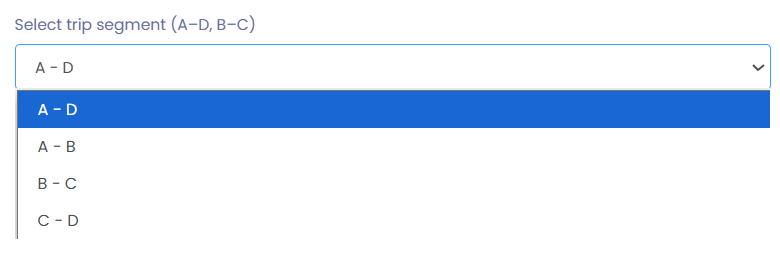
Use Select trip segment to decide when the factor applies during a trip:
- A–D → Entire trip
- A–B → Garage to pickup
- B–C → Pickup to destination
- C–D → Destination to return/garage
💡 Example:
You can apply one factor for garage → pickup and another for pickup → drop-off, allowing precise control over pricing at each stage.
Step 4: Set Price Ranges (Tiered Pricing)
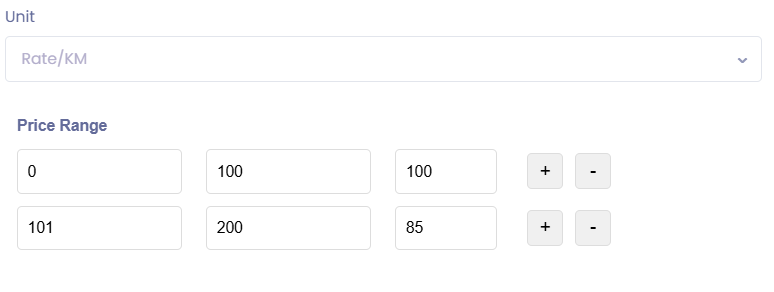
When using Rate/KM, you can define tiered pricing based on distance.
Example configuration:
- 0–100 km → 100 NOK per km
- 101–200 km → 85 NOK per km
💡 Tip: Click the ➕ button to add additional tiers. There is no limit to how many ranges you can create.
Step 5: Define Geographical Price Factors
Geographical pricing allows you to apply automatic surcharges or flat rates based on location.
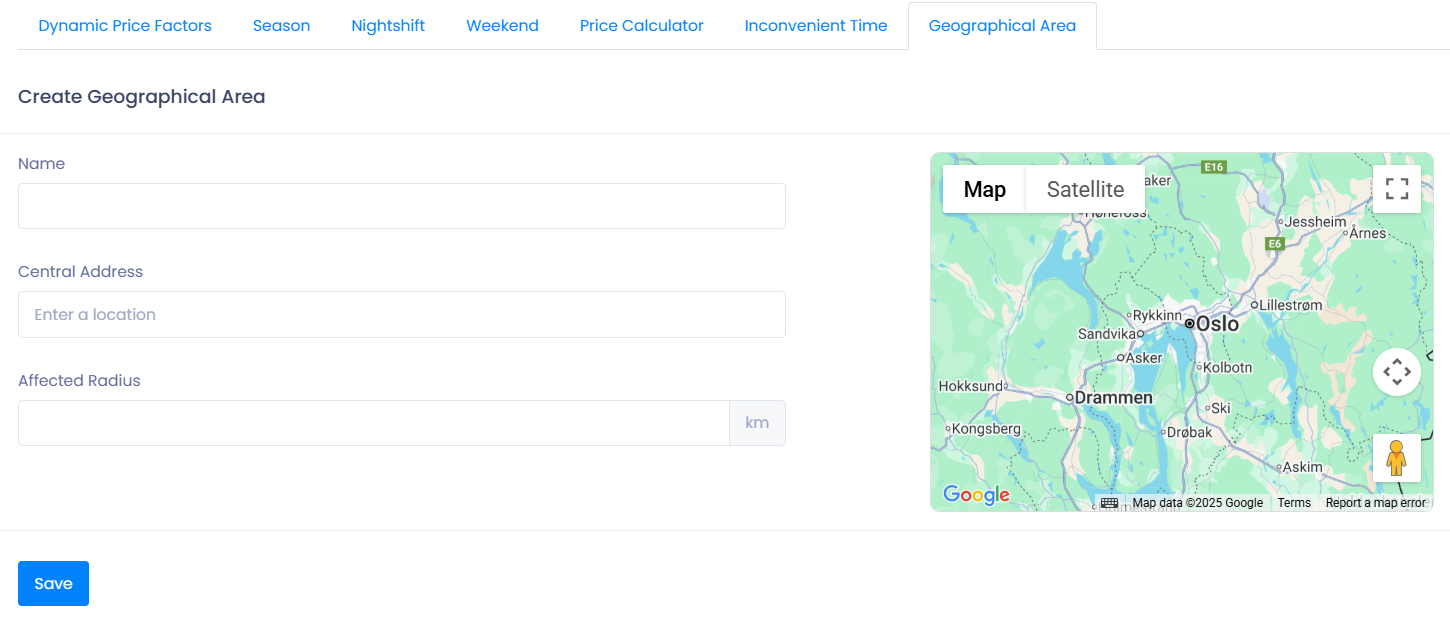
Create a Geographical Area
- Go to Settings → Price and Salary → Geographical Area.
- Click ➕ Create Geographical Area.
- Define:
- 📍 Address and radius
- 💵 Flat rate
- 🚦 Whether the charge applies when a trip passes through or ends within the area
Link the Area to a Price Factor
- In the Dynamic Price Factor, choose Geographical Area under Related to
- Select the saved area from the dropdown list
Step 6: Build a Flexible Pricing Model
By combining Dynamic Price Factors, you can:
- Combine per-km pricing, flat fees, and wait time charges
- Apply tiered pricing for short vs. long trips
- Add surcharges for remote areas, high-demand zones, or special conditions
- Match pricing to both customer expectations and operational costs
👉 Related article: Price and Salary
🛠 Troubleshooting
Dynamic price factor not applied
- Verify the factor is saved and active.
- Confirm the correct trip type and condition are selected.
- Check that the trip matches the selected segment (A–D, B–C, etc.).
Tiered pricing calculating incorrectly
- Ensure price ranges do not overlap or leave gaps.
- Confirm ranges are ordered from lowest to highest distance.
Geographical pricing not triggering
- Check that the trip route passes through or ends within the defined radius.
- Confirm the correct Geographical Area is selected in the price factor.
Price factor not visible
- Verify your user role has access to Price and Salary settings.
- Refresh the page after creating or editing factors.
Still having trouble?
- Contact TEQ Support with the name of the price factor and an example trip ID for faster assistance.