
Trip templates
Creating Trip Templates for BusBusiness and TEQ
Trip Templates allow you to predefine frequently used trips with fixed routes, durations, distances, and pricing.
They help reduce manual work for your sales and planning teams and give customers a consistent, easy-to-use experience in the BusBusiness portal.
Templates can be used in two ways:
- 📦 Displayed as products in the BusBusiness portal
- 🧾 Selected when creating a new quotation in TEQ
Step 1: Access Templates
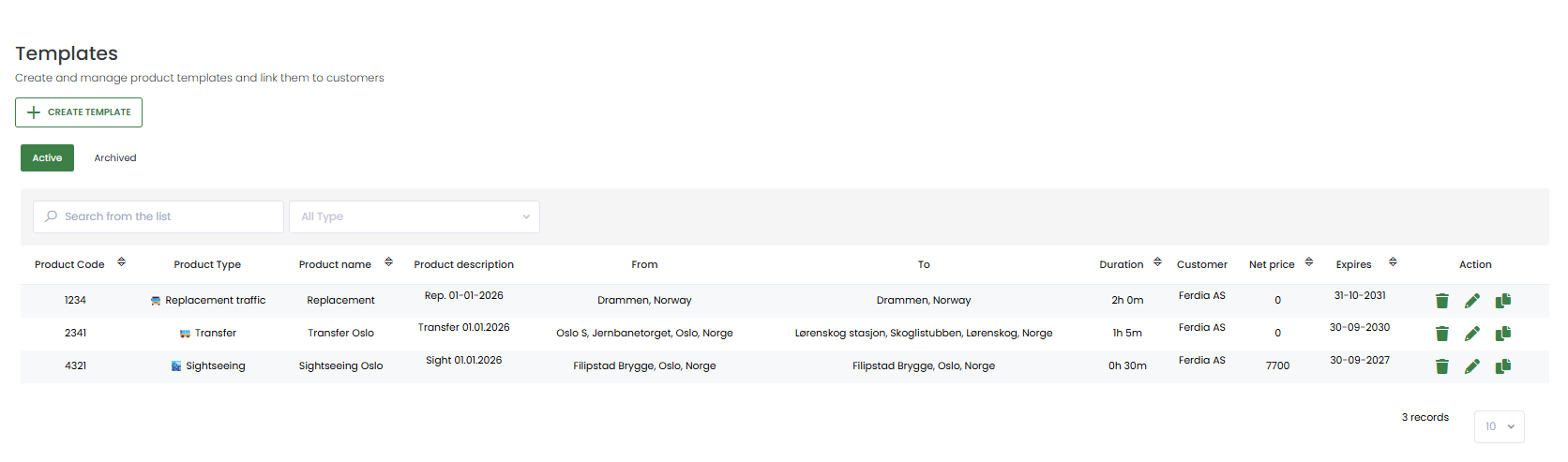
- Go to Sales → Templates
- From here you can:
- View existing templates
- Edit or delete templates
- Click ➕ Create Template to add a new one
Step 2: Select Customers
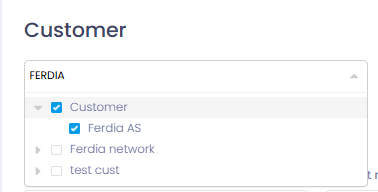
Choose which customers can use this template.
- Select one or more customers:
- These customers will see the template in BusBusiness
- These templates will be available when creating new quotations in TEQ
- You can always edit the template later and add more customers if needed
Step 3: Fill in Template Details
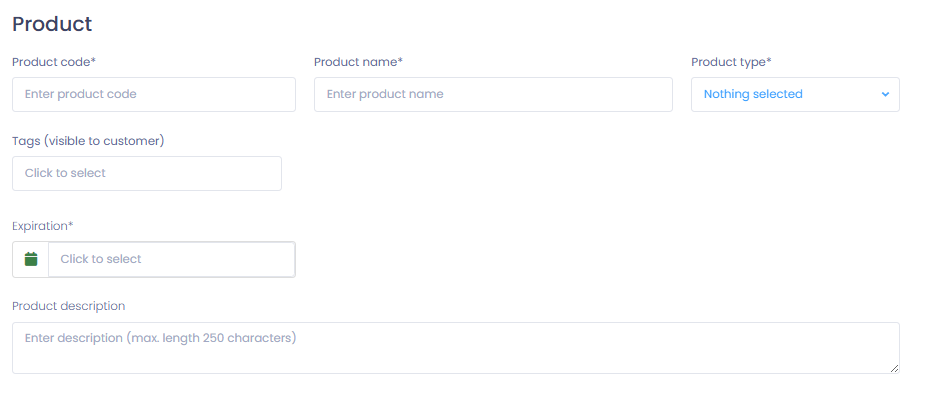
Provide clear and consistent information so both customers and planners can easily recognize the template.
Required fields include:
- 📦 Product code
- 🏷️ Template name
- 📂 Product type
- 🏷️ Tags
- 📝 Product description
💡 Tip: Use descriptive names and tags so customers can quickly identify the correct trip in the portal.
Expiration Date
- Set an expiration date to control how long the template is available
- Expired templates:
- Will no longer appear in the BusBusiness portal
- Will not be selectable in new quotations
Step 4: Define Trip Information
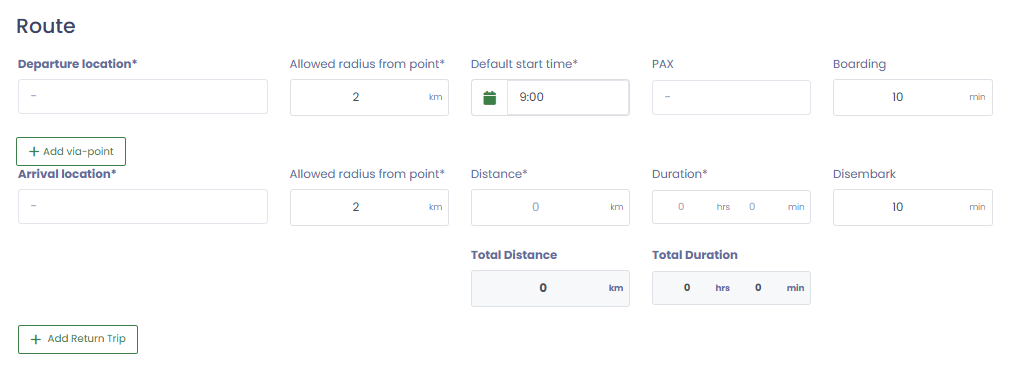
Define the fixed structure of the trip.
- 📍 Departure & arrival locations
- 🔁 Via points or return trip (if applicable)
- 📏 Allowed radius from point
→ Maximum distance the customer can adjust departure or arrival - 🕘 Default start time (can be changed later)
Predefined trip values:
- 📐 Calculated distance → Approximate distance in km
- ⏱️ Planned duration → Hours and minutes
- 🕒 Boarding / disembarkation time → Time allocated for passengers
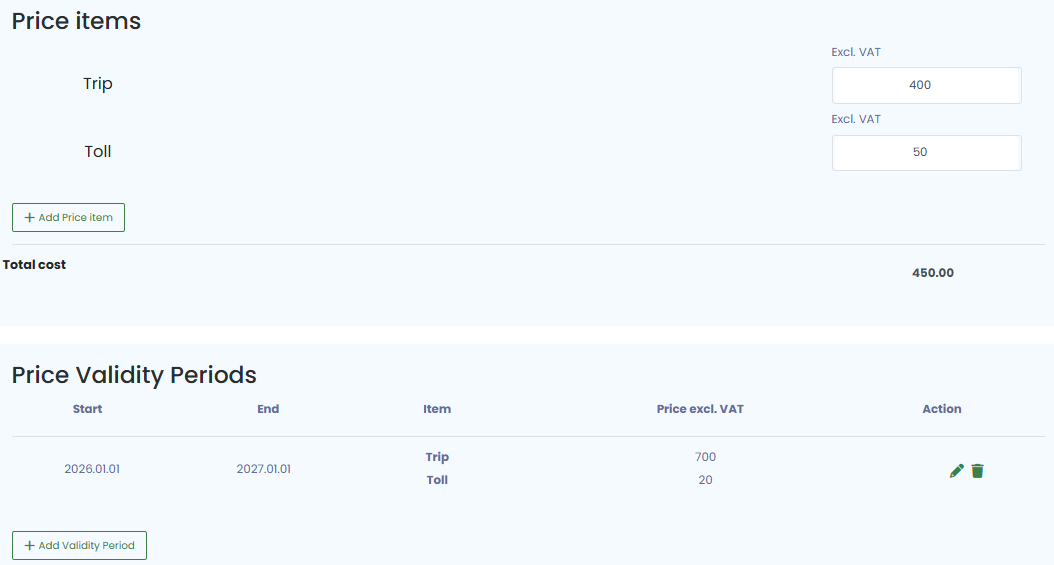
Step 5: Set Pricing
Define how much the trip costs.
- 💰 Add a fixed price
- 🛣️ Add tolls if applicable
- 📦 Add price items if needed
Price Validity Periods (Optional)
You can adjust prices for specific periods, such as holidays or peak seasons.
- Add a start and end date
- Choose adjustment type:
- ➕ Amount
- 📊 Percentage
- Enter the adjustment value
Example:
- Base price: 400
- Summer price should be 700
- Amount: +300
- Percentage: +75%
Save your changes when complete.
Step 6: Template Availability
Once saved:
- Customers will see the template under the Products tab in the BusBusiness portal
- Sales and planning teams can select the template when creating new quotations in TEQ
- Templates only appear for customers assigned to them
💡 Tip: You can edit templates at any time.
🛠 Troubleshooting
Template not visible in BusBusiness
- Confirm the customer is assigned to the template
- Check that the template has not expired
Template not selectable in new quotation
- Ensure the quotation customer is added to the template
- Refresh the quotation window
Price adjustments not applied
- Verify the price validity period dates
- Confirm whether the adjustment is set as amount or percentage
Cannot create or edit templates
- Check that your user role has access to Sales → Templates
- Contact your TEQ administrator to confirm permissions
Still having trouble
- Contact TEQ Support with screenshots and the template name for faster assistance