
Public Query Form
About the Public Query Form
The Public Query Form allows you to publish a fully integrated trip request form on your website. Any request submitted through the form appears instantly inside TEQ under Sales → Requests, ensuring a fast and seamless workflow.
The form includes all fields required to create a quotation and can be fully styled using custom CSS to match your brand.
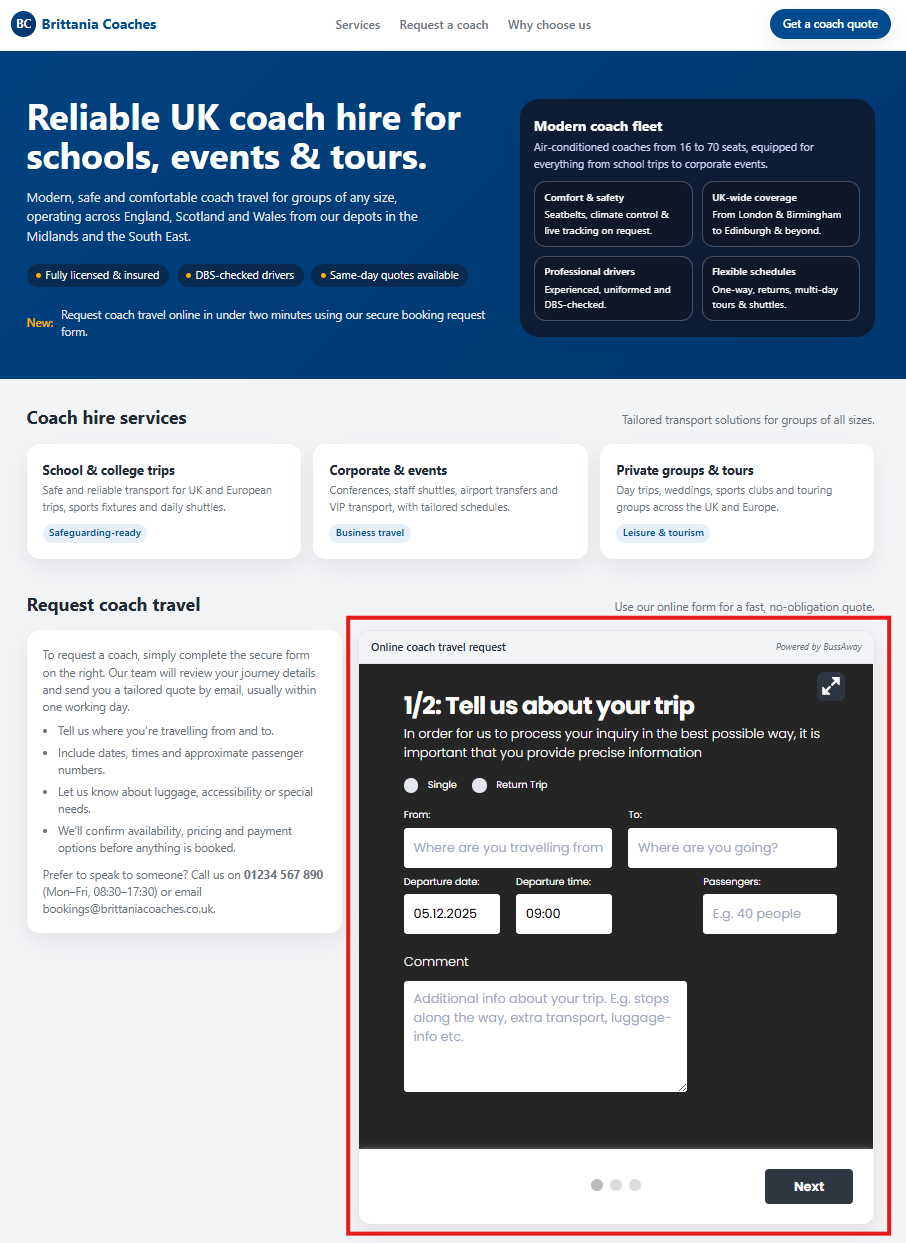
Step 1: Add the Query Form to Your Website (iFrame)
To embed the Public Query Form, add an iFrame to your webpage that points to your TEQ instance:
Base URL format:
https://[your_company].ferdia.app/public/query-form/Example iFrame:
<iframe src="https://[your_company].ferdia.app/public/query-form/"></iframe>Step 2 (Optional): Apply Custom CSS Styling
You can upload a custom CSS stylesheet to visually match the query form to your webpage branding.
How to upload your CSS:
- Go to Settings → Company → Billing Profile
- Choose the billing profile to update
- Click Customize Templates
- Upload your stylesheet under Query Form CSS
- Press Save

💡 Each Billing Profile can have its own CSS file, allowing multiple branded forms.
Step 3 (Optional): Set Language & Department in the URL
The query form supports custom language and department parameters.
Language Parameter
Add lang= to the URL:
<iframe src="https://[your_company].ferdia.app/public/query-form/?lang=en"></iframe>Supported languages:
nb(Norwegian Bokmål)sv(Swedish)da(Danish)en(English)
If no language is set, TEQ uses your instance’s default language.
Department Parameter
You can route requests to a specific department using the department= parameter:
<iframe src="https://[your_company].ferdia.app/public/query-form/?lang=en&department=DEP123"></iframe>This is useful when:
- Different departments use different Billing Profiles
- Each department requires unique branding or workflows
- You want requests to be automatically linked to the correct Business Profile
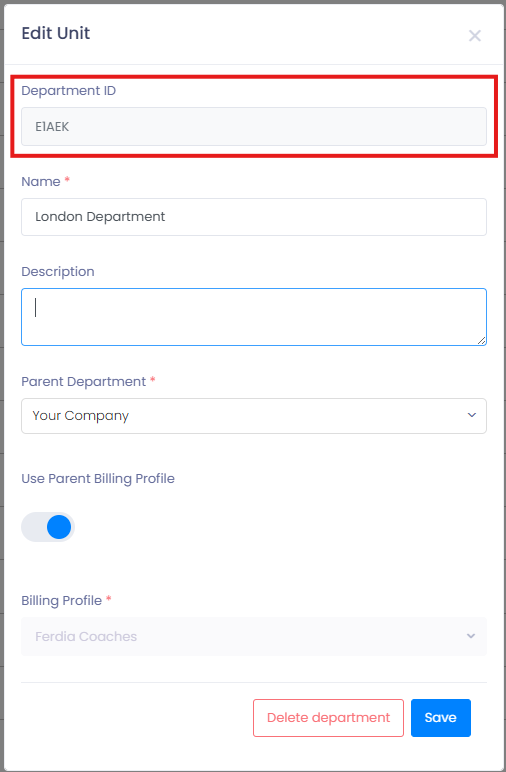
How to find your Department ID:
- Go to Settings → Company → Organisation
- Click Edit next to the department
- The Department ID is shown at the top of the screen
🛠 Troubleshooting
Query form not loading on the website:
- Check that the iframe URL uses your correct TEQ company domain.
- Make sure the URL includes
https://. - Verify that your website allows iframe embedding (no X-Frame-Options blocking).
Custom CSS not applying:
- Ensure the CSS file was uploaded under the correct Billing Profile.
- Clear your browser cache.
- Confirm there are no syntax errors in the stylesheet.
Wrong language showing in the form:
- Verify the
lang=parameter in the iframe URL. - Check the default language configured in TEQ if
langis omitted.
Requests not appearing in TEQ:
- Confirm you are checking the correct department in Sales → Requests.
- Ensure the correct
department=parameter is set in the iframe URL. - Refresh TEQ or verify browser caching.
Still having trouble?
- Contact TEQ Support with the department ID, the iframe URL, and a screenshot of the issue.