
Trip Requirements
Trip Requirements
The Trip Requirements feature allows you to define specific vehicle criteria directly at the quotation stage. This ensures that only vehicles meeting required standards, such as emission class, amenities, capacity, or registration year, appear as available options during planning.
This improves accuracy, prevents vehicle mismatch, and helps meet customer expectations and contractual requirements.
Step 1: Add Trip Requirements in a Quotation
- Click ➕ New Quotation.
- Fill in all required trip details:
- Route and distance
- Date and time
- Passenger count
- Departure and arrival points
- Open the Trip Requirements section and add all applicable criteria.
Examples of requirement types:
- 🌱 Emission Standard: Euro 6, Electric, Hybrid
- 🪑 Amenities: Wi-Fi, USB ports, WC, Wheelchair lift
- 🚐 Vehicle Registration Year: e.g., 2020 or newer
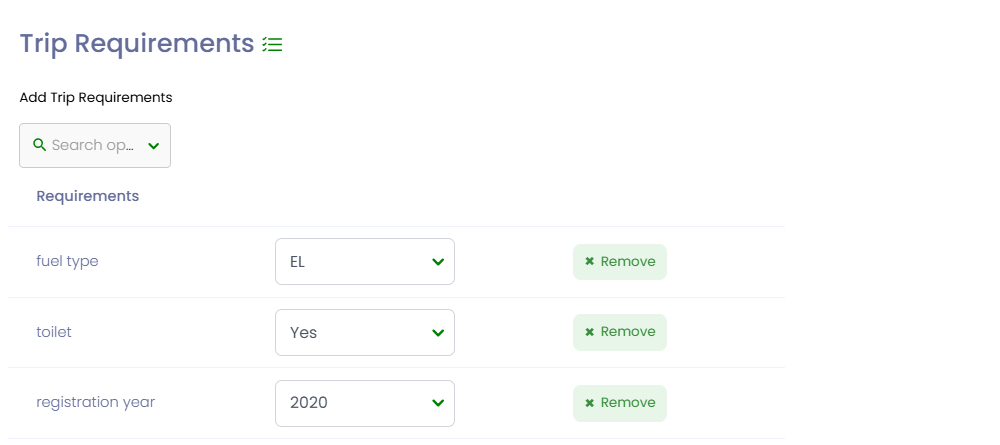
TEQ will automatically filter available vehicles during planning so only compliant vehicles appear for selection.
Step 2: Visual Indicators in Planning
Trips with requirements are clearly marked in both the Trip List and Visual Planner.
Indicators include:
- 🟢 Compliant: All requirements are met
- 🟠 Warning: Vehicle does not meet one or more requirements (non-blocking)
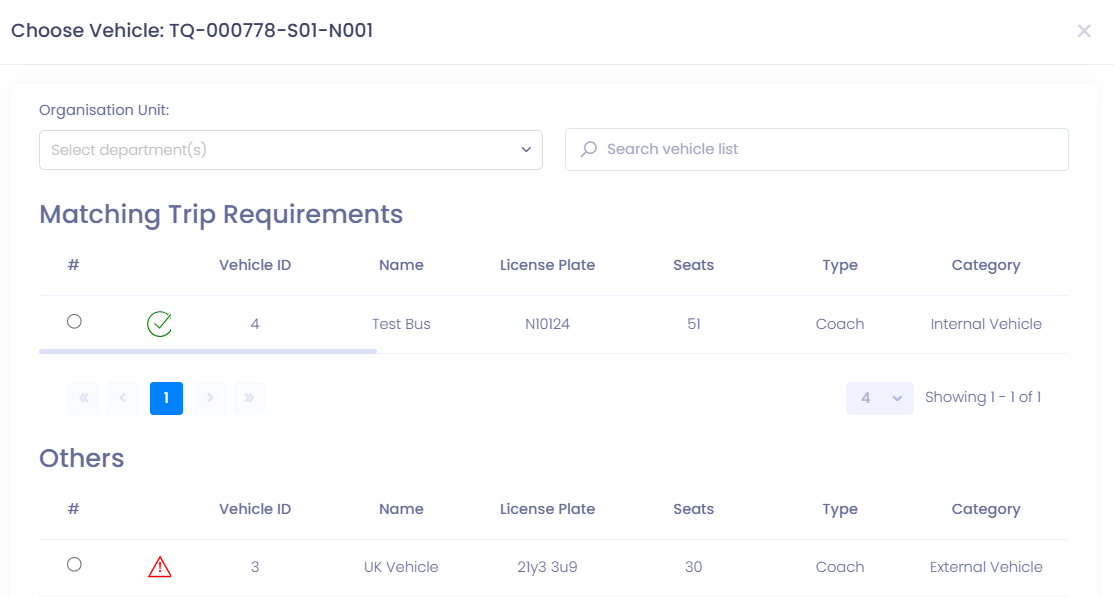
💡 Planners can still assign a non-compliant vehicle when necessary, but TEQ highlights the mismatch for full transparency.
Step 3: Configure Default Requirements (Customer Level)
You can define automatic trip requirements for a customer so they apply to every new quotation and trip associated with that customer.
How to set default requirements:
- Go to Sales → Customers
- Open the customer’s Customer Card
- Click ✏️ Edit
- Open the Requirements tab
- Select all applicable default requirements
- Click Save
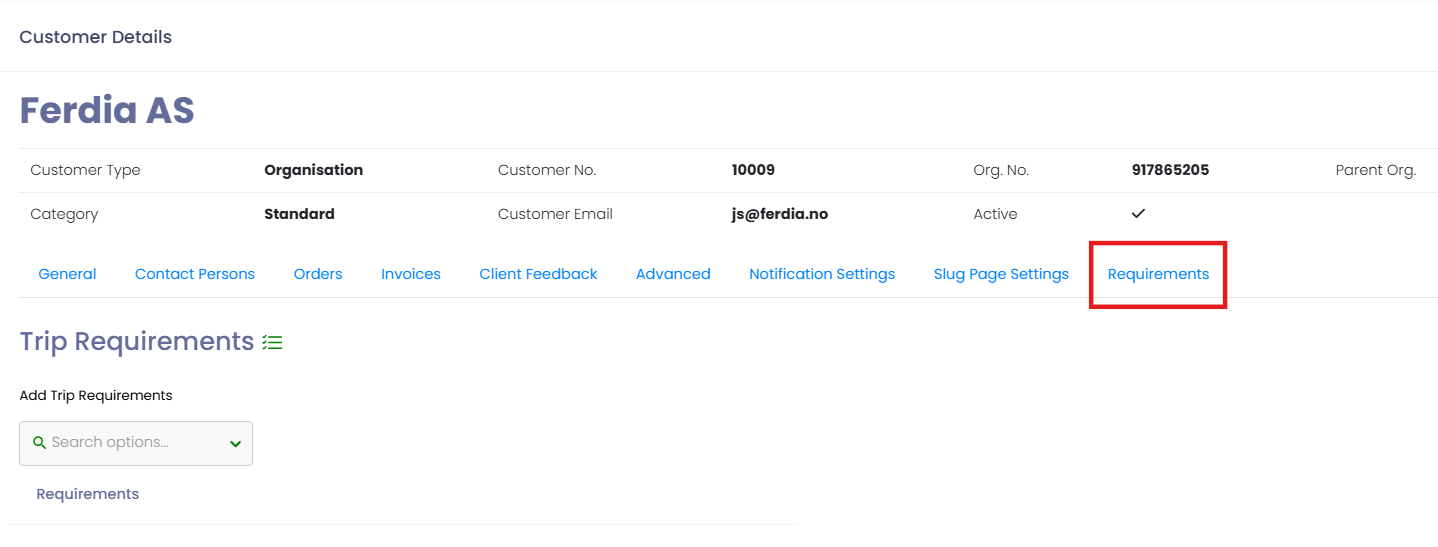
This ensures consistent quality without manually adding requirements every time.
Step 4: Requirements During Customer Merge
When merging customers in TEQ:
- All vehicle-related requirements are preserved automatically.
💡 This ensures the correct standards remain applied to all future trips for the merged customer.
🛠 Troubleshooting
Requirements not filtering available vehicles:
- Ensure you clicked Save in the quotation.
- Refresh the Visual Planner or Trip List.
- Verify vehicle attributes (year, amenities, emission class) are correctly set under Settings → Vehicles.
Customer default requirements not showing in new quotation:
- Confirm requirements were saved in the customer’s Requirements tab.
- Make sure the customer was selected before adding manual requirements.
Warning icon appears even when you think the vehicle matches:
- Review all requirement types — multiple requirements may be active at once.
- Check if the vehicle is missing one attribute (e.g., USB but has Wi-Fi).
Requirements disappeared after editing a customer:
- Ensure you saved changes before closing.
- Confirm you edited the correct customer if multiple profiles exist.
Still having trouble?
- Contact TEQ Support