
Employee Activity Log
Employee Activity Log
The Employee Activity Log provides full traceability of all actions performed in HR → Employee. Every modificatios, such as creating, editing, deleting, archiving, or resetting an employee, is automatically recorded. This ensures transparency, compliance, and secure handling of employee data.
Step 1: Access the Activity Log
- Navigate to Quality → Activity Log.
- The page displays a chronological list of all HR-related actions, including timestamps and the user who performed each action.
💡 Tip: Only HR users and System Administrators have access to this area.
Step 2: Review Logged Actions
The Activity Log automatically records the following actions from HR → Employee:
- 👤 Create Employee
- ✏️ Edit Employee Details
- 🗑️ Delete Employee
- 📦 Archive Employee
- 🔄 Reset Employee Access
Each log entry includes:
- Action type
- Username of the person who made the change
- Date and time
- Details of the affected employee record
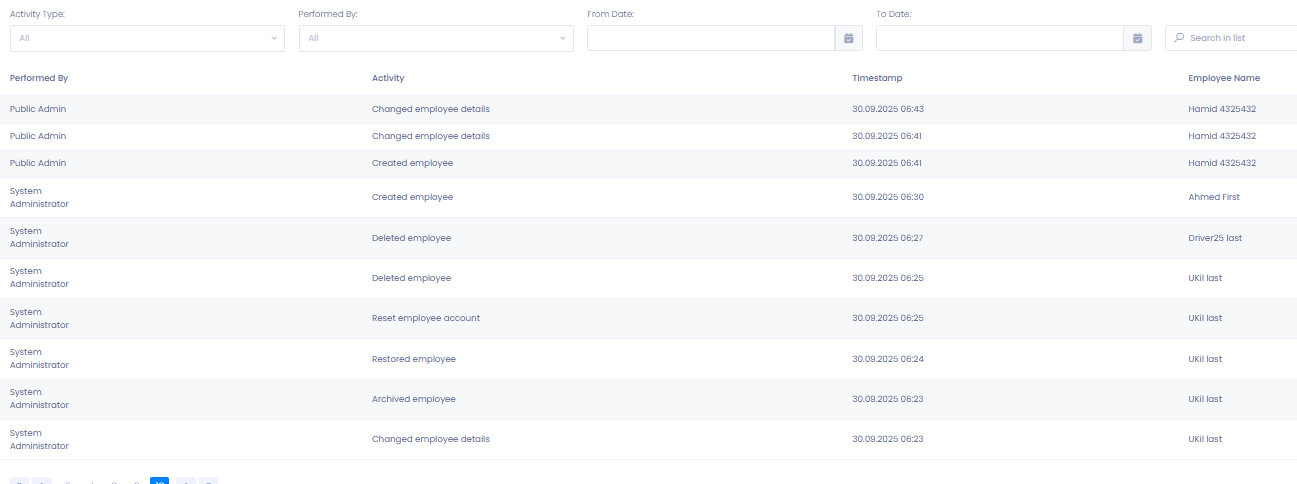
Step 3: Filter and Search the Log
Use the Filter panel to refine your results:
- Activity Type (Create, Edit, Archive, etc.)
- User (who performed the change)
- Date Range
- Wildcard search to quickly locate specific actions
Filtering helps narrow results during audits, reviews, or investigations.
Step 4: Data Integrity and Security
TEQ ensures complete traceability through:
- Persistent records: Logged actions remain visible even if the employee is deleted.
- Restricted access: Only HR or Admin roles can view the log.
- Immutable entries: No log entry can be edited or removed.
These safeguards ensure compliance with internal policies and external auditing requirements.
🛠 Troubleshooting
Activity Log not visible
- Confirm your user role includes access to Quality → Activity Log.
- Contact your system administrator to update your permissions.
Recent actions not showing
- Refresh the page.
- Ensure the action was performed in HR → Employee, as only HR actions are captured.
No results when filtering
- Clear all filters and try again.
- Verify that the date range includes the event you are looking for.
Unable to open or view log details
- You must have HR or System Administrator rights.
- Access is restricted for non-HR roles due to sensitive information.
Still having trouble?
- Contact TEQ Support and provide:
- A screenshot of the issue
- The action you expected to see