
Managing Orders
Managing Orders in TEQ
The Orders section in TEQ gives you a complete overview of all bookings, from accepted quotations to upcoming scheduled trips and past completed orders. This allows you to track customer activity, manage active operations, and analyze historical performance in one central place.
Access the Orders Overview
- Go to Sales → Orders
- You will see three main tabs:
- Active Orders
- Upcoming Trips
- All Orders
These tabs help you organize your workflow depending on what stage each booking is in.
Active Orders
An order appears in the Active Orders tab once the customer has accepted the quotation.
This means:
- The order is confirmed
- All trips within it are ready to be planned
- Vehicles and drivers can now be assigned
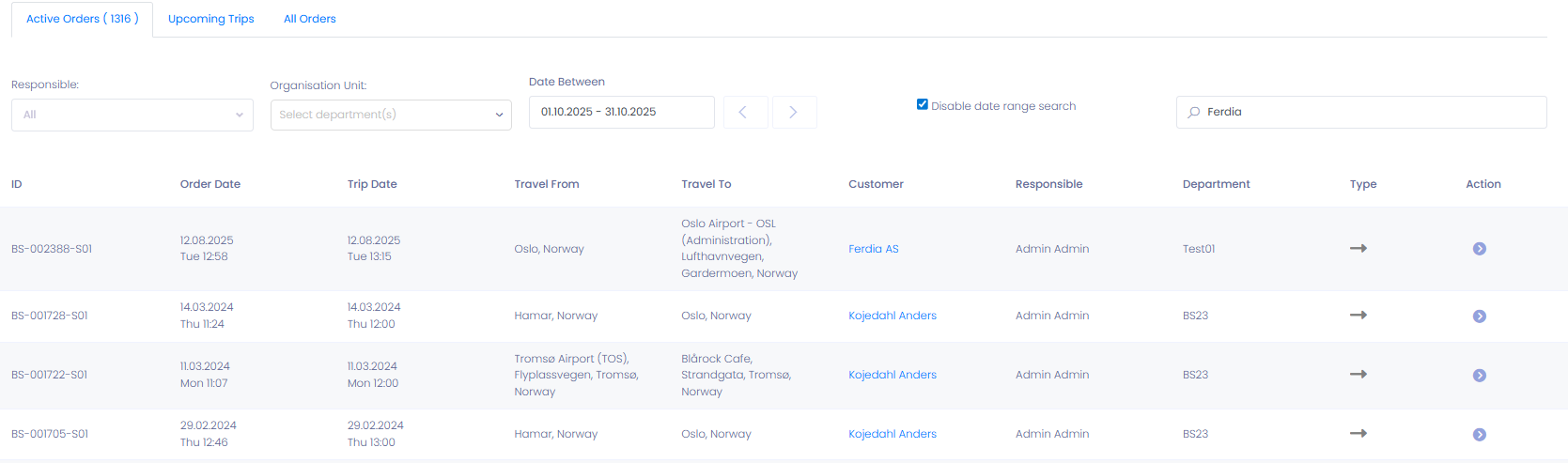
💡 Tip: Click any Active Order to open the full order window where you can edit trip details, update prices, adjust times, assign vehicles/drivers, and manage planning.
Upcoming Trips
The Upcoming Trips tab gives you a detailed view of all trips scheduled for the next 7 days.
Use this view to:
- Allocate and monitor resources efficiently
- Check which upcoming trips have been invoiced
- Detect potential scheduling conflicts early
- Confirm readiness before daily operations begin
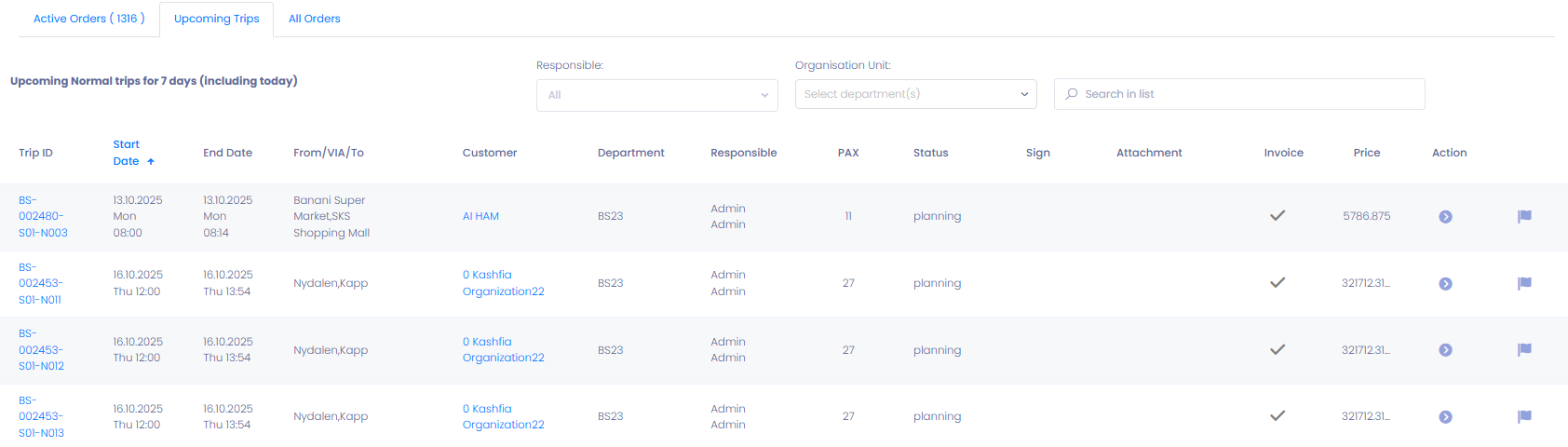
This tab is perfect for dispatchers and planners managing daily operations.
All Orders
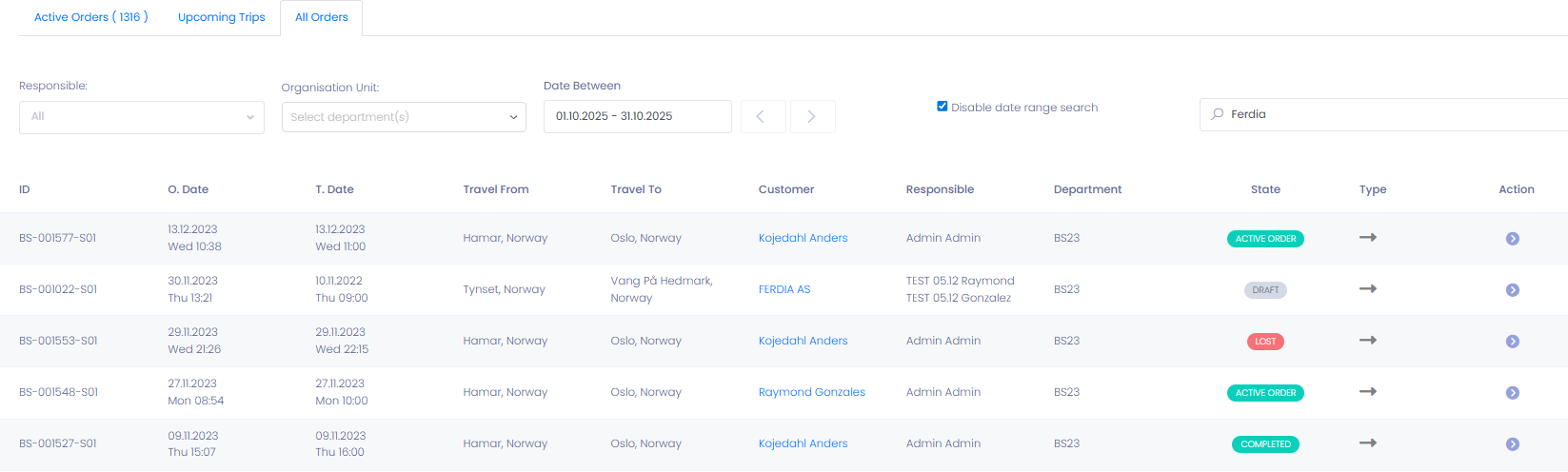
The All Orders tab contains the full history of every order in your TEQ system, including:
- 📝 Draft orders
- 🚀 Active orders
- 🏁 Completed orders
- ❌ Lost orders
From this tab, you can:
- Search and filter by date, customer, status, or department
- Review past quotations and trip timelines
- Copy previous orders to reuse for future bookings
- Track customer relationships and historic activity
🛠 Troubleshooting
Order not appearing in Active Orders:
- Ensure the quotation has been marked as Accepted by Customer.
- Refresh the Orders page.
- Verify the order is not filtered out by a date or department filter.
Trips missing in the Upcoming Trips view:
- Check that the trip date falls within the next 7 days.
- Confirm that the trip is part of an Active Order.
Unable to find an old order in All Orders:
- Expand the date range filter.
- Search by customer name or order number.
Order details not updating:
- Confirm changes were saved before exiting.
- Refresh your browser window.
Still having trouble?
- Contact TEQ Support with the Order ID and a screenshot for faster assistance.