
Copying Orders and Trips
Copying Orders and Trips in TEQ
Sometimes a trip or order needs to be repeated but doesn’t qualify as a fixed trip — for example, a returning customer requesting the same schedule, or a bus making multiple runs to the same destination in one day.
TEQ allows you to copy entire orders or copy/repeat individual trips quickly and efficiently.
Step 1: Copy an Entire Order
Use this option when the whole order, including all trips and customer details, should be duplicated.
- Open the Order Window.
- Click the ⋮ three-dot menu next to the blue highlighted Order Number.
- Select Copy Order (Quotation).
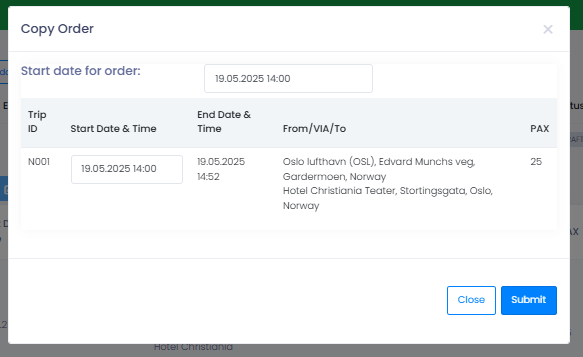
- In the pop-up window:
- 📅 Choose the new date for the copied order.
- 🕒 Verify trip times and adjust if needed.
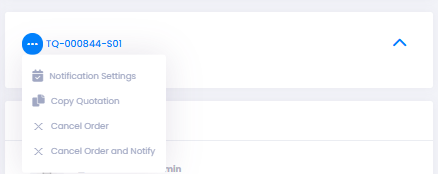
💡 Tip: You can also cancel the order from this menu if needed.
Step 2: Copy a Single Trip
Use this when only one trip from an order needs to be duplicated.
- Open the Order Window.
- Locate the trip you want to duplicate.
- Click the ⋮ three-dot menu under the Action column.
- Choose between:
- Copy Trip
- Repeat Trip
- Cancel Trip
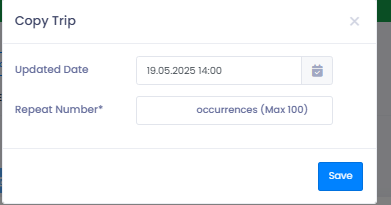
Copy Trip
- In the pop-up, select the new date.
- Choose how many copies to create (same date/time).
Repeat Trip
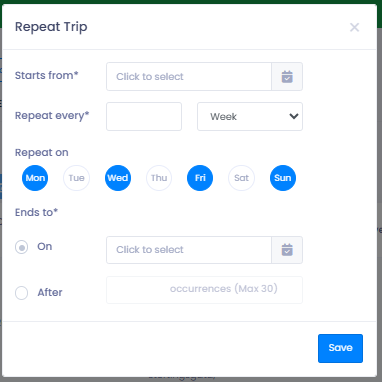
- Specify:
- 🕘 Start and End Time
- 📅 Repeat Pattern:
- Daily
- Specific Weekdays
Fixed Trips vs. Copied Trips
TEQ offers two ways to handle repeated journeys.
Use the option that best fits the situation:
Fixed Trips
Best for long-term, structured recurring schedules.
Automatically generate trips based on shift templates
Recurring daily/weekly patterns
Ideal for:
- 🏫 School transport
- 🏢 Employee shuttles
- 🚌 Long-term contracts
💡 Choose Fixed Trips when the schedule repeats predictably for months.
Copied Trips
Best for short-term or irregular repetitions.
Duplicate a full order or single trip
Set any specific date
Ideal for:
- 🎉 Special events with multiple identical departures
- 🚌 Multiple runs on the same day
- 🔄 Occasional repeat requests
💡 Choose Copied Trips when the schedule is temporary or ad-hoc.
🛠 Troubleshooting
Copy option not showing
- Ensure the order/trip is still active.
- Check that your user role has permissions for editing orders.
Trip times did not update correctly
- Verify the copied trip uses the correct date.
- Edit times manually if original trip had dependencies.
Repeated trips created on wrong days
- Double-check weekday selections in the repeat settings.
- Ensure start/end dates cover the intended repeat period.
Still having trouble?
- Contact TEQ Support and include the Order ID or Trip ID for faster assistance