
Inviting subcontractors to Network
Adding and Managing Subcontractors in TEQ
You can easily add and manage subcontractors in TEQ using the BusNetwork Partners feature. This enables seamless cooperation between companies, clear pricing structures, and controlled access to shared trip information.
Step 1: Add a New Subcontractor
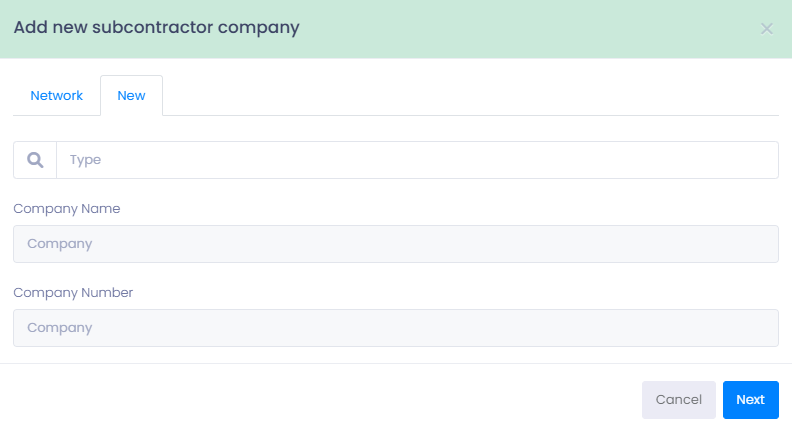
- Go to Planning → BusNetwork Partners.
- Click ➕ Add new subcontractor.
- Enter the subcontractor’s organization number.
- Add a valid email address for sending the invitation.
- Save to send the partner invitation.
Step 2: Set Subcontractor Pricing
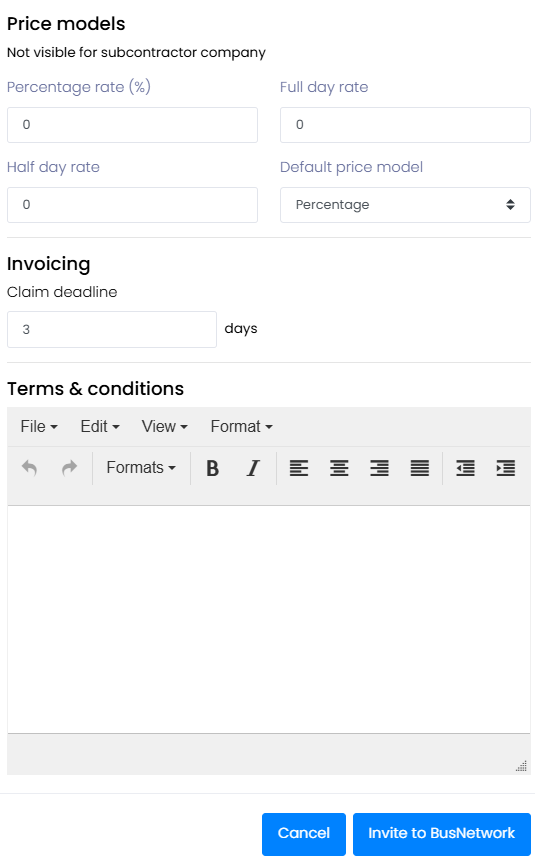
Define the pricing rules that TEQ will suggest when sharing trips with this subcontractor.
- Select the default price model.
- Choose one of the available rate types:
Rate Type | Comment |
|---|---|
📊 Percentage | Suggested price is a percentage of the customer price. |
📅 Full day | Suggested price equals the preset full-day rate. |
⏳ Half day | Suggested price equals the preset half-day rate. |
🚫 No agreement | Suggested price will be 0. |
💡 Tip: Suggested prices can always be modified before the trip is sent to the subcontractor.
Step 3: Define Rules & Access
To ensure clarity and consistency, configure additional options for each subcontractor:
- ⏰ Claims deadline
Set how long the subcontractor has to submit claims after the trip is completed. - 📄 Terms and conditions
Add subcontractor-specific terms that will apply when collaborating on shared trips.
🛠 Troubleshooting
Subcontractor not receiving the invitation
- Check that the email address is valid.
- Ask the partner to check their spam folder.
- Resend the invitation from the BusNetwork Partners page.
Subcontractor cannot access shared trips
- Verify that they have accepted the invitation.
- Make sure their BusNetwork settings are active on their account.
- Confirm they have the correct permissions in their TEQ instance.
Suggested prices look incorrect
- Review the Rate Type and default pricing model settings.
- Ensure full-day and half-day rates are configured correctly in your company settings.
Subcontractor claims not appearing
- Check that the claims deadline has not passed.
- Confirm the subcontractor submitted their claim through their TEQ interface.
Still having trouble?
- Contact TEQ Support with the subcontractor name and example trip ID.