
Absence Management
Managing Absences in TEQ
Drivers can log their own absences, such as vacation, sick leave, training, or other leave, directly through the Ferdia Driver App. Once submitted, all absences must be reviewed and approved by a manager in TEQ.
This ensures accurate planning, payroll, and resource management.
Step 1: Open Absence Management
- Navigate to HR → Absence Management.
- You will see a full list of all submitted absences from your drivers.

Use the filter panel to quickly find specific absences:
- 👤 Driver
- 🏢 Category
- 🟦 Status
- 📅 Date range
Step 2: Review an Absence Request
- Locate the absence you want to review.
- Click the Edit button on the right side of the row.
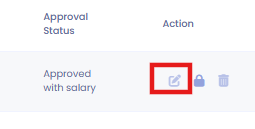
A new window will open, displaying:
- Absence category
- Submitted dates
- Any comments from the driver
Step 3: Approve or Decline the Request
Inside the edit window:
- Select the Status (e.g., Approved, Rejected, Pending).
- Add comments if needed.
- Click Update to finalize the decision.
⚠️ Important: Once an absence request has been updated, it cannot be modified again unless you have the necessary administrative permissions. If you need to make changes to an already approved request, click the lock icon to unlock it and apply the required updates.
🛠 Troubleshooting
I cannot see any absences in the list
- Check if filters are applied (driver, category, status).
- Remove filters and try again.
- Ensure your user role includes access to HR modules (Settings → Admin → User Roles).
The Edit button is missing
- You may not have permission to update absence requests.
A driver’s absence does not appear in TEQ
- Confirm the driver used the Ferdia Driver App and submitted the absence correctly.
- Check the driver's employee card to ensure they are active and properly linked.
Still having issues?
- Reach out to TEQ Support with screenshots and the driver’s name and dates for quick assistance.