
Invoice export
Exporting Invoices in TEQ
TEQ allows you to export invoices with all required financial details, making it easy to upload them into your preferred third-party accounting system. You can export individual invoices, batches, or full periods, and access a complete history of past exports.
Step 1: Open the Invoice Export Page
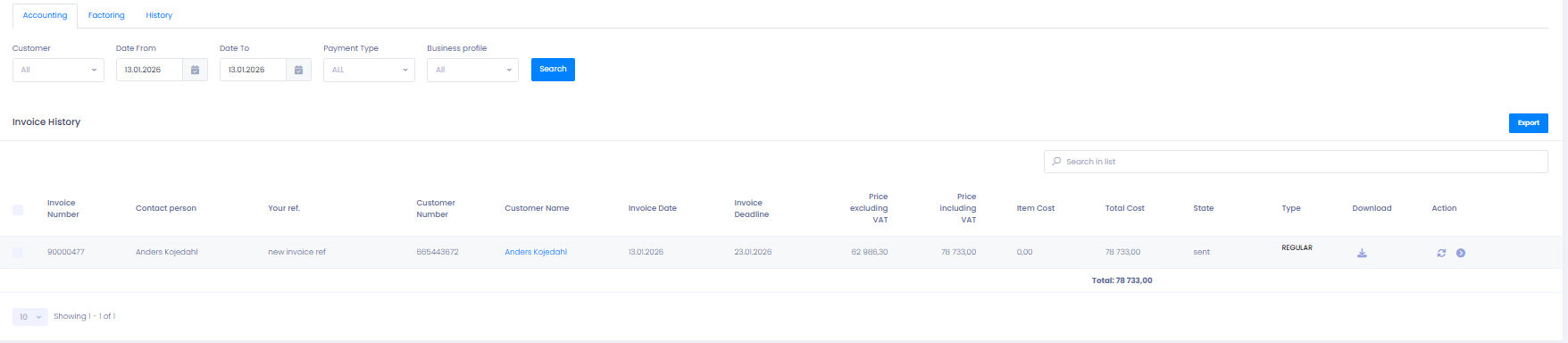
- Go to Invoice → Export from the main navigation.
- Use the filters to select:
- Date range
- Customer
- Type of invoice
- Business profile
Step 2: Select Invoices to Export
You can choose the invoices you want to include in the export:
- ✔️ Select invoices individually
- ✔️ Or select all invoices that match your filter
- 📦 Export multiple invoices in one file
Once you have selected the invoices, click Export.
Step 3: Download Your Export File
After exporting:
- The file is generated immediately and available for download
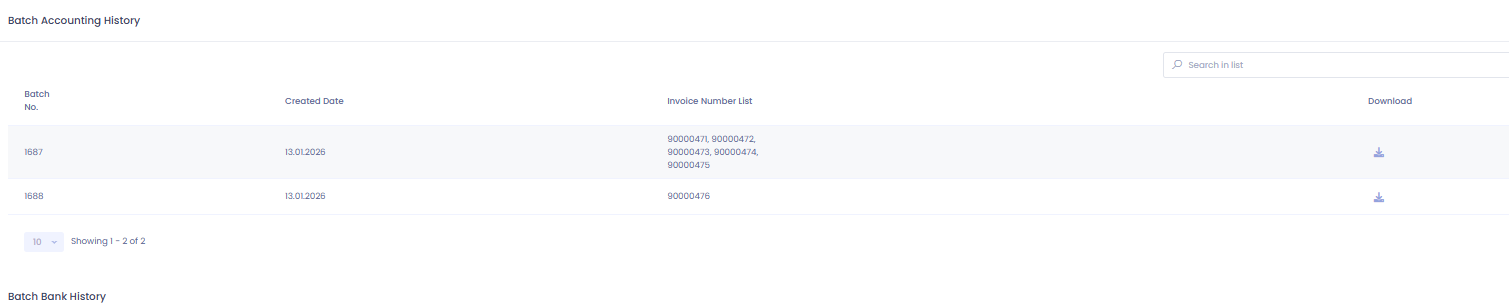
- You can download the file as many times as you want from the History tab
- 🔒 Note: You cannot regenerate the same export file, only re-download it
Step 4: Set Your Accounting Export Format
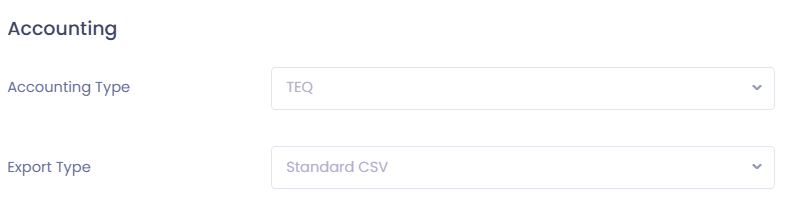
To control the file format used during invoice export:
- Go to Settings → Company → Company Settings
- Scroll down to the Accounting section
- Select your preferred export file format (e.g., CSV, EDI, Xero format)
Your chosen format will be used for all future exports.
🛠 Troubleshooting
Invoices are not appearing in the export list
- Check the date filters, the invoice may fall outside the selected range
- Confirm the invoice is completed and marked as ready for export
Export file cannot be regenerated
- This is expected.
Use the History tab to download the file again.
Export format does not match accounting system requirements
- Go to Settings → Company Settings → Accounting and review the selected export type
- Ensure your external accounting tool accepts the chosen format
Export button is disabled
- Ensure at least one invoice is selected
- Confirm your user role has export permissions (Settings → Admin → User Roles)
Still need help?
- Reach out to TEQ Support with screenshots and the invoice IDs involved