
Language and Country
Updating Your Default Language & Country in TEQ
TEQ allows you to set a default language and country for your company. These settings help standardize your system behavior, influence customer-facing content, and ensure your public query form displays the correct language.
Step 1: Open Language & Locale Settings
- Go to Settings → Company.
- Click the Language and Locale tab.
Step 2: Select Your Preferences
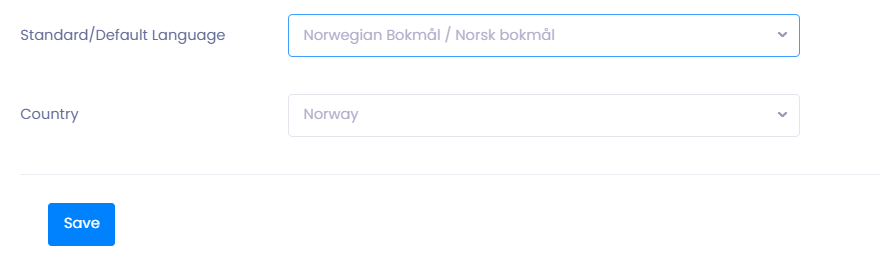
Use the dropdown menus to choose:
- 🗣️ Preferred Language
- 🌐 Preferred Country
After selecting your preferences, click Save to apply your changes.
💡 Tip: Your selected language will also be used on your public query form unless a language parameter is added to the form URL.
🛠 Troubleshooting
Language changes not appearing
- Refresh your browser after saving.
- Clear cached files if older language settings still display.
Query form showing the wrong language
- Check whether the query form URL includes a
?lang=parameter (this overrides default settings). - Confirm the Business Profile connected to the query form uses the intended language.
Country selection not saving
- Ensure you have the correct permissions under your User Role.
- Check that all required Company fields are completed before saving.
Still having trouble?
- Contact TEQ Support with screenshots of your Language & Locale page for faster assistance.